> For the complete documentation index, see [llms.txt](https://handbook.musescore.org/llms.txt). Markdown versions of documentation pages are available by appending `.md` to page URLs; this page is available as [Markdown](https://handbook.musescore.org/pt_br/text/chord-symbols.md).
# Cifras
## Overview
A chord symbol is an abbreviated way of representing a musical chord and its harmony.
MuseScore Studio supports the following ways of representing chords:
* **Chord symbols**: alphabetical chord name plus chord quality. e.g. 'Am'.
* **Roman numeral analysis** (RNA): Roman numeral plus chord quality. e.g. 'vi'.
* **Nashville number system** (NNS): Arabic numeral plus chord quality. e.g. '6m'.
## Chord symbols
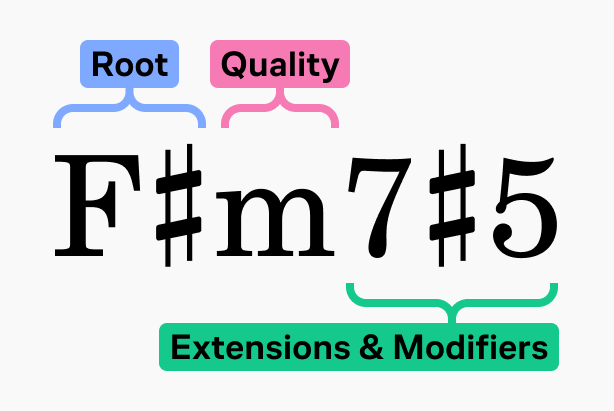
O MuseScore usa esta terminologia para as partes de um símbolo de acorde:
* **Root**: The note that names the chord.
* **Quality**: Major, minor, diminished, half diminished, or augmented.
* **Extensions & modifiers**: Other alterations to the chord (7, sus, no 3, etc.).
Chord symbols are specified in plain text. As soon as you finish editing a chord (by moving to another chord, or by leaving edit mode), the characters are parsed and, as long as MuseScore Studio can understand the sequence, will be formatted correctly.
### Entering chord symbols
1. Select a note, [note slash](/pt_br/alternative-notation/slash-notation.md), or rest.
2. Press `Ctrl`+`K` (Mac: `Cmd`+`K`); the chord symbol entry cursor appears above the staff ready for input.
3. Digite o símbolo de acorde usando esta sintaxe:
* Root note: any letter `A` to `G` (case is not important).
* Accidentals: `#` (sharp), `b` (flat), `x` or `##` (double sharp), `bb` (double flat).
* For other symbols, extensions, and modifiers, see [#chord-symbol-syntax](#chord-symbol-syntax).
4. To move the input cursor forward to the next beat, note, or rest (whichever comes first), press `Space`. For other ways to move the cursor, see [#navigation-commands](#navigation-commands).
5. Para sair do modo de inserção, pressione `Esc` ou clique em um local vazio na partitura.
{% hint style="info" %}
A chord symbol must begin with a root note (any of the letters \`a\` to \`g\`), or an open parenthesis \`(\`.
When chord symbols are formatted, any root note typed in lower case will become capitalized (for alternative options, see [Automatic capitalization](#spelling)) and any characters entered for accidentals are automatically converted into the appropriate music symbols. Do not directly input (or copy and paste) unicode characters such as U+266F (sharp sign, `♯`), or U+266D (flat sign, `♭`), as MuseScore will not render them correctly in chord notation.
{% endhint %}
### Editing a chord symbol
Chord symbols are text items. Double-click on a chord symbol to enter [edit mode](/pt_br/text/entering-and-editing-text.md#editing-text-object-content). While editing, the chord symbol will be shown using text that follows the [syntax](#chord-symbol-syntax) described below. When you leave edit mode, it will again be converted to the correct formatting.
### Chord symbol syntax
O MuseScore entende a maioria das abreviações padrão usadas em símbolos de acorde e os reproduz adequadamente. Elas podem ser inseridas da seguinte forma:
* **Major**: `M`, `Ma`, `Maj`, `ma`, `maj`, `t`
* `t` produces Δ; on Mac, `ˆ` also works
* **Minor**: `m`, `mi`, `min`, `-`
* **Diminished**: `dim`, `o` (renders as ° if using the [Jazz style](#rendering-style-of-chord-symbols-and-nns-but-not-rna); as o, the Greek omicron, otherwise)
* **Half-diminished**: `0` (renders as ø if using the [Jazz style](#rendering-style-of-chord-symbols-and-nns-but-not-rna); as 0 otherwise), or you can use abbreviations such as `mi7b5` etc.
* To get Dø, type `D0`, not `Dm70` or `Dm0`.
* **Augmented**: `aug`, `+`
The following syntax is also accepted:
* **Extensions** and **modifiers:** Examples include `7`, `b9`, `#5`, `sus`, `alt`, `add`, and `no3`.
* **Inversions** and slash chords: Type a slash (`/`) before the altered bass note, for example `C7/E`.
* **Polychords** (multiple chords stacked): type a pipe character (`|`) between two chords, for example `F|C`.
* *Full playback of polychords is not yet supported. Only the first chord will be played.*
You can further format chords using these methods:
* **Parentheses**, which can enclose any part of a chord symbol (or the whole thing)
* **Commas**
* To enter a **space** character within a chord symbol, use `Ctrl`+`Space` (Mac: `Alt`+`Space`).
* To enter an explicit **natural** after the root note, use the keyboard shortcut `Ctrl`+`Shift`+`H` (Mac:`Cmd`+`Shift`+`H`).
* *When using an explicit natural, playback is reduced to just the chord's root note.*
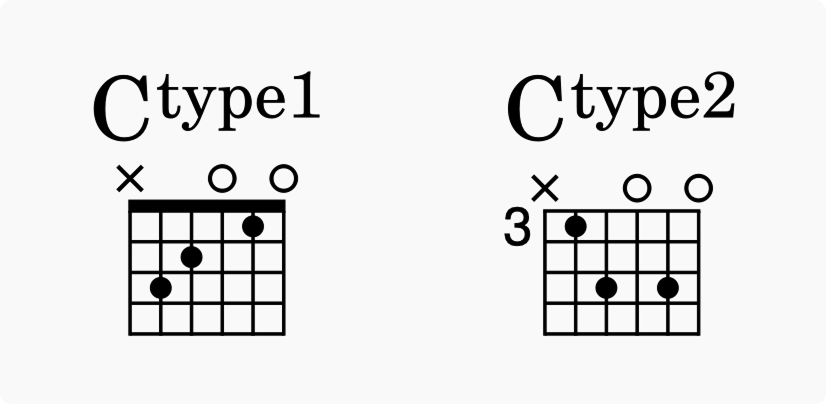
* Inputting `type` followed by any characters at the end of a chord (for example, `Ctype1` or `Ctype2`) adds **superscript** that can be used to denote different versions of the same chord. One way this might be used is to differentiate fretboard diagrams that otherwise have the same chord name.
#### 'No chord' syntax
Type `N.C.` into a chord symbol to indicate that no chord should be played at that point in the score, stopping [playback](#chord-symbol-playback) of any preceding chord symbols on that instrument.
This is the most common marking for specifying silence on the chord symbol track, but you can type any text that MuseScore does not recognize as a chord to achieve the same effect.
### Chord symbols & fretboard diagrams
MuseScore Studio can automatically create guitar fretboard diagrams for most common chords symbols. See [#adding-a-fretboard-diagram-to-your-score](/pt_br/idiomatic-notation/guitar/fretboard-diagrams.md#adding-a-fretboard-diagram-to-your-score).
## Roman numeral analysis
O MuseScore Studio usa uma fonte especializada ([Campania](https://github.com/MarcSabatella/Campania)) para fornecer a formação correta para RNA. Diferente dos símbolos de acorde, ao inserir RNA usando a sintaxe descrita abaixo, os símbolos e a formação corretos serão mostrados a cada tecla pressionada.
### Entering Roman numeral analysis
1. Select a note, [note slash](/pt_br/alternative-notation/slash-notation.md), or rest
2. From the menu, select **Add -> Text -> Roman numeral analysis** (if you use this feature often, you can assign a keyboard shortcut to do the same thing in [Preferences](https://musescore.org/en/handbook/3/preferences#shortcuts))
3. Digite os símbolos RNA do acorde como texto normal, da seguinte forma:
* major chord: upper case roman numerals (`I`, `II`, `III`, `IV`, etc.)
* minor chord: lower case roman numerals (`i`, `ii`, `iii`, `iv`, etc.)
* diminished chord: `o` (lower case)
* half-diminished chord: `0`
* augmented chord: `+`
* inversões de acorde: insira até 3 números de um único dígito, começando pela nota mais alta
* accidentals: `#` (sharp), `b` (flat) or `h` (natural)
4. To move the input cursor, the commands are the same as for chord symbols: see [Navigation commands](#navigation-commands)
5. Para sair do modo de inserção, pressione `Esc` ou clique em um local vazio na partitura.
While inputting, you can prevent any character from being interpreted by prefixing it with `\` (backslash). This could be used, for example, to add the literal letters 'b' or 'h', or to input a non-superscripted number, etc.
Inversões podem ser indicadas usando as letras a, b, c, d simplesmente digitando essas letras.
Para sintaxes mais complexas, veja os seguintes [exemplos](#examples).
### Examples
Digite isto:
Para produzir isto:
{% hint style="info" %}
A notacão de inversão usando numerais árabes alinhados verticalmente com acidentes, como 6#3 (ou seja, um acorde alterado), não é suportada. Como alternativa: crie texto de \[baixo numerado]\(figured-bass.md) ou crie objetos de texto separados e posicione-os manualmente.
{% endhint %}
## Nashville number system
O Sistema de Numeração Nashville (NNS) é um método abreviado de representar acordes pelos graus da escala ao invés de letras de acorde. Isso permite que o acompanhamento seja tocado em qualquer tonalidade a partir do mesmo diagrama de acordes.
### Entering Nashville numbers
Para começar a inserir notacão Nashville:
1. Select a note, [note slash](/pt_br/alternative-notation/slash-notation.md), or rest
2. No menu, selecione **Adicionar → Texto → Número Nashville**.
Assim como nos símbolos de acorde padrão, você pode digitar a notacão Nashville normalmente e o MuseScore fará o possível para reconhecer e formatar os símbolos adequadamente.
Os mesmos [comandos de navegação](#navigation-commands) são usados como para os outros tipos de símbolos de acorde.
An example of the Nashville number system
## Navigation commands
Use the following keyboard shortcuts to move the cursor in chord symbol entry mode:
| Ação | Comando (Windows) | Comando (macOS) |
| -------------------------------------------------------------------------------------------------- | ----------------- | ---------------- |
| Mover cursor para a próxima nota, pausa ou batida | `Espaço` | `Espaço` |
| Mover cursor para a próxima batida | `;` | `;` |
| Mover cursor para a nota, pausa ou batida anterior | `Shift`+`Space` | `Shift`+`Space` |
| Mover cursor para a batida anterior | `:` | `:` |
| Mover cursor para a próxima medida | `Ctrl`+`Direita` | `Cmd`+`Direita` |
| Mover cursor para a medida anterior | `Ctrl`+`Esquerda` | `Cmd`+`Esquerda` |
| Mover cursor por número de [duração](/pt_br/basics/entering-notes-and-rests.md#selecting-duration) | `Ctrl`+`1`-`9` | `Cmd`+`1`-`9` |
| Sair da inserção de símbolo de acorde | `Esc` | `Esc` |
## Chord symbol playback
{% hint style="info" %}
Only \*\*chord symbols\*\* and \*\*Nashville numbers\*\* can be played back; \*\*Roman numeral analysis\*\* cannot.
{% endhint %}
#### To disable or re-enable playback of chord symbols entirely
1. Click the cog button at the right end of the playback controls.
2. In the menu, select **Play chord symbols** to toggle the setting off or on.
#### To disable or re-enable playback of a specific chord symbol
1. Select the chord symbol.
2. Go to the **Properties** panel.
3. In the **General** selection, check or uncheck the **Play** box.
#### To toggle playback of chord symbols on a specific instrument
1. Open the [**Mixer**](/pt_br/sound-and-playback/mixer.md#opening-the-mixer).
2. Find the channel strip for the chords on that instrument (it will be named 'Chords.\[Instrument name]').
3. Toggle its **Mute** button on or off.
#### To change the sound that is used to play chord symbols
1. Open the **Mixer**.
2. Find the channel strip for the chords on that instrument (it will be named 'Chords.\[Instrument name]').
3. Select the dropdown arrow that appears when hovering over the sound name to [choose a new sound](/pt_br/sound-and-playback/mixer.md#to-change-an-instruments-sound).
## Chord symbol style
The global style options for chord symbols are found in **Format -> Style -> Chord symbols**. Not every setting is applicable to every type of chord symbol notation. When not relevant, they will have no effect (for example, switching to **Jazz** style will affect chord symbols and NNS, but not RNA).
Each type of chord symbol notation has its own default text style, which can be configured in **Format -> Style -> Text styles** (**Chord symbol**, **Roman numeral analysis**, **Nashville number**).
### Appearance
#### Style
Isso determina como os símbolos de acorde são renderizados. Afeta todos os símbolos de acorde na partitura e não pode ser sobrescrito para um item específico.
* **Padrão**: o padrão, onde acordes são renderizados usando a fonte de texto padrão, sem formatação adicional
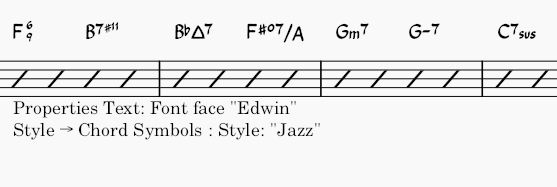
* **Jazz**: a fonte MuseJazz é usada para um visual manuscrito, com sobrescrito distintivo e outras características especiais
* **Legacy MuseScore**: used for scores created in versions of MuseScore Studio prior to [4.6](#user-content-fn-1)
* **Custom**: with this option you can customize the appearance of chord symbols by means of a chord symbols style file (in XML format, with extension `.xml`)
{% hint style="info" %}
Creating and modifying chord symbols style files is a feature for advanced users, but it does offer a way to customize the parsing, formatting and interpretation of chord symbols that goes beyond the options available in the \*\*Style\*\* dialog.
The relevant files are normally to be found in the Styles folder of your installation (e.g. in Windows, by default, `C:\Program Files\MuseScore 4\styles`). Consult the comments in these files for an explanation of their syntax and functionality.
{% endhint %}
You can customize the scale for extensions and modifiers via **Extension/Modifier scaling** (as a proportion of the overall chord symbol size), and their vertical position via **Extension/Modifier vertical offset** (expressed in spaces).
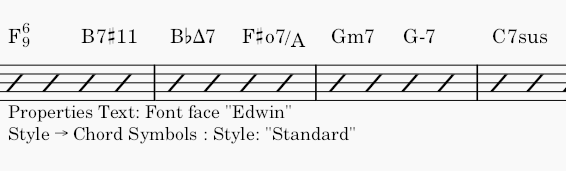
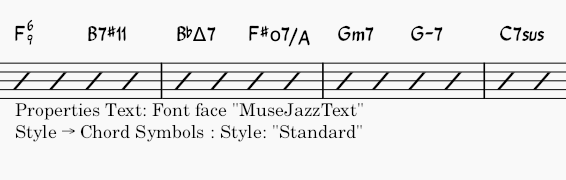
Aqui estão alguns exemplos de como os acordes são renderizados com diferentes configurações:
#### Spelling
{% hint style="info" %}
Essas opções afetam apenas símbolos de acorde (não análise em numeral romano ou números Nashville).
{% endhint %}
As opções a seguir estão disponíveis em **Ortografia**:
* **Padrão**: A, B♭, B, C, C♯... (padrão)
* **Alemão**: A, B♭, H, C, C♯...
* **Alemão completo**: A, B, H, C, Cis...
* **Solfège**: Do, Do♯, Re♭, Re...
* **Francês**: Do, Do♯, Ré♭, Ré...
Se **Capitalização automática** estiver ativada (padrão), o MuseScore capitalizará todas as notas raiz dos acordes, independentemente de serem inseridas em maiúsculas ou minúsculas. Você pode desativar esse comportamento desmarcando a caixa, caso queira que a capitalização permaneça como digitada, ou pode personalizar seu comportamento pelas opções abaixo:
* **Acordes menores em minúsculas**: acordes menores serão exibidos em minúsculas (acordes maiores ainda serão capitalizados)
* **Notas de baixo em minúsculas**: notas de baixo serão exibidas em minúsculas
* **Nomes de notas em caixa alta**: todas as letras nos nomes das notas, não apenas a inicial, serão maiúsculas (ex.: DO, RE, MI)
### Positioning
* **Distância ao diagrama de braço**: a distância entre um símbolo de acorde e um diagrama de braço abaixo dele
* **Espaçamento mínimo entre acordes**: a distância horizontal mínima entre dois símbolos de acorde
* **Distância máxima da linha de compasso**: (*isto controlava a distância entre o último símbolo de acorde em uma medida e a linha de compasso seguinte, mas agora está obsoleto*)
* **Deslocamento máximo acima/abaixo**: a distância máxima que um símbolo de acorde pode ser movido para cima ou para baixo para alinhá-lo com o anterior no sistema. Se definido como 0, os símbolos não alinharão; para forçar todos os sistemas de acordes a alinhar ao longo do sistema, defina um valor alto.
### Playback
{% hint style="info" %}
These options affect chord symbols and Nashville numbers only (not Roman numeral analysis, which is not realized for playback).
They can be overridden for any specific chord symbol via the [**Properties**](#chord-symbol-properties) panel.
{% endhint %}
* **Interpretation**
* **Literal**
* **Jazz:** Adds color tones (e.g. the major 9th) but may also omit certain notes. This depends both on the chord itself and its context, like what chord follows it.
* **Voicing**
* **Automatic**
* **Root only:** Just the bass note
* **Close:** Keeps the notes within the span of an octave
* **Drop two:** Lowers the second-highest note by one octave
* **Six note**
* **Four note:** 3rd, 5th, 7th and 9th intervals
* **Three note**
* **Duration**
* **Until next chord symbol:** Holds the chord until the next chord symbol appears.
* **Until end of measure:** Holds the chord until the end of the measure.
* **Chord/rest duration**: Holds the chord as long as the duration of the note or rest to which the chord symbol is attached.
These options also affect how chords will be realized into notation. See [#generating-chord-voicings-onto-a-staff](#generating-chord-voicings-onto-a-staff).
{% hint style="info" %}
To voice a chord using notes only from the major triad (particularly when using the \*\*Jazz\*\* interpretation), use the triangle symbol (Δ) in the chord's name.
{% endhint %}
#### Capo fret position
{% hint style="info" %}
This feature only applies to chord symbols, not Nashville numbers or Roman numeral analysis.
{% endhint %}
MuseScore can create an extra bracketed chord symbol next to the main one for when playing with a capo. The bracketed symbol, when played using a capo at that position, sounds identical to the unbracketed one.
Para habilitar esse recurso, defina **Posição da casa do capotraste** para um valor acima de 0.
## Chord symbol properties
No painel **Propriedades**, na seção **Símbolo de acorde**, você pode alterar as configurações de reprodução dos acordes selecionados, que substituirão as configurações gerais da partitura.
In the **Text** section you can override properties for the text formatting of the symbol, as for all other text items.
{% hint style="info" %}
The \*\*Font\*\* property is ignored when \*\*Interpretation\*\* is set to \*\*Jazz\*\*.
{% endhint %}
## Transposition
(Veja também o capítulo [Transposição](/pt_br/notation/pitch/transposition.md).)
### Transposing instruments
When switching [**Concert pitch**](/pt_br/notation/pitch/transposition.md#transposed-and-concert-pitch) on or off, chord symbols on transposing instruments will adjust automatically. When concert pitch is off and chord symbols are copy-pasted between transposing and non-transposing instruments, they will be transposed accordingly. Note, however, that chords associated with [fretboard diagrams](/pt_br/idiomatic-notation/guitar/fretboard-diagrams.md) are *not* transposed automatically.
### The Transpose dialog
{% hint style="info" %}
This feature only applies to chord symbols, not Nashville numbers or Roman numeral analysis.
{% endhint %}
Use the [**Transpose**](/pt_br/notation/pitch/transposition.md#using-the-transpose-dialog) dialog (**Tools -> Transpose**) to transpose selected, standalone[^1] chord symbols. To prevent chord symbols from being transposed, uncheck the **Transpose chord symbols** box in the dialog.
### Generating chord voicings onto a staff
MuseScore Studio allows you to generate notes from selected chord symbols and Nashville numbers (but not Roman numeral analysis) . The result will depend on the chord's [playback properties](#chord-symbol-playback).
#### To realize a selection of chord symbols:
1. Make a selection of chord symbols
2. Right-click on any chord in the selection
3. Click **Realize chord symbols**
4. In the **Realize chord symbols** dialog, if you wish to override the default options for the selection, check **Override with custom options** and configure the options below as necessary
5. Click **OK**.
## External links
Para alterar a qualidade do acorde após [gerar vozes de acordes em uma pauta](#generating-chord-voicings-onto-a-staff), use um plugin como:
* [Seletor de Nível de Acordes](https://musescore.org/en/project/chord-level-selector)
* [Inversão seguinte: substitui todos os acordes na seleção (do teclado) por sua inversão seguinte](https://musescore.org/en/project/next-inversion-replaces-all-chords-keyboard-selection-their-next-inversion)
Para identificar harmonia ou acorde, use um plugin como:
* [Identificador de Acordes (Pop & Jazz)](https://musescore.org/en/project/chord-identifier-pop-jazz) para músicas que apresentam cromatismo harmônico intenso, pois a análise de numeral romano criada tem influência de jazz.
* [Identificação de Acordes e Análise de Numeral Romano](https://musescore.org/en/project/chord-id-and-roman-numeral-analysis) para músicas que apresentam tonalidade estável, pois são criadas análises de numeral romano convencionais.
Arquivos de estilo de símbolos de acordes:
* [chords.xml com sobrescrito/sobrescrito e alterações de acordes empilhadas](https://musescore.org/en/node/312296) compartilhado por RunasSudo
* [issue do github Suporte a acordes com extensões empilhadas #16241](https://github.com/musescore/MuseScore/issues/16241) solução alternativa por MarcSabatella
[^1]: Chord symbols with linked fretboard diagrams are not currently transposable.
---
# Agent Instructions
This documentation is published with GitBook. GitBook is the documentation platform designed so that both humans and AI agents can read, navigate, and reason over technical content effectively. Learn more at gitbook.com.
## Querying This Documentation
If you need additional information that is not directly available in this page, you can query the documentation by asking a question.
Perform an HTTP GET request on the following URL with the `ask` and `goal` query parameters:
```
GET https://handbook.musescore.org/pt_br/text/chord-symbols.md?ask=&goal=
```
`ask` is the immediate question: it should be specific, self-contained, and written in natural language.
`goal` is what the user is ultimately trying to achieve, the reason they need the answer. Sharing it helps GitBook give you a better, more relevant answer. A goal is most helpful when it describes the outcome the user wants rather than restating the question. For example, with `ask=how do I create an API token`, a goal like `automate deployments from our CI pipeline` lets GitBook tailor the answer to that use case.
The response will contain a direct answer to the question and relevant excerpts and sources from the documentation.
Use this mechanism when the answer is not explicitly present in the current page, you need clarification or additional context, or you want to retrieve related documentation sections.



.png?alt=media)
.png?alt=media)
.png?alt=media)
.png?alt=media)