> For the complete documentation index, see [llms.txt](https://handbook.musescore.org/llms.txt). Markdown versions of documentation pages are available by appending `.md` to page URLs; this page is available as [Markdown](https://handbook.musescore.org/pt_br/notation/expressive-markings/articulations.md).
# Articulações
Este capítulo discute os símbolos disponíveis na paleta **Articulações** (acentações, staccato, marcações de vibrato etc).
To add verbal articulation objects available in the **Text** palette (*legato, pizz., arco, tremolo* etc) to a score, see [Entering and editing text](/pt_br/text/entering-and-editing-text.md) chapter. Guitar articulation is covered in chapters under [Idiomatic notation: Guitar](/pt_br/idiomatic-notation/guitar.md). Brass or woodwind articulation (fall, doit, plop, scoop) is covered in [Arpeggios and glissandi](/pt_br/notation/expressive-markings/arpeggios-and-glissandos.md#bends).
## Adding articulations to a score
### Keyboard shortcuts
Para adicionar uma articulação com atalho de teclado:
1. Selecione uma ou mais notas.
2. Aplique o atalho correspondente da lista abaixo:
* Marcato: `Shift`+`O`.
* Acento: `Shift`+`V`.
* Tenuto: `Shift`+`N`.
* Staccato: `Shift`+`S`.
### From the toolbar
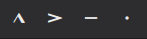
Algumas articulações (acento, marcato, staccato e tenuto) podem ser adicionadas a partir da barra de ferramentas de entrada de notas:
1. Selecione uma ou mais notas.
2. Clique no ícone desejado na área da barra de ferramentas de articulações.
### Articulations palette
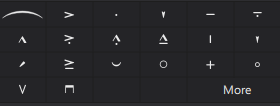
The Articulations palette
Para adicionar um item à partitura:
1. Selecione uma ou mais notas.
2. Clique na articulação desejada na paleta **Articulações**.
Alternativamente, arraste e solte um símbolo de articulação da paleta para uma cabeça de nota.
## Articulations playback
Algumas articulações afetam a reprodução das notas — como staccato, staccatissimo, louré (tenuto + staccato) e acentos. Isso é tratado automaticamente pelo programa.
## Articulation properties
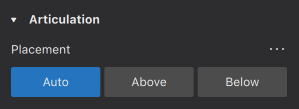
As propriedades editáveis das articulações selecionadas na partitura são mostradas no [**Painel de Propriedades**](/pt_br/basics/properties-panel.md).
* **Posicionamento**: isto altera a posição do símbolo acima ou abaixo da nota.
## Articulation style
*Veja o capítulo principal* [*Modelos e estilos*](/pt_br/customization/templates-and-styles.md).
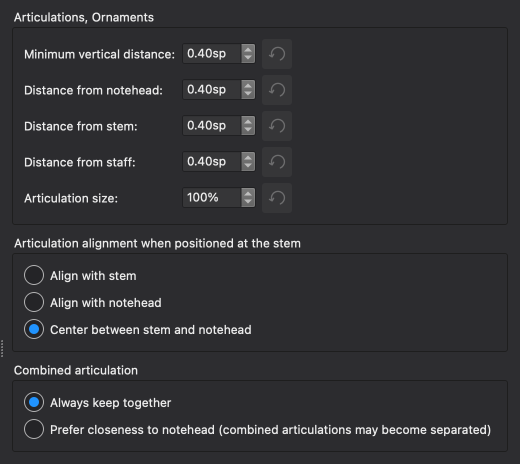
* Os valores de "Estilo para Articulações & Ornamentos" podem ser editados em **Formato → Estilo → Articulações & ornamentos**.
A seguir são mostrados os resultados de algumas opções na partitura.
### Alignment options
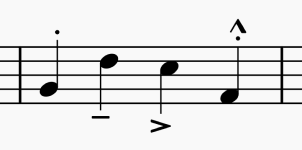
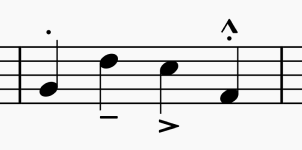
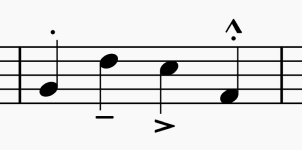
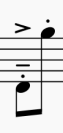
Align with stem
Align with notehead
Center between stem and notehead
### Combined articulation options
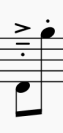
Always keep together
Prefer closeness to notehead (combined articulations may become separated)
---
# Agent Instructions
This documentation is published with GitBook. GitBook is the documentation platform designed so that both humans and AI agents can read, navigate, and reason over technical content effectively. Learn more at gitbook.com.
## Querying This Documentation
If you need additional information that is not directly available in this page, you can query the documentation dynamically by asking a question.
Perform an HTTP GET request on the current page URL with the `ask` query parameter, and the optional `goal` query parameter:
```
GET https://handbook.musescore.org/pt_br/notation/expressive-markings/articulations.md?ask=&goal=
```
`ask` is the immediate question: it should be specific, self-contained, and written in natural language.
`goal` is optional and describes the broader end goal you are ultimately trying to accomplish on behalf of the user. GitBook uses it to tailor the answer towards what is most useful for that goal.
The response will contain a direct answer to the question and relevant excerpts and sources from the documentation.
Use this mechanism when the answer is not explicitly present in the current page, you need clarification or additional context, or you want to retrieve related documentation sections.