> For the complete documentation index, see [llms.txt](https://handbook.musescore.org/llms.txt). Markdown versions of documentation pages are available by appending `.md` to page URLs; this page is available as [Markdown](https://handbook.musescore.org/pt_br/customization/appearance.md).
# Aparência
## Overview
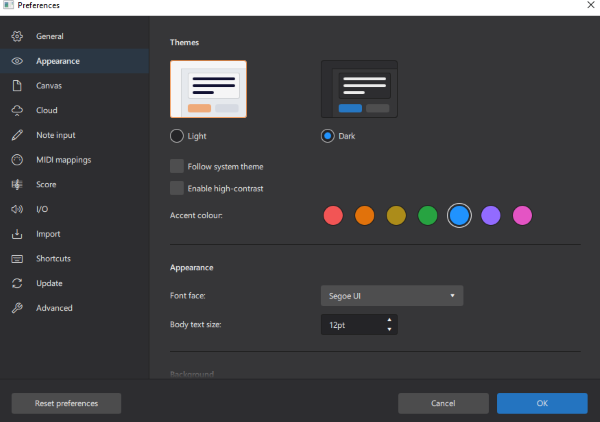
To change the appearance of MuseScore
1. From the menu, select **Edit→Preferences...** (Mac: **MuseScore→Preferences...**);
2. In the `Appearance` tab, select the desired option described below.
## Theme and Colors
As opções a seguir estão disponíveis para alterar as cores do MuseScore. A exibição muda imediatamente, portanto as opções podem ser testadas sem fechar a caixa de diálogo. As alterações se aplicam a todas as instâncias abertas do MuseScore (veja [Janelas](/pt_br/customization/toolbars-and-windows.md#toolbarsandwindows-windows))
* Tema Claro ou Escuro
* Selecione "Seguir tema do sistema" se quiser que o MuseScore altere o tema de claro para escuro, ou de escuro para claro, quando o tema do sistema mudar
* Ativar alto contraste
* Opções de cor de destaque
* Fundo – a cor por trás da partitura (não a cor das paletas e de outros itens do programa) pode ser alterada para uma cor sólida ou uma imagem de papel de parede.
* Papel – a cor da própria partitura pode ser alterada para uma cor sólida ou uma imagem de papel de parede.
* Inverter partitura – troca a cor dos elementos da partitura com a cor do Papel
## Fonts
Para alterar a fonte e o tamanho do texto dos elementos do Menu e das Paletas:
1. No menu, selecione **Editar→Preferências...** (Mac: **MuseScore→Preferências...**);
2. In the `Appearance` tab, select the font options.
Isso não afeta os elementos de texto na partitura.
---
# Agent Instructions
This documentation is published with GitBook. GitBook is the documentation platform designed so that both humans and AI agents can read, navigate, and reason over technical content effectively. Learn more at gitbook.com.
## Querying This Documentation
If you need additional information that is not directly available in this page, you can query the documentation dynamically by asking a question.
Perform an HTTP GET request on the current page URL with the `ask` query parameter, and the optional `goal` query parameter:
```
GET https://handbook.musescore.org/pt_br/customization/appearance.md?ask=&goal=
```
`ask` is the immediate question: it should be specific, self-contained, and written in natural language.
`goal` is optional and describes the broader end goal you are ultimately trying to accomplish on behalf of the user. GitBook uses it to tailor the answer towards what is most useful for that goal.
The response will contain a direct answer to the question and relevant excerpts and sources from the documentation.
Use this mechanism when the answer is not explicitly present in the current page, you need clarification or additional context, or you want to retrieve related documentation sections.