> For the complete documentation index, see [llms.txt](https://handbook.musescore.org/llms.txt). Markdown versions of documentation pages are available by appending `.md` to page URLs; this page is available as [Markdown](https://handbook.musescore.org/nl/text/formatting-text.md).
# Tekst opmaken
## Overzicht
### Opmaakniveaus
De indeling en opmaak in MuseScore kent twee hoofdniveaus: **lees eerst** [**Sjablonen en stijlen**](/nl/customization/templates-and-styles.md). Tekstobjecten hebben fijnere niveaus:
* Niveau 1: **Eigenschappen van elk afzonderlijk tekstobject in een partituurbestand**:
* Opmaak van individuele tekens binnen een tekstobject.
* Opmaak van het object dat alle tekens bevat.
* Niveau 2
* **"stijl voor een bepaald type object"**: je kunt hun waarden wijzigen in ['Stijl' gedeelte: linker venster](/nl/customization/templates-and-styles.md)
* **"stijl voor tekst binnen een bepaald type object"**: je kunt de waarden binnen de [items onder het 'Stijl' gedeelte: linker venster 'Tekststijl'](/nl/customization/templates-and-styles.md) wijzigen
### Uiterlijk en functie van tekstobjecten
\
De uiteindelijke visuele weergave en functie van de meeste objecten in een partituurbestand worden bepaald door:
* Tekens hebben geen specifieke opmaak. Wanneer er opmaak aan wordt toegevoegd, wordt deze altijd gebruikt. Zie [Karakters wijzigen](#changing-formatting-of-characters) hieronder.
* Tekstobjecten hebben geen specifieke eigenschappen. Wanneer eigenschappen zijn ingesteld in het [Eigenschappen paneel](/nl/basics/properties-panel.md), worden deze altijd gebruikt, behalve voor tekens die al een eigen opmaak hebben. Zie details in ["Teksteigenschappen"](#changing-formatting-of-a-text-object) hieronder.
* functionele instellingen: alle objecten op een partituur gebruiken waarden in de **"stijl voor een bepaald type object"**, dit gedrag kan niet worden gewijzigd, maar je kunt de waarden erin wel bewerken.
* visuele instellingen:
* een object op een partituur gebruikt automatisch waarden in de juiste **"stijl voor tekst binnen een bepaald type object"**, zoals "Stijl voor tekst binnen akkoordsymbolen" of "Stijl voor tekst binnen oneven regels van de liedtekst". Dit gedrag kan worden gewijzigd met de eigenschap **Toon meer... > Tekststijl** eigenschap in het [Eigenschappen paneel](/nl/basics/properties-panel.md). Je kunt ook [gebruikmaken van de 12 gebruiker stijlen](#changing-the-values-inside-a-user-1-to-user-12-style).
* **"Stijl voor tekst binnen de notenbalktekst" is speciaal.** Elk tekst gerelateerd object in een partituur gebruikt deze waarden, tenzij deze worden overschreven. Dit gedrag kan niet worden gewijzigd, maar je kunt de waarden binnenin wel bewerken.
* Een subset van tekens gebruikt altijd de lettertype-instellingen in het venster ['Stijl'](/nl/customization/templates-and-styles.md) > Partituur : "Lettertype muzieksymbolen" (8 opties): muzikale tekens zoals Segno, Coda, ottava's, dynamische **tekens** zoals ***mf*** en sommige [Speciale tekens](/nl/text/entering-and-editing-text.md#special-characters). Zie de MuseScore 3-handleiding [Lettertype](https://musescore.org/en/handbook/3/fonts) (grotendeels hetzelfde als in MuseScore 4.1.1, maar geüpgraded en met 2 extra opties).
Opties in het [Eigenschappen paneel](/nl/basics/properties-panel.md) gedragen zich anders afhankelijk van de huidige selectie.
"Lettertype", "Stijl", "Grootte", "Onder- en bovenschrift" zijn zowel objecteigenschappen als opmaakopties voor individuele tekens. Wanneer je **een object** wijzigt via het [Eigenschappen paneel](/nl/basics/properties-panel.md), **wordt incompatibele opmaak van individuele tekens verwijderd**.
"Uitlijning", "Kader" en "Tekststijl" zijn objecteigenschappen. Wanneer je afzonderlijke tekens selecteert en deze opties wijzigt in het [Eigenschappen paneel](/nl/basics/properties-panel.md), worden in plaats daarvan de objecteigenschappen gewijzigd.
## Opmaak van tekens wijzigen
*Om tekstinhoud te bewerken, zie* [*Tekst invoeren en bewerken*](/nl/text/entering-and-editing-text.md)*.*
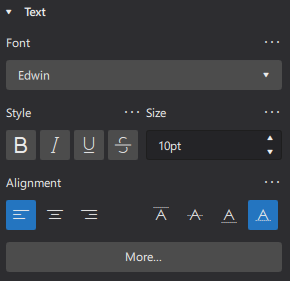
Gebruik het paneel [Eigenschappen](/nl/basics/properties-panel.md) om de opmaak van **individuele tekens**. MuseScore 4 heeft het Instellingenoverzicht, dat aanwezig was in MuseScore 2 en MuseScore 3, bijgewerkt en de functie van de [Tekstwerkbalk (Tekstbewerking)](https://musescore.org/en/handbook/3/text-editing) in het paneel Eigenschappen geïntegreerd.
1. ga naar de *tekstbewerkingsmodus* met behulp van een van de volgende methoden:
* Dubbelklik op het tekstobject.
* Selecteer het tekstobject en druk op `F2` of `Alt`+`Shift`+`E`.
* Klik met de rechtermuisknop op het tekstobject en selecteer `Bewerk element`
2. gemarkeerde tekens
3. pas de opmaak toe in het **Tekst** gedeelte van het Eigenschappen paneel en/of gebruik sneltoetsen (zie [Tekstbewerken](/nl/text/entering-and-editing-text.md#editing-text-object-content)).
## Opmaak van een tekstobject wijzigen
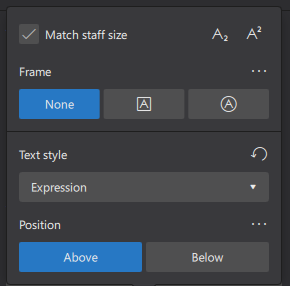
Klik op `Toon meer` om het volgende te zien:
*Om tekstinhoud te bewerken, zie* [*Tekst invoeren en bewerken*](/nl/text/entering-and-editing-text.md)*.*
Gebruik het [Eigenschappen](/nl/basics/properties-panel.md) paneel om de opmaak van het tekstobject te wijzigen, waardoor *mogelijk* alle tekens erin worden gewijzigd:
1. Selecteer tekstobject(en) in een partituur.
2. Bewerk de instellingen in het **Tekst** gedeelte van het [Eigenschappen](/nl/basics/properties-panel.md) paneel.
De opties spreken voor zich, deze speciale instellingen worden weergegeven na het klikken op `Toon meer`:\
**Verschaal met notenbalk grootte**: of de tekstgrootte proportioneel verandert, zie [Pagina-indelingconcepten](/nl/formatting/page-layout-concepts.md).\
**Tekststijl**: Wijzigt welke stijl een tekstobject op een partituur gebruikt, zie [hieronder](#changing-which-style-a-text-object-on-a-score-uses)\
**Positie**: Boven of onder de notenbalk, zie [below](#position)
### Wijzig welke stijl een tekstobject in een partituur gebruikt
In het [Eigenschappen](/nl/basics/properties-panel.md) paneel, gebruik de **Tekststijl** eigenschap onder `Toon meer`. [Het concept van opmaak wordt uitgelegd in het overzicht](#overview). Alleen de "stijl voor tekst binnen een bepaald type object" die een tekstobject op een partituur gebruikt, kan worden gewijzigd. Dit omvat de "Gebruiker-1" ... "Gebruiker-12", zie [hieronder](#changing-the-values-inside-a-user-1-to-user-12-style). Zie [Sjablonen en stijlen](/nl/customization/templates-and-styles.md).
### Positie
Het Eigenschappen paneel wordt gebruikt om opmaak toe te wijzen aan tekstobjecten. Wanneer een tekstobject wordt gewijzigd, *kunnen* alle tekens erin veranderen. Het [Eigenschappen](/nl/basics/properties-panel.md) paneel wordt ook gebruikt om opmaak toe te wijzen aan individuele tekens binnen een tekstobject, wanneer tekens zijn geselecteerd.
Het is belangrijk om te weten dat, *zelfs wanneer tekens binnen een tekstobject zijn geselecteerd, sommige eigenschappen die in het Eigenschappen paneel worden weergegeven, nog steeds de instelling van het tekstobject zijn en niet de eigenschap van het teken.* Dit geldt ook voor de **Positie** eigenschap.
In het [Eigenschappen](/nl/basics/properties-panel.md) paneel, gebruik de **Positie** eigenschap onder `Toon meer` om de opmaak van het Tekst **object**. te wijzigen. Als er een overschrijvende optie bestaat voor dit type object, bijvoorbeeld in 'stijl voor een bepaald type object' maar niet in "stijl voor tekst binnen een bepaald type object", raadpleeg dan het gedeelte ["De waarden binnen een stijl wijzigen"](#changing-the-values-inside-a-style) hieronder. Zie ook het hoofdstuk [Sjablonen en stijlen](/nl/customization/templates-and-styles.md).
## Waarden binnen een stijl wijzigen
[Het concept van opmaak wordt uitgelegd in het overzicht](#overview).
Begrijp eerst [Sjablonen en stijlen](/nl/customization/templates-and-styles.md). Om waarden binnen een stijl te wijzigen, gebruik je het "Stijl" venster: `Opmaak`→`Stijl`.
* **"stijl voor een bepaald type object"**: je kunt de waarden wijzigen in het venster 'Stijl': linker venster.
* **"stijl voor tekst binnen een bepaald type object"**: je kunt de waarden wijzigen in de items onder het venster 'Stijl': in het linker venster 'Tekststijl', of
* Gebruik de efficiëntere methode vanuit het **Eigenschappen** paneel:
1. Selecteer een partituur object dat de stijl gebruikt.
2. Bewerk een eigenschap.
3. Klik op de drie puntjes (…) boven de eigenschap en selecteer "Sla op als standaardstijl voor deze partituur".
4. Herhaal dit voor andere eigenschappen indien nodig.
### De waarden wijzigen binnen de Gebruiker-1 tot en met Gebruiker-12 stijl
Om visuele instellingen toe te wijzen aan een aangepaste stijl: "Gebruiker-1" tot en met "Gebruiker-12", gebruik je het "Stijl" venster: `Opmaak`→`Stijl` > Tekststijlen > Gebruiker-1 ... Gebruiker-12
---
# Agent Instructions
This documentation is published with GitBook. GitBook is the documentation platform designed so that both humans and AI agents can read, navigate, and reason over technical content effectively. Learn more at gitbook.com.
## Querying This Documentation
If you need additional information that is not directly available in this page, you can query the documentation by asking a question.
Perform an HTTP GET request on the following URL with the `ask` and `goal` query parameters:
```
GET https://handbook.musescore.org/nl/text/formatting-text.md?ask=&goal=
```
`ask` is the immediate question: it should be specific, self-contained, and written in natural language.
`goal` is what the user is ultimately trying to achieve, the reason they need the answer. Sharing it helps GitBook give you a better, more relevant answer. A goal is most helpful when it describes the outcome the user wants rather than restating the question. For example, with `ask=how do I create an API token`, a goal like `automate deployments from our CI pipeline` lets GitBook tailor the answer to that use case.
The response will contain a direct answer to the question and relevant excerpts and sources from the documentation.
Use this mechanism when the answer is not explicitly present in the current page, you need clarification or additional context, or you want to retrieve related documentation sections.