> For the complete documentation index, see [llms.txt](https://handbook.musescore.org/llms.txt). Markdown versions of documentation pages are available by appending `.md` to page URLs; this page is available as [Markdown](https://handbook.musescore.org/nl/text/entering-and-editing-text.md).
# Tekst invoeren en bewerken
## Overzicht
MuseScore beschikt over verschillende tekstbewerkingsfuncties. Dit hoofdstuk en andere hoofdstukken in het handboekgedeelte 'Tekst' richten zich op de [MuseScore-tekstobjecten](#musescore-text-object), individuele objecten die op een partituur kunnen worden geplaatst, en objecten die tekst bevatten. Er zijn ook [partituur instellingen](#score-settings) waarmee automatisch tekst aan pagina's kan worden toegevoegd.
## Soorten tekst
### MuseScore Tekstobject
Een MuseScore-tekstobject is een object in een partituur dat afzonderlijke tekens bevat die kunnen worden ingevoerd en verwijderd door te typen op een computertoetsenbord. Het is meestal gekoppeld aan een noot of een rust, sommige zijn gekoppeld aan een ander object.
* Notenbalktekst kan aan een notenbalk worden gekoppeld.
* Sprongen en markeringen zijn aan maten gekoppeld.
* Sommige soorten (**Titel, Ondertitel** enz.) moeten aan een kader worden gekoppeld, zie de hoofdstukken [Kader](/nl/formatting/using-frames-for-additional-content.md) en [Tekstblokken](/nl/text/text-blocks.md).
De verschillende soorten tekstobjecten zijn niet uitwisselbaar. Ze hebben verschillende eigenschappen die bepalen hoe MuseScore werkt. Een **Notenbalktekst** object dat is opgemaakt als metronoom markering kan bijvoorbeeld nooit worden geconfigureerd om het afspeeltempo in MuseScore te wijzigen. Hiervoor moet het **Tempo** object worden gebruikt.
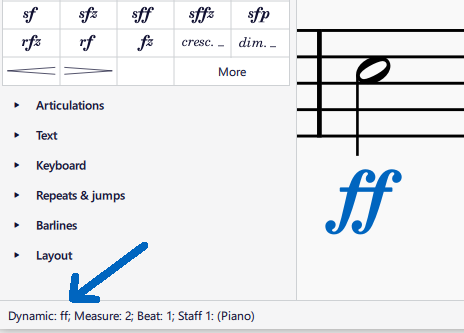
Om het objectsoort te controleren, selecteer je een object in de partituur; het soort wordt vervolgens weergegeven in de statusbalk.
| Tekstobject soort | Toepassing |
| ----------------------------------------------------------------------------------------- | ----------------------------------------------------------------------------------------------------------------------------------------------------------------------------------------------------------------------------------------------------------------------------------------------------------------------------------------------------------------------------------------------------------------------------------------------------------------------------------------------------------------------------------------------------------------------------------------------------------------- |
| Notenbalktekst | Algemene tekst voor één MuseScore-instrument. Kan worden geconfigureerd voor afspelen in swing of [geluidskenmerken](/nl/sound-and-playback/sound-flags.md). Zie [Een partituur opzetten](/nl/basics/setting-up-your-score.md) en [Notenbalktekst, systeemtekst en expressietekst](/nl/text/staff-system-and-expression-text.md). |
| Systeemtekst | Vergelijkbaar met notenbalktekst, maar dan voor alle instrumenten in het systeem (pagina-indeling). Zie het hoofdstuk [Pagina-indelingconcepten](/nl/formatting/page-layout-concepts.md) en [Notenbalktekst, systeemtekst en expressietekst](/nl/text/staff-system-and-expression-text.md). |
| Expressietekst | Het *expressie* item in het **Tekst** [palet](/nl/basics/using-the-palettes.md). Een nieuw type geïntroduceerd in MuseScore 4. Heeft geen invloed op het afspelen in MuseScore vanaf MuseScore 4.2. Zie het hoofdstuk [Notenbalktekst, systeemtekst en expressietekst](/nl/text/staff-system-and-expression-text.md). |
| Instrumentwijziging | Het **Wijzig instr.** item in het **Tekst** [palet](/nl/basics/using-the-palettes.md). Wijzig het MuseScore-instrument na de verankerde noot of rust. Zie de hoofdstukken [Een partituur opzetten](/nl/basics/setting-up-your-score.md) en [Instrumentwisselingen in de partituur](/nl/notation/instruments-staves-and-systems/mid-score-instrument-changes.md). |
| Dynamisch teken | Zoals ***p*** en ***mf***, zijn tekstfragmenten die de afspeeldynamiek van MuseScore beïnvloeden. Zie het hoofdstuk [Dynamiek](/nl/notation/expressive-markings/dynamics-and-hairpins.md). |
| Cresc./decresc.-teken | Zoals *cresc.* en *dim.*, zijn tekstlijnen die de afspeeldynamiek van MuseScore beïnvloeden. Zie het hoofdstuk [Crescendo/decrescendo-tekens](https://github.com/shoogle/Handbook/blob/nl/docs/text/broken-reference/README.md). |
| Speeltechniek annotatie | De legato. pizz. etc items in het **Tekst** [palet](/nl/basics/using-the-palettes.md). **\[Deze informatie is nog in ontwikkeling, de softwarefunctionaliteit wordt actief ontwikkeld. Raadpleeg en update de volgende hoofdstukken:** [**Notenbalktekst, systeemtekst en expressietekst**](/nl/text/staff-system-and-expression-text.md)**,** [**Dynamiek**](/nl/notation/expressive-markings/dynamics-and-hairpins.md)**,** [**Mixer**](/nl/sound-and-playback/mixer.md)**,** [**Begrippenlijst**](/nl/appendix/glossary.md) **en** [**Articulaties**](/nl/notation/expressive-markings/articulations.md) **]** |
| Tempo | Numeriek metronoomteken, verbale aanwijzing. Een tekstsoort dat het afspeeltempo van MuseScore aangeeft. Zie het hoofdstuk [Tempomarkeringen](/nl/text/tempo-markings.md). |
| Geleidelijke tempoverandering | Zoals **accel.**. Een nieuwe tekstlijn soort, geïntroduceerd in MuseScore 4, dat het afspeeltempo van MuseScore beïnvloedt. Zie [Tempomarkeringen](/nl/text/tempo-markings.md). |
| **Swing** en **Straight** item in het **Tempo** [palet](/nl/basics/using-the-palettes.md) | Een vooraf geconfigureerde systeemtekst. Zie de hoofdstukken [Swing afspelen](/nl/sound-and-playback/swing-playback.md) en [Notenbalktekst, systeemtekst en expressietekst](/nl/text/staff-system-and-expression-text.md). |
| Liedtekst | Met de toetsencombinatie Ctrl+V kun je woorden uit het klembord opsplitsen, plakken en vervolgens gemakkelijk naar het volgende ankerpunt springen. Zie het hoofdstuk [Liedtekst](/nl/text/lyrics.md). |
| Spring | Zoals "D.C."(Da Capo), "D.S. al Coda" enz. zijn te vinden in het **Herhalingen & sprongen** [palet](/nl/basics/using-the-palettes.md). Zie [Herhalingen en sprongen](/nl/notation/repeats/jumps-and-markers.md). |
| Markering | Het Capo-symbool, het Segno-symbool, "Fine", "To Coda" enz. zijn te vinden in de **Herhalingen & sprongen** [palet](/nl/basics/using-the-palettes.md). Zie [Herhalingen en sprongen](/nl/notation/repeats/jumps-and-markers.md). |
| Repetitieteken | Het omkaderde item **B1** in het **Tekst** [palet](/nl/basics/using-the-palettes.md). Faciliteer repetitietekens, verdeel de partituur in secties, markeer passages etc. Zie [Repetitiemarkeringen](/nl/text/rehearsal-marks.md). |
| Akkoordsymbool | Heeft afspeelfunctie, noten worden automatisch bepaald. Zie [Akkoordsymbolen](/nl/text/chord-symbols.md). |
| Nashville-cijfer | Heeft een afspeelfunctie, vergelijkbaar met het akkoordsymbool. Zie [Akkoordsymbolen: Nashville Nummer Systeem (NNS)](/nl/text/chord-symbols.md#entering-a-nashville-number). |
| Romeins cijfer | Geen afspeelfunctie. Zie [Akkoordsymbolen: Romeinse Cijfer Analyse (RNA)](/nl/text/chord-symbols.md#rna). |
| Basso continuo | Een historische notatie voor klavier. Geen afspeelfunctie. Zie [Becijferde bas](/nl/text/figured-bass.md). |
| Stokzetting | Letters (L en R) die aan (trommel)noten zijn bevestigd, geven aan welke hand of voet je moet gebruiken. Zie [Stokzetting](/nl/idiomatic-notation/percussion/other-percussion-notation.md#sticking). |
| Vingerzetting | Nummers of letters die aan de noten zijn bevestigd, geven aan welke vingers je moet gebruiken. Zie [Vingerzetting](/nl/text/fingering.md). |
| Titel, ondertitel, componist, tekstschrijver en tekst (tekstblok) | Dit zijn tekstsoorten die bedoeld zijn om in een kader te worden geplaatst. Zie [Tekstblokken](/nl/text/text-blocks.md) en [Kaders](/nl/formatting/using-frames-for-additional-content.md). Dit is *niet* de plaatshoudertekst die in de kop- en voettekst wordt gebruikt, zie de sectie ["Partituur instelling"](#score-settings). |
| Tekstlijn, inclusief Volta, Pedaal etc. soorten | Volta etc. te vinden in het **Herhalingen & sprongen** [palet](/nl/basics/using-the-palettes.md). Pedaal te vinden in **Pedaalmarkeringen** palet. Ottava (8--, 8ve, 8va, 15--) enz. te vinden in **Toonhoogte** palet. Gitaar barré-lijnen enz. Zie [Andere lijnen](/nl/notation/expressive-markings/other-lines.md). |
### Partituur instellingen
De lange en korte naam van het MuseScore-instrument (zie [Een partituur opzetten](/nl/basics/setting-up-your-score.md) worden automatisch links van de notenbalk toegevoegd in elk systeem (pagina-indeling, zie [Pagina-indelingconcepten](/nl/formatting/page-layout-concepts.md)). Namen kunnen direct in een partituur worden gewijzigd met behulp van de **tekstbewerkingsmodus** of via het venster **Notenbalk/partij-eigenschappen**, zie [Notenbalk/partij-eigenschappen](/nl/notation/instruments-staves-and-systems/staff-part-properties.md). Standaard worden ze alleen toegevoegd als er meer dan één instrument is. Om dit standaardgedrag te wijzigen, past je de instelling aan onder **Opmaak → Stijl → Partituur**.
Maatnummers kunnen automatisch worden toegevoegd. Configureer dit via **Opmaak → Stijl → Maatnummers**, zie [Maatnummering](/nl/notation/rhythm-meter-and-measures/measure-numbering.md).
De kop- en voettekst functie van MuseScore voegt *automatisch* tekst toe aan *elke* pagina. Configureer dit via **Opmaak → Stijl → Kop- & voettekst**. Plaatshoudertekst (speciale symbolen) kunnen worden gebruikt om informatie toe te voegen zoals het huidige paginanummer, auteursrechtvermeldingen, enz. Plaatshoudertekst wordt ook gebruikt om dynamisch metadata-tags, de digitale gegevens van een partituurbestand, aan de partituur toe te voegen. Zie [Kop- en voettekst](/nl/text/header-and-footer.md).
## Een tekstobject toevoegen aan de partituur
De verschillende typen tekstobjecten zijn niet onderling verwisselbaar. *Kies het geschikte object soort voordat je het toevoegt.* Gebruik de tabel onder het gedeelte [MuseScore-tekstobjecten](#musescore-text-object). Voor algemene tekst of visuele weergave wordt aanbevolen om [Notenbalktekst](/nl/text/staff-system-and-expression-text.md) of [Systeemtekst](/nl/text/staff-system-and-expression-text.md) te gebruiken.
Hieronder wordt uitgelegd hoe je tekst kunt toevoegen aan een noot, een rust of een geldig ankerpunt buiten kaders. Het toevoegen van tekst aan een [kader](/nl/formatting/using-frames-for-additional-content.md) wordt behandeld in het hoofdstuk [Tekstblokken](/nl/text/text-blocks.md).
### Vanuit een palet
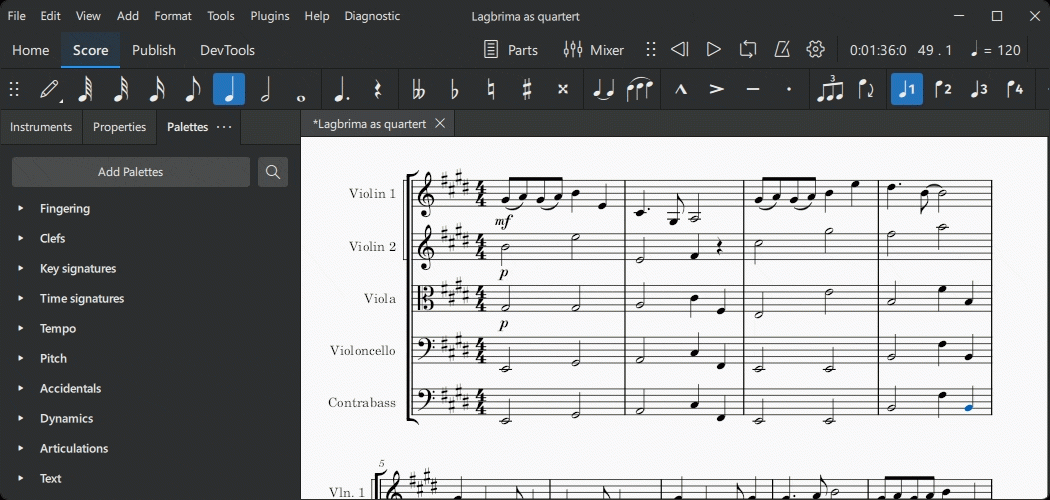
Om een tekstelement vanuit een [Palet](/nl/customization/palettes.md) aan de partituur toe te voegen, selecteer je een of meer noten/rusten en klik je op het gewenste paletitem of sleep je de tekst vanuit het palet naar een noot/rust. Bijvoorbeeld:
### Vanuit het menu
Als het tekstobject aan een notenbalk is gekoppeld, kun je het toevoegen door een noot te selecteren en vervolgens een tekst optie te kiezen via **Voeg toe → Tekst**.
### Een sneltoets gebruiken
Veel tekstsoorten kunnen worden ingevoerd met behulp van sneltoetsen. Sneltoetsen worden rechts van de items in **Voeg toe → Tekst** weergegeven.
Om een tekstobject te maken, selecteer je een noot en voer je vervolgens de gewenste sneltoets in.
## Een tekstobject verwijderen uit de partituur
*Om \*tekst die automatisch is toegevoegd door de partituurinstellingen\* te bewerken, zie het* [*"Partituur instelling"*](#score-settings) *gedeelte*.
Om *object(en) uit een partituur* te verwijderen, [selecteer](/nl/basics/selecting-elements.md) de objecten en druk op `Backspace` of `Del`.
## Tekstobjectinhoud bewerken
*Om \*tekst die automatisch is toegevoegd door de partituurinstellingen\* te bewerken, zie het* [*"Partituur instelling"*](#score-settings) *gedeelte*.
Tekst- en tekstlijnobjecten worden op twee verschillende manieren bewerkt, afhankelijk van het object soort:
* bewerk rechtstreeks in de **tekstbewerkingsmodus**, zoals hieronder uitgelegd of
* bewerk de eigenschappen in het [Eigenschappen paneel](/nl/basics/properties-panel.md), raadpleeg het specifieke hoofdstuk van het tekstobject.
Om de **tekstbewerkingsmodus** te openen, kun je een van de volgende methoden gebruiken:
* Dubbelklik op het tekstobject, of
* Selecteer het tekstobject en druk op `Enter`, of
* Selecteer het tekstobject en druk op `F2` of `Alt`+`Shift`+`E`, of
* Klik met de rechtermuisknop op het tekstobject en selecteer "Bewerk element".
Om de **tekstbewerkingsmodus** te verlaten, druk je op `Esc` of klik je op een gedeelte van de partituur buiten het bewerkingsgebied.
### Toetsenbord sneltoetsen beschikbaar in de tekstbewerkingsmodus
De volgende sneltoetsen zijn beschikbaar in de **tekstbewerkingsmodus**:
| Functie | Windows & Linux | macOS |
| ---------------------------------------- | -------------------------------------------------------------- | ---------------------------------------------- |
| **Vet** (in-/uitschakelen) | `Ctrl`+`B` | `Cmd`+`B` |
| *Cursief* (in-/uitschakelen) | `Ctrl`+`I` | `Cmd`+`I` |
| Onderstrepen (in-/uitschakelen) | `Ctrl`+`U` | `Cmd`+`U` |
| Verplaats cursor | (`Ctrl`+) `Links`, `Rechts`, `Omhoog`, `Omlaag`, `Home`, `End` | (`Alt`+) `Links`, `Rechts`, `Omhoog`, `Omlaag` |
| Verwijder het teken links van de cursor | `Backspace` | `Backspace` |
| Verwijder het teken rechts van de cursor | `Del` | `Del` of `Fn`+`Backspace` |
| Begin een nieuwe regel | `Return` | `Return` |
| Speciale tekens invoegen (zie hieronder) | `Shift`+`F2` | `Shift`+`F2` |
### Speciale tekens
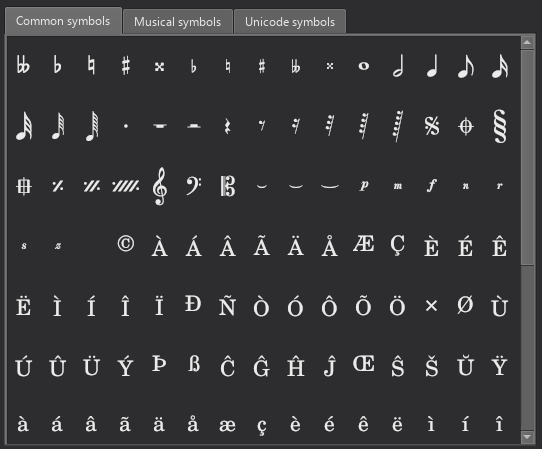
Tekens die niet beschikbaar zijn op het standaardtoetsenbord, kunnen worden toegevoegd via het **Speciale tekens** venster.
Om **Speciale tekens** te openen, in de **tekstbewerkingsmodus** (zie ["Inhoud van tekstobjecten bewerken"](#editing-text-object-content)), druk je op `Shift`+`F2` of klik je op `Voeg speciale tekens in` in het **Tekst** gedeelte van het [Eigenschappen](/nl/basics/properties-panel.md) paneel.
Het dialoogvenster is verdeeld in 3 tabbladen: **Algemene symbolen, Muziek symbolen en Unicode symbolen**. De tabbladen Muziek en Unicode zijn verder onderverdeeld in alfabetisch geordende categorieën. Het is raadzaam om de items in het tabblad **Algemene symbolen** te gebruiken, aangezien deze functioneel zijn (zie [Lettertype](https://musescore.org/en/handbook/3/fonts).
Door op een item in het dialoogvenster Speciale tekens te klikken, wordt dit direct toegevoegd aan de tekst op de positie van de cursor. Meerdere items kunnen worden toegepast zonder het dialoogvenster te sluiten, en de gebruiker kan zelfs gewoon blijven typen, tekens verwijderen, numerieke tekencodes invoeren, enzovoort, terwijl het dialoogvenster open is.
In de **tekstbewerkingsmodus** voegen de volgende sneltoetsen een *functionele* versie van speciale tekens (indien mogelijk) toe aan het huidige tekstobject. Zie het MuseScore-handboek, hoofdstuk [Lettertype](https://musescore.org/en/handbook/3/fonts).
| Karakter | Windows & Linux | macOS | Noot |
| ---------------------------- | ------------------ | ----------------- | -------------------------------------------------- |
| **Kruis ♯** | `Ctrl`+`Shift`+`#` | `Cmd`+`Shift`+`#` | Werkt mogelijk niet met alle toetsenbordindelingen |
| **Mol ♭** | `Ctrl`+`Shift`+`B` | `Cmd`+`Shift`+`B` | |
| **Herstellingsteken ♮** | `Ctrl`+`Shift`+`H` | `Cmd`+`Shift`+`H` | |
| **Piano *****p*** | `Ctrl`+`Shift`+`P` | `Cmd`+`Shift`+`P` | |
| **Forte *****f*** | `Ctrl`+`Shift`+`F` | `Cmd`+`Shift`+`F` | |
| **Mezzo *****m*** | `Ctrl`+`Shift`+`M` | `Cmd`+`Shift`+`M` | |
| **Rinforzando *****r*** | `Ctrl`+`Shift`+`R` | `Cmd`+`Shift`+`R` | |
| **Sforzando *****s*** | `Ctrl`+`Shift`+`S` | `Cmd`+`Shift`+`S` | |
| **Niente *****n*** | `Ctrl`+`Shift`+`N` | `Cmd`+`Shift`+`N` | |
| **Z *****z*** | `Ctrl`+`Shift`+`Z` | `Cmd`+`Shift`+`Z` | |
| **Elisie *****‿*** | `Ctrl`+`Alt`+`-` | `Cmd`+`Alt`+`-` | |
---
# Agent Instructions
This documentation is published with GitBook. GitBook is the documentation platform designed so that both humans and AI agents can read, navigate, and reason over technical content effectively. Learn more at gitbook.com.
## Querying This Documentation
If you need additional information that is not directly available in this page, you can query the documentation dynamically by asking a question.
Perform an HTTP GET request on the current page URL with the `ask` query parameter, and the optional `goal` query parameter:
```
GET https://handbook.musescore.org/nl/text/entering-and-editing-text.md?ask=&goal=
```
`ask` is the immediate question: it should be specific, self-contained, and written in natural language.
`goal` is optional and describes the broader end goal you are ultimately trying to accomplish on behalf of the user. GitBook uses it to tailor the answer towards what is most useful for that goal.
The response will contain a direct answer to the question and relevant excerpts and sources from the documentation.
Use this mechanism when the answer is not explicitly present in the current page, you need clarification or additional context, or you want to retrieve related documentation sections.