> For the complete documentation index, see [llms.txt](https://handbook.musescore.org/llms.txt). Markdown versions of documentation pages are available by appending `.md` to page URLs; this page is available as [Markdown](https://handbook.musescore.org/nl/text/chord-symbols.md).
# Akkoordsymbolen
## Overzicht
Een akkoordsymbool is een verkorte manier om een muzikaal akkoord en de bijbehorende harmonie weer te geven.
MuseScore Studio ondersteunt de volgende manieren om akkoorden weer te geven:
* **Akkoordsymbolen**: alfabetische akkoordnaam plus akkoordkwaliteit. Bijvoorbeeld 'Am'.
* **Romeinse cijferanalyse** (RNA): Romeins cijfer plus akkoordkwaliteit. Bijvoorbeeld 'vi'.
* **Nashville-nummersysteem** (NNS): Arabisch cijfer plus akkoordkwaliteit. Bijvoorbeeld '6m'.
## Akkoordsymbolen
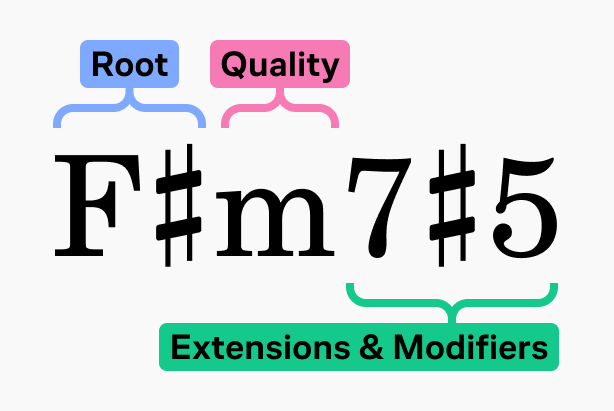
MuseScore gebruikt de volgende terminologie voor de delen van een akkoordsymbool:
* **Grondtoon**: De noot die de naam van het akkoord bepaalt.
* **Kwaliteit**: Majeur, mineur, verminderd, half-verminderd of overmatig.
* **Uitbreidingen & toevoegingen**: Andere wijzigingen aan het akkoord (7, sus, geen 3, enz.).
Akkoordsymbolen worden meestal als gewone tekst ingevoerd. Zodra je klaar bent met het invoeren of bewerken van een akkoord (door naar een ander akkoord te gaan of de bewerkingsmodus te verlaten), worden de tekens geanalyseerd en, zolang MuseScore Studio de volgorde kan begrijpen, correct opgemaakt.
### Akkoordsymbolen invoeren
1. Selecteer een noot, [schuine streep noot](/nl/alternative-notation/slash-notation.md) of rust.
2. Druk op `Ctrl`+`K` (Mac: `Cmd`+`K`); de cursor voor het invoeren van akkoordsymbolen verschijnt boven de notenbalk, klaar voor invoer.
3. Typ het akkoordsymbool met behulp van deze syntax:
* Grondtoon: elke letter `A` tot en met `G` (hoofdletters en kleine letters zijn niet belangrijk).
* Voortekens: `#` (kruis), `b` (mol), `x` of `##` (dubbelkruis), `bb` (dubbelmol).
* Voor andere symbolen, uitbreidingen en toevoegingen/modificaties, zie [#chord-symbol-syntax](#chord-symbol-syntax).
4. Om de cursor naar de volgende tel, noot of rust te verplaatsen (afhankelijk van wat het eerst komt), druk je op de `Spatie`. Voor andere manieren om de cursor te verplaatsen, zie [#navigation-commands](#navigation-commands).
5. Om de invoermodus te verlaten, druk je op `Esc` of klik je op een lege plaats in de partituur.
{% hint style="info" %}
Een akkoordsymbool moet beginnen met een grondtoon (een van de letters \`a\` tot en met \`g\`), of een haakje \`(\`.
Bij het opmaken van akkoordsymbolen wordt elke grondtoon die in kleine letters wordt ingevoerd, in een hoofdletter weergegeven (zie [Automatische hoofdlettergebruik](#spelling) voor alternatieve opties) en worden alle ingevoerde voortekens automatisch omgezet in de juiste muzieksymbolen. Voer geen Unicode-tekens zoals U+266F (kruis, `♯`) of U+266D (mol, `♭`) rechtstreeks in (of kopieer en plak ze niet), aangezien MuseScore deze niet correct weergeeft in akkoordnotatie.
{% endhint %}
### Een akkoordsymbool bewerken
Akkoordsymbolen zijn tekstelementen. Dubbelklik op een akkoordsymbool om de [bewerkingsmodus](/nl/text/entering-and-editing-text.md#editing-text-object-content) te openen. Tijdens het bewerken wordt het akkoordsymbool weergegeven als tekst volgens de hieronder beschreven [syntaxis](#chord-symbol-syntax). Wanneer je de bewerkingsmodus verlaat, wordt het symbool weer omgezet naar de juiste opmaak.
### Akkoordsymbool syntaxis
MuseScore begrijpt de meeste standaardafkortingen die in akkoordsymbolen worden gebruikt en speelt deze correct af. Ze kunnen als volgt worden ingevoerd:
* **Majeur**: `M`, `Ma`, `Maj`, `ma`, `maj`, `t`
* `t` produceert Δ; op Mac werkt `ˆ` ook
* **Mineur**: `m`, `mi`, `min`, `-`
* **Verminderd**: `dim`, `o` (wordt weergegeven als ° bij gebruik van de [Jazz stijl](#rendering-style-of-chord-symbols-and-nns-but-not-rna); anders als o, de Griekse omicron)
* **Half-verminderd**: `0` (wordt weergegeven als ø bij gebruik van de [Jazz stijl](#rendering-style-of-chord-symbols-and-nns-but-not-rna); anders als 0), of je kunt afkortingen gebruiken zoals `mi7b5` enz.
* Om Dø te krijgen, typ je `D0`, niet `Dm70` of `Dm0`.
* **Overmatig**: `aug`, `+`
De volgende syntaxis wordt ook geaccepteerd:
* **Uitbreidingen** en **toevoegingen:** Voorbeelden zijn `7`, `b9`, `#5`, `sus`, `alt`, `add` en `no3`.
* **Inversies** en schuine streep-akkoorden: Typ een schuine streep (`/`) vóór de gewijzigde basnoot, bijvoorbeeld `C7/E`.
* **Polykorden** (meerdere akkoorden op elkaar gestapeld): typ een pipe-teken (`|`) tussen twee akkoorden, bijvoorbeeld `F|C`.
* *Het volledig afspelen van polykorden wordt nog niet ondersteund. Alleen het eerste akkoord wordt afgespeeld.*
Je kunt akkoorden verder opmaken met behulp van de volgende methoden:
* **Haakjes**, die elk deel van een akkoordsymbool (of het geheel) kunnen omsluiten
* **Komma's**
* Om een **spatie** in een akkoordsymbool in te voeren, gebruik je `Ctrl`+`Spatie` (Mac: `Alt`+`Spatie`).
* Om na de grondtoon een expliciet **herstellingsteken** in te voeren, gebruik je de sneltoets `Ctrl`+`Shift`+`H` (Mac:`Cmd`+`Shift`+`H`).
* *Bij gebruik van een expliciet herstellingsteken wordt het afspelen beperkt tot alleen de grondtoon van het akkoord.*
* Inputting `type` followed by any characters at the end of a chord (for example, `Ctype1` or `Ctype2`) adds **superscript** that can be used to denote different versions of the same chord. One way this might be used is to differentiate fretboard diagrams that otherwise have the same chord name.
#### 'Geen akkoord' syntaxis
Typ `N.C.` in een akkoordsymbool om aan te geven dat er op dat punt in de partituur geen akkoord gespeeld mag worden, waardoor het [afspelen](#chord-symbol-playback) van alle voorgaande akkoordsymbolen op dat instrument wordt gestopt.
Dit is de meest gebruikelijke markering om stilte aan te geven op de akkoordsymbooltrack, maar je kunt elke tekst typen die MuseScore niet als akkoord herkent om hetzelfde effect te bereiken.
### Akkoordsymbolen & fretborddiagrammen
MuseScore Studio kan automatisch gitaarfretborddiagrammen maken voor de meest voorkomende akkoordsymbolen. Zie [#adding-a-fretboard-diagram-to-your-score](/nl/idiomatic-notation/guitar/fretboard-diagrams.md#adding-a-fretboard-diagram-to-your-score).
## Romeinse cijferanalyse
MuseScore Studio gebruikt een speciaal lettertype ([Campania](https://github.com/MarcSabatella/Campania)) om de juiste opmaak voor RNA te bieden. In tegenstelling tot akkoordsymbolen worden bij het invoeren van RNA met de onderstaande syntaxis de juiste symbolen en opmaak bij elke toetsaanslag weergegeven.
### Romeinse cijferanalyse invoeren
1. Selecteer een noot, [schuine streep noot](/nl/alternative-notation/slash-notation.md) of rust.
2. Selecteer in het menu **Voeg toe -> Tekst -> Romeinse cijferanalyse** (als je deze functie vaak gebruikt, kun je overwegen om hiervoor een sneltoets in te stellen in [Voorkeuren](https://musescore.org/en/handbook/3/preferences#shortcuts)).
3. Typ de RNA-symbolen voor het akkoord net als gewone tekst, als volgt:
* majeurakkoord: hoofdletters in Romeinse cijfers (`I`, `II`, `III`, `IV`, enz.)
* mineurakkoord: kleine Romeinse cijfers (`i`, `ii`, `iii`, `iv`, enz.)
* verminderd akkoord: `o` (kleine letters)
* half-verminderd akkoord: `0`
* overmatig akkoord: `+`
* akkoordomkeringen: voer maximaal 3 getallen van één cijfer in, met de bovenste noot eerst.
* voortekens: `#` (kruis), `b` (mol) of `h` (herstellingsteken)
4. Om de cursor te verplaatsen, zijn de commando's hetzelfde als voor akkoordsymbolen: zie [Navigatieopdrachten](#navigation-commands).
5. Om de invoermodus te verlaten, druk je op `Esc` of klik je op een lege plaats in de partituur.
Tijdens het invoeren kun je voorkomen dat een teken wordt geïnterpreteerd door er een backslash `\` voor te plaatsen. Dit kan bijvoorbeeld worden gebruikt om de letters 'b' of 'h' toe te voegen, of om een getal zonder superscript in te voeren, enzovoort.
Inversies kunnen worden aangegeven met de letters a, b, c, d door simpelweg die letters in te typen.
Voor een complexere syntaxis, zie de volgende [voorbeelden](#examples).
### Voorbeelden
Typ dit:
Om dit te produceren:
{% hint style="info" %}
Inversienotatie met verticaal uitgelijnde Arabische cijfers met voortekens zoals 6#3 (oftewel een gewijzigd akkoord) wordt niet ondersteund. Als alternatief kun je in plaats daarvan de \[basso continuo]\(figured-bass.md) tekst gebruiken, of aparte tekstobjecten maken en deze handmatig op de juiste positie plaatsen.
{% endhint %}
## Nashville-nummersysteem
Het Nashville Nummer System (NNS) is een verkorte methode om akkoorden weer te geven aan de hand van hun toonladdergraden in plaats van akkoordletters. Hierdoor kan een begeleiding in elke toonsoort worden gespeeld met behulp van hetzelfde akkoordenschema.
### Nashville-nummers invoeren
Om te beginnen met het invoeren van de Nashville-notatie:
1. Selecteer een noot, [schuine streep noot](/nl/alternative-notation/slash-notation.md) of rust.
2. Selecteer in het menu **Voeg toe -> Tekst -> Nashville-nummer**.
Net als bij standaard akkoordsymbolen kun je Nashville-notatie gewoon typen en MuseScore zal zijn best doen om de symbolen te herkennen en correct te formatteren.
Dezelfde [navigatieopdrachten](#navigation-commands) worden gebruikt als voor de andere akkoordsymbool soorten.
An example of the Nashville number system
## Navigatieopdrachten
Gebruik de volgende sneltoetsen om de cursor te verplaatsen in de modus voor het invoeren van akkoordsymbolen:
| Actie | Opdracht (Windows) | Opdracht (macOS) |
| --------------------------------------------------------------------------------------------------- | ------------------ | ---------------- |
| Verplaats de cursor naar de volgende noot, rust of tel | `Spatie` | `Spatie` |
| Verplaats de cursor naar de volgende tel | `;` | `;` |
| Verplaats de cursor naar de vorige noot, rust of tel | `Shift`+`Spatie` | `Shift`+`Spatie` |
| Verplaats de cursor naar de vorige tel | `:` | `:` |
| Verplaats de cursor naar de volgende maat | `Ctrl`+`Rechts` | `Cmd`+`Rechts` |
| Verplaats de cursor naar de vorige maat | `Ctrl`+`Links` | `Cmd`+`Links` |
| Verplaats de cursor met het [duur](/nl/basics/entering-notes-and-rests.md#selecting-duration) getal | `Ctrl`+`1`-`9` | `Cmd`+`1`-`9` |
| Akkoordsymbool invoer verlaten | `Esc` | `Esc` |
## Afspelen van akkoordsymbolen
{% hint style="info" %}
Alleen \*\*akkoordsymbolen\*\* en \*\*Nashville-nummers\*\* kunnen worden afgespeeld; \*\*Romeinse cijfer analyse\*\* wordt niet afgespeeld.
{% endhint %}
#### Om het afspelen van akkoordsymbolen volledig uit te schakelen of opnieuw in te schakelen:
1. Klik op het tandwiel knop rechts van de afspeelknoppen.
2. Selecteer in het menu **Speel akkoordsymbolen af** om het vinkje te verwijderen of opnieuw toe te voegen.
#### Om het afspelen van een specifiek akkoordsymbool uit te schakelen of opnieuw in te schakelen:
1. Selecteer het akkoordsymbool.
2. Ga naar het **Eigenschappen** paneel.
3. In het **Algemene** gedeelte, vink het vakje **Speel af** aan of uit.
#### Om het afspelen van akkoordsymbolen van een specifiek instrument in of uit te schakelen
1. Open de [**Mixer**](/nl/sound-and-playback/mixer.md#opening-the-mixer).
2. Zoek het kanaal voor de akkoorden van dat instrument (deze heet 'Akkoorden.\[Instrumentnaam]').
3. Schakel de **Mute** knop in of uit.
#### Om het geluid te veranderen dat wordt gebruikt om akkoordsymbolen af te spelen
1. Open de **Mixer**.
2. Zoek het kanaal voor de akkoorden van dat instrument (deze heet 'Akkoorden.\[Instrumentnaam]').
3. Selecteer het pijltje dat verschijnt wanneer je over de geluidsnaam beweegt met de cursor en [kies het gewenste geluid](/nl/sound-and-playback/mixer.md#to-change-an-instruments-sound).
## Akkoordsymbool stijl
De algemene stijlopties voor akkoordsymbolen vind je in **Opmaak -> Stijl -> Akkoordsymbolen.** Niet elke instelling is van toepassing op elk type akkoordnotatie; indien niet relevant, hebben ze geen effect. (Bijvoorbeeld: overschakelen naar de Jazz-stijl heeft invloed op akkoordsymbolen en NNS, maar niet op RNA.)
Elk type akkoordnotatie heeft zijn eigen standaardtekststijl, die kan worden geconfigureerd in **Opmaak -> Stijl -> Tekststijlen** (**Akkoordsymbool**, **Romeinse cijferanalyse**, **Nashville-nummer**).
### Vorm
#### Stijl
Dit bepaalt hoe akkoordsymbolen worden weergegeven. Het heeft invloed op alle akkoordsymbolen in de partituur en kan niet voor een specifiek item worden overschreven.
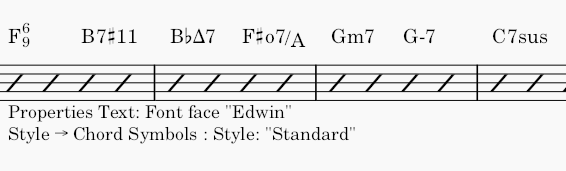
* **Standaard**: de standaardinstelling, waarbij akkoorden worden weergegeven met het standaard tekstlettertype, zonder extra opmaak.
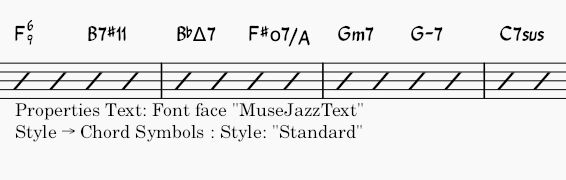
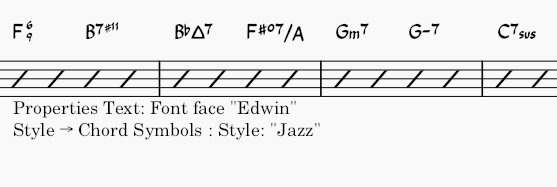
* **Jazz**: het MuseJazz-lettertype wordt gebruikt voor een handgeschreven look, met opvallende superscript en andere bijzondere kenmerken.
* **Eerdere versies van MuseScore**: gebruikt voor partituren die zijn gemaakt in versies van MuseScore Studio ouder dan [4.6](#user-content-fn-1)
* **Laad eigen XML-bestand**: met deze optie kun je het uiterlijk van akkoordsymbolen aanpassen door middel van een stijlbestand voor akkoordsymbolen (in XML-formaat, met de extensie `.xml`)
{% hint style="info" %}
Het aanmaken en wijzigen van stijlbestanden voor akkoordsymbolen is een functie voor gevorderde gebruikers, maar het biedt wel een manier om de opmaak en interpretatie van akkoordsymbolen aan te passen die verder gaat dan de opties die beschikbaar zijn in het \*\*Stijl\*\* dialoogvenster.
De relevante bestanden bevinden zich normaal gesproken in de 'Styles' map van de installatie (bijvoorbeeld in Windows, standaard: `C:\Program Files\MuseScore 4\styles`). Raadpleeg de opmerkingen in deze bestanden voor een uitleg van hun syntaxis en functionaliteit.
{% endhint %}
Je kunt de schaal voor uitbreidingen en modificaties aanpassen via **Uitbreidingen/Toevoegingen schaal** (als een verhouding tot de totale grootte van het akkoordsymbool), en hun verticale positie via **Uitbreidingen/Toevoegingen verticale correctie**.
Hieronder volgen enkele voorbeelden van hoe akkoorden worden weergegeven met verschillende instellingen:
#### Spelling
{% hint style="info" %}
Deze opties hebben alleen invloed op akkoordsymbolen (niet op de Romeinse cijferanalyse of Nashville-nummers)..
{% endhint %}
De volgende opties zijn beschikbaar onder **Spelling**:
* **Standaard**: A, B♭, B, C, C♯... (dit is de standaardinstelling)
* **Duits**: A, B♭, H, C, C♯...
* **Volledig Duits**: A, B, H, C, Cis...
* **Solfeggio**: Do, Do♯, Re♭, Re...
* **Frans**: Do, Do♯, Ré♭, Ré...
Als **Automatische hoofdletters voor nootnamen** is ingeschakeld (wat standaard het geval is), zal MuseScore alle grondtonen van akkoorden in hoofdletters schrijven, ongeacht of ze in hoofd- of kleine letters zijn ingevoerd. Je kunt dit gedrag volledig uitschakelen door het vakje uit te vinken. In dat geval blijft het hoofdlettergebruik zoals je het typt. Je kunt het gedrag ook aanpassen via de onderstaande opties:
* **Kleine letters mineurakkoorden**: mineurakkoorden worden in kleine letters geschreven (majeurakkoorden blijven in hoofdletters).
* **Kleine letters basnoten**: de basnoten worden in kleine letters weergegeven.
* **Nootnamen in hoofdletters**: alle letters in de namen van noten, niet alleen de eerste letter, worden met een hoofdletter geschreven (bijv. DO, RE, MI).
### Positionering
* **Afstand tot fretborddiagram**: de afstand tussen een akkoordsymbool en een fretborddiagram eronder
* **Min. afstand tussen akkoordsymbolen**: de minimale horizontale afstand tussen twee akkoordsymbolen
* **Maximum afstand tot maatstreep**: (*dit werd vroeger gebruikt om de afstand tussen het laatste akkoordsymbool in een maat en de daaropvolgende maatstreep te bepalen, maar is nu verouderd.*)
* **Maximum verschuiving boven/onder**: de maximale afstand waarmee een akkoordsymbool omhoog of omlaag kan worden verschoven om het uit te lijnen met het voorgaande symbool in het systeem. Als deze waarde op 0 is ingesteld, worden de symbolen niet uitgelijnd; om alle akkoordsystemen in het systeem uit te lijnen, stel je deze waarde in op een hoge waarde.
### Afspelen
{% hint style="info" %}
Deze opties hebben alleen invloed op akkoordsymbolen en Nashville-nummers (niet op de Romeinse cijferanalyse, die niet wordt gebruikt tijdens het afspelen).
Ze kunnen worden overschreven voor elk specifiek akkoordsymbool via het [**Eigenschappen**](#chord-symbol-properties) paneel.
{% endhint %}
* **Interpretatie**
* **Letterlijk**
* **Jazz**: voegt extra noten toe (bijvoorbeeld de grote none), maar kan ook bepaalde noten weglaten - dit hangt af van zowel het akkoord zelf als de context, met name het volgende akkoord.
* **Samenstelling**
* **Automatisch**
* **Alleen grondtoon**: alleen de basnoot.
* **Gesloten**: houdt de noten binnen het bereik van een octaaf.
* **Verlaag tweede**: verlaagt de op één na hoogste noot met een octaaf.
* **Zes noten**
* **Vier noten**: 3e, 5e, 7e en 9e intervallen.
* **Drie noten**
* **Duur**
* **Tot volgend akkoordsymbool:** Houdt het akkoord vast totdat het volgende akkoordsymbool verschijnt.
* **Tot het einde van de maat:** Houdt het akkoord vast tot het einde van de maat.
* **Tot het einde van de aangegeven duur:** Houdt het akkoord aan zolang als de duur van de noot of rust waaraan het akkoordsymbool is gekoppeld.
Deze opties beïnvloeden ook hoe akkoorden in notatie worden omgezet; zie [#generating-chord-voicings-onto-a-staff](#generating-chord-voicings-onto-a-staff).
{% hint style="info" %}
Om een akkoord te spelen met alleen noten uit de majeur drieklank (vooral bij de \*\*Jazz\*\* interpretatie), gebruik je het driehoek symbool (Δ) in de naam van het akkoord.
{% endhint %}
#### Capo fret positie
{% hint style="info" %}
Deze functie is alleen van toepassing op akkoordsymbolen, niet op Nashville-nummers of Romeinse cijfer analyse.
{% endhint %}
MuseScore kan naast het hoofd akkoordsymbool een extra akkoordsymbool tussen haakjes weergeven voor gebruik met een capo; het symbool tussen haakjes klinkt, wanneer het met een capo op die positie wordt gespeeld, identiek aan het symbool zonder haakjes.
Om deze functie in te schakelen, stel je **Capo fret positie** in op een waarde hoger dan 0.
## Akkoordsymbool eigenschappen
In het **Eigenschappen** paneel, in het **Akkoordsymbool** gedeelte kun je de afspeelinstellingen voor de momenteel geselecteerde akkoord(en) wijzigen. Deze instellingen overschrijven de instellingen die voor de hele partituur gelden.
In het **Tekst** gedeelte kun je, net als voor alle andere tekstelementen, eigenschappen voor de tekst opmaak van het symbool overschrijven.
{% hint style="info" %}
De \*\*Lettertype\*\* eigenschap wordt genegeerd wanneer de \*\*interpretatie\*\* is ingesteld op \*\*Jazz\*\*.
{% endhint %}
## Transpositie
(Zie ook het hoofdstuk over [Transpositie](/nl/notation/pitch/transposition.md)).
### Transponerende instrumenten
Bij het in- of uitschakelen van de [**Werkelijke toonhoogte**](/nl/notation/pitch/transposition.md#transposed-and-concert-pitch) worden de akkoordsymbolen op transponerende instrumenten automatisch aangepast. Wanneer de werkelijke toonhoogte is uitgeschakeld en akkoordsymbolen worden gekopieerd en geplakt tussen transponerende en niet-transponerende instrumenten, worden ze dienovereenkomstig getransponeerd. Houd er echter rekening mee dat akkoorden die bij de [fretborddiagrammen](/nl/idiomatic-notation/guitar/fretboard-diagrams.md) horen, *niet* automatisch worden getransponeerd.
### Het transponeer dialoogvenster
{% hint style="info" %}
Deze functie is alleen van toepassing op akkoordsymbolen, niet op Nashville-nummers of Romeinse cijfer analyse.
{% endhint %}
Gebruik het [**Transponeer**](/nl/notation/pitch/transposition.md#using-the-transpose-dialog) dialoogvenster (**Gereedschappen -> Transponeer**) om geselecteerde, afzonderlijke[^1] akkoordsymbolen te transponeren. Om te voorkomen dat akkoordsymbolen worden getransponeerd, schakelt je het selectievakje **Transponeer akkoordsymbolen** in het dialoogvenster uit.
### Akkoordsymbolen in de notenbalk genereren
Met MuseScore kun je noten genereren op basis van geselecteerde akkoordsymbolen en Nashville-nummers (maar niet op basis van Romeinse cijferanalyse). Het resultaat is afhankelijk van de [afspeelinstellingen](#playback), zoals hierboven beschreven.
#### Om een selectie van akkoordsymbolen uit te schrijven:
1. Maak een selectie van akkoordsymbolen.
2. Klik met de rechtermuisknop op een willekeurig akkoord in de selectie.
3. Klik op **Akkoordsymbolen uitschrijven**.
4. In het **Akkoordsymbolen uitschrijven** dialoogvenster kun je, als je de standaardopties voor de selectie wilt overschrijven, **Overschrijven met eigen instellingen** aanvinken en de onderstaande opties naar wens configureren.
5. Klik op **OK**.
## Externe links
Om de akkoordkwaliteit te wijzigen nadat je [Akkoordsymbolen in de notenbalk genereren](#generating-chord-voicings-onto-a-staff) hebt gebruikt, kun je een plugin gebruiken zoals:
* [Chord Level Selector](https://musescore.org/en/project/chord-level-selector)
* [Next inversion: vervangt alle akkoorden in de (keyboard)selectie door hun volgende omkering.](https://musescore.org/en/project/next-inversion-replaces-all-chords-keyboard-selection-their-next-inversion)
Om harmonie of akkoord te identificeren, kun je een plugin gebruiken zoals:
* [Chord Identifier (Pop & Jazz)](https://musescore.org/en/project/chord-identifier-pop-jazz) voor muziek die sterk gekenmerkt wordt door harmonische chromaticiteit, aangezien de door RNA gecreëerde muziek jazzinvloeden vertoont.
* [Chord ID and Roman numeral analysis](https://musescore.org/en/project/chord-id-and-roman-numeral-analysis) voor muziek met een stabiele tonaliteit, zoals conventionele RNA's worden gecreëerd.
Stijlbestanden voor akkoordsymbolen:
* [chords.xml met subscript/superscript en gestapelde akkoordwisselingen](https://musescore.org/en/node/312296) gedeeld door RunasSudo
* [github issue Support for chords with stacked extensions #16241](https://github.com/musescore/MuseScore/issues/16241) oplossing door Marc Sabatella
[^1]: Akkoordsymbolen met bijbehorende fretborddiagrammen zijn momenteel niet transponeerbaar.
---
# Agent Instructions
This documentation is published with GitBook. GitBook is the documentation platform designed so that both humans and AI agents can read, navigate, and reason over technical content effectively. Learn more at gitbook.com.
## Querying This Documentation
If you need additional information that is not directly available in this page, you can query the documentation dynamically by asking a question.
Perform an HTTP GET request on the current page URL with the `ask` query parameter, and the optional `goal` query parameter:
```
GET https://handbook.musescore.org/nl/text/chord-symbols.md?ask=&goal=
```
`ask` is the immediate question: it should be specific, self-contained, and written in natural language.
`goal` is optional and describes the broader end goal you are ultimately trying to accomplish on behalf of the user. GitBook uses it to tailor the answer towards what is most useful for that goal.
The response will contain a direct answer to the question and relevant excerpts and sources from the documentation.
Use this mechanism when the answer is not explicitly present in the current page, you need clarification or additional context, or you want to retrieve related documentation sections.




.png?alt=media)
.png?alt=media)
.png?alt=media)
.png?alt=media)