> For the complete documentation index, see [llms.txt](https://handbook.musescore.org/llms.txt). Markdown versions of documentation pages are available by appending `.md` to page URLs; this page is available as [Markdown](https://handbook.musescore.org/nl/sound-and-playback/playback-controls.md).
# Afspeelknoppen
## Overzicht
The playback toolbar
Basic playback functions are accessed from the **Playback toolbar** at the top right of the app window.
De knoppen van links naar rechts zijn:
* [**Spoel terug**](#rewind): Start de weergave vanaf het begin van de partituur (of het herhaalde gedeelte).
* [**Speel af**](#play): Start en stopt het afspelen.
* [**Lus afspelen**](#loop): Speelt een selectie muziek af.
* [**Metronoom**](#metronome): Schakelt de metronoomtik in en uit.
* [**Afspeelinstellingen**](#playback-settings): Biedt toegang tot diverse afspeelinstellingen.
* [**Afspeelpositietellers**](#playback-position-counters): Toont de tijd, maat en tel van de afspeelcursor.
* [**Afspeelsnelheid**](#playback-speed): Hiermee kun je de afspeelsnelheid zien en regelen.
Het afspeelpaneel kan worden losgekoppeld en verplaatst door op de dokgreep links van de **Spoel terug** knop te klikken en deze te slepen.
## Afspeelknoppen
### Speel af
Om het afspelen te starten:
1. Klik op de **Speel af** knop of druk op de `Spatiebalk`.
2. *(Optioneel)* Klik op een noot of rust om het beginpunt van het afspelen te bepalen.
Om het afspelen te stoppen, klik je tijdens het afspelen op de **Speel af** knop (er verschijnt een pauze-icoon) of op de `Spatiebalk`.
{% hint style="info" %}
Als er geen selectie is gemaakt voordat je op \*\*Speel af\*\* klikt, dan wordt het afspelen hervat vanaf het begin van de partituur of vanaf de locatie waar het eerder was gestopt.
{% endhint %}
Tijdens het afspelen zijn alle instrumenten te horen, afhankelijk van wat er gedempt/gesoloeerd is in de [mixer](/nl/sound-and-playback/mixer.md). Om snel een specifieke notenbalk of een reeks notenbalken af te spelen *zonder* de solo/mute-regelaars in de [mixer](/nl/sound-and-playback/mixer.md) te gebruiken:
1. Selecteer een [maat](/nl/notation/rhythm-meter-and-measures.md) waar je wilt beginnen (door op een lege ruimte binnen die maat te klikken).
2. *(Optional)* Hold `Shift` and click a measure on a different stave to create a range selection
3. Klik op de **Speel af** knop of druk op de `Spatiebalk`.
MuseScore Studio will now play back only the selected instruments.
### Spoel terug
Press the **Rewind** button to start playback from the beginning of the score.
Als een lus is ingesteld, start het indrukken van **Spoel terug** knop het afspelen vanaf het begin van de lus.
### Blijf gedeelte herhalen
Om een gedeelte van de muziek herhaaldelijk af te spelen:
1. [Selecteer een bereik](/nl/basics/selecting-elements.md#creating-a-range-selection) in de partituur dat het muziekgedeelte bevat dat je wilt afspelen
2. Klik op **Lus afspelen**.
3. Press **Play**
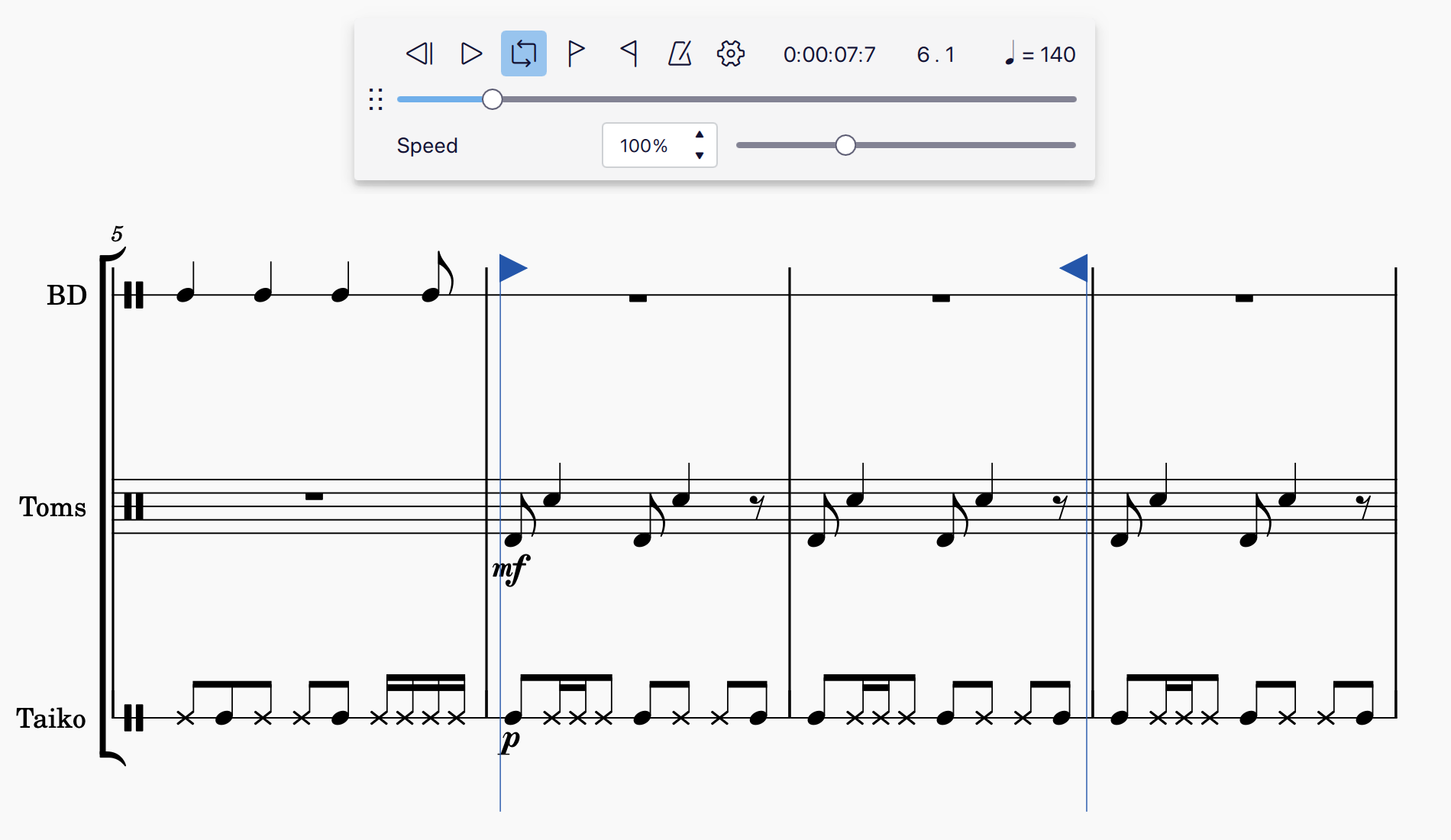
Aan het begin en einde van het lusgedeelte verschijnen vlaggetjes. Om de vlaggetjes te verwijderen, druk je nogmaals op de knop **Lus afspelen**.
The undocked playback panel, with start and end loop markers shown around measures 6 and 7.
### Metronoom
To hear metronome ticks during playback, click the **Metronome** button.
Metronome ticks will be heard during playback when the **Metronome** button is coloured. To switch off the metronome, press the **Metronome** button again so that the coloured button background is no longer visible.
You can control the volume of the metronome, as well as the sound it uses, in the Mixer.
{% hint style="info" %}
Als de \*\*Metronoom\*\* is ingeschakeld, worden de metronoomtikken opgenomen in het \[geëxporteerde audiobestand]\(../file-management/file-export.md#audio-formats).
{% endhint %}
### Afspeelpositietellers
The current playback position is shown by two counters to the right of the playback controls. One shows the position in terms of **time elapsed**, the other in **measures and beats**.
Om naar een tijdstempel, maat of tel te springen, kun je deze handmatig invoeren:
1. Click a counter
2. Voer een getal in.
3. Druk op `Esc` of klik buiten het teller veld om de selectie te wissen.
4. Druk op **Speel af**.
### Afspeelsnelheid
De **Afspeelsnelheid** knop toont het relatieve tempo op de aangegeven positie van de afspeelcursor. Het tempo wordt weergegeven in kwartnoten, ten opzichte van het tempo dat in de partituur is genoteerd.
{% hint style="info" %}
For example, if a tempo mark of \*\*♩= 80\*\* is added to the start of measure 5, then the \*\*Playback speed\*\* button will also show\*\*♩= 80\*\* when the playback cursor reaches the start of measure 5.
Of anders, als een tempomarkering van**♪=100** wordt toegevoegd aan het begin van maat 6, dan zal de **Afspeelsnelheid** knop **♩= 50** weergeven wanneer de afspeelcursor het begin van maat 6 bereikt.
{% endhint %}
The **Playback speed** button also takes into account tempo changes, and breaths and pauses. This means you'll see the number increase during an *accelerando*, and decrease during a *rallentando* or when the playback cursor reaches a *fermata.*
MuseScore Studio gives you the ability to control the *playback speed* of the whole score, independently of all notated tempo markings. This allows you to play back the score faster or slower without having to add or modify notated tempo markings.
Om de afspeelsnelheid van de partituur onafhankelijk van de aangegeven tempoaanduidingen te regelen:
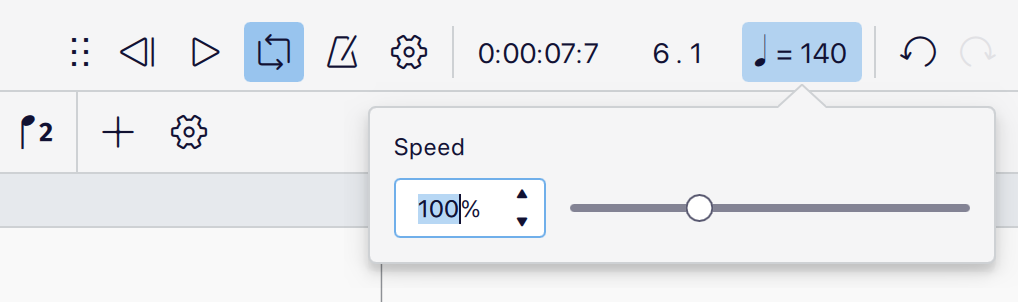
1. Klik op de **Afspeelsnelheid** knop.
2. In het pop-up venster dat verschijnt, kun je de schuifregelaar met de muis naar links of rechts bewegen, of
3. Voer een getal in het tekst veld links van de schuifregelaar in.
The playback speed popup can be opened by clicking the playback speed button
The playback speed is set as a percentage of the default tempo **(♩= 120)**, or whatever tempo marking prevails at the position of the playback cursor during playback.
{% hint style="info" %}
Wanneer je de afspeelsnelheid wijzigt, behoudt MuseScore Studio de relatie tussen alle genoteerde tempomarkeringen, tempowisselingen en ademhalingen en pauzes. Dit betekent dat alle genoteerde tempi, en hun relatie tot andere markeringen – inclusief tempowisselingen, ademhalingen en pauzes – hetzelfde blijven, maar sneller of langzamer klinken afhankelijk van de gekozen afspeelsnelheid.
{% endhint %}
Om de afspeelsnelheidsregelaars permanent weer te geven, ontkoppel je het afspeelpaneel door op de dokgreep links van de **Spoel terug** knop te klikken en deze te slepen.
## Afspeelinstellingen
Klik op de **Afspeelinstellingen** knop om verschillende aspecten van de afspeelfunctie in MuseScore Studio te beheren. Deze instellingen kunnen naar behoefte worden aangevinkt of uitgevinkt.
We'll look at each setting in turn.
### Schakel MIDI-invoer in/uit
Wanneer deze optie is ingeschakeld, kun je het afspelen via een aangesloten MIDI-apparaat (zoals een keyboard of drumcomputer) beluisteren en notatie invoeren. Schakel deze optie uit als je het MIDI-apparaat niet in MuseScore Studio wilt gebruiken (bijvoorbeeld als je het alleen voor luisterdoeleinden in een andere achtergrondtoepassing gebruikt). Zie [Werken met MIDI](/nl/sound-and-playback/working-with-midi.md) voor meer informatie.
### MIDI-invoertoonhoogte
In het submenu **MIDI-invoertoonhoogte** zijn er twee opties waarmee je kunt bepalen of noten die via een MIDI-apparaat wordt ingevoerd, worden ingevoerd op de *geschreven toonhoogte* of *klinkende toonhoogte* voor [transponerende instrumenten](/nl/notation/pitch/transposition.md#working-with-transposing-instruments).
{% hint style="info" %}
Houd er rekening mee dat deze instelling alleen effect heeft wanneer de optie \*\*Werkelijke toonhoogte\*\* is uitgeschakeld. Bij het invoeren van noten in werkelijke toonhoogte worden alle noten die op een MIDI-apparaat worden gespeeld, ingevoerd op de toonhoogte waarin ze klinken.
{% endhint %}
* When **Written pitch** is selected, notes played on a MIDI device will be inputted at the stave position that corresponds to the note played.
* Als je bijvoorbeeld noten invoert voor een trompet in B♭, wordt een C die op het MIDI-apparaat wordt gespeeld, ingevoerd als een C en klinkt deze ook als een B♭.
* When **Sounding pitch** is selected, notes played on a MIDI device will be entered at the sounding pitch that corresponds to the pitch of the note played.
* Als je bijvoorbeeld noten invoert voor een trompet in Bes, wordt een C die op het MIDI-apparaat wordt gespeeld, ingevoerd als een D en klinkt deze ook als een C.
### Speel herhalingen af
Wanneer deze optie is ingeschakeld, worden alle muziekgedeelten binnen herhalingsmarkeringen herhaald tijdens het afspelen. Schakel deze optie uit als je herhalingsmarkeringen tijdens het afspelen wilt negeren.
### Speel akkoordsymbolen af
Als deze optie is ingeschakeld, worden alle akkoordsymbolen tijdens het afspelen gespeeld. Schakel deze optie uit als je de akkoordsymbolen tijdens het afspelen wilt negeren.
### Speel af tijdens bewerken
Wanneer deze optie is ingeschakeld, kun je een voorbeeldgeluid horen voor elke noot die je invoert, selecteert of bewerkt. Schakel deze optie uit om noten in te voeren, te selecteren of te bewerken zonder een voorbeeldgeluid te horen.
### Verschuif partituur automatisch
When this option is checked, the position of the score will be adjusted during playback and editing. Uncheck this option if you want the score position to remain stationary.
### Zet lus markering
Om handmatig het begin van een lus in te stellen:
1. Selecteer een maat, noot of rust.
2. Klik op **Afspeelinstellingen**.
3. Selecteer **Zet beginpositie van de lus**.
Om handmatig het einde van een lus in te stellen:
1. Selecteer een maat, noot of rust.
2. Klik op **Afspeelinstellingen**.
3. Selecteer **Zet eindpositie van de lus**.
Speciale knoppen voor het starten en beëindigen van de lus kunnen ook permanent zichtbaar blijven in de **Afspeelwerkbalk** wanneer deze is losgekoppeld.
## Externe links
Demobestand voor een metronoomtik
---
# Agent Instructions
This documentation is published with GitBook. GitBook is the documentation platform designed so that both humans and AI agents can read, navigate, and reason over technical content effectively. Learn more at gitbook.com.
## Querying This Documentation
If you need additional information that is not directly available in this page, you can query the documentation by asking a question.
Perform an HTTP GET request on the following URL with the `ask` and `goal` query parameters:
```
GET https://handbook.musescore.org/nl/sound-and-playback/playback-controls.md?ask=&goal=
```
`ask` is the immediate question: it should be specific, self-contained, and written in natural language.
`goal` is what the user is ultimately trying to achieve, the reason they need the answer. Sharing it helps GitBook give you a better, more relevant answer. A goal is most helpful when it describes the outcome the user wants rather than restating the question. For example, with `ask=how do I create an API token`, a goal like `automate deployments from our CI pipeline` lets GitBook tailor the answer to that use case.
The response will contain a direct answer to the question and relevant excerpts and sources from the documentation.
Use this mechanism when the answer is not explicitly present in the current page, you need clarification or additional context, or you want to retrieve related documentation sections.