> For the complete documentation index, see [llms.txt](https://handbook.musescore.org/llms.txt). Markdown versions of documentation pages are available by appending `.md` to page URLs; this page is available as [Markdown](https://handbook.musescore.org/nl/notation/expressive-markings/other-symbols.md).
# Andere symbolen
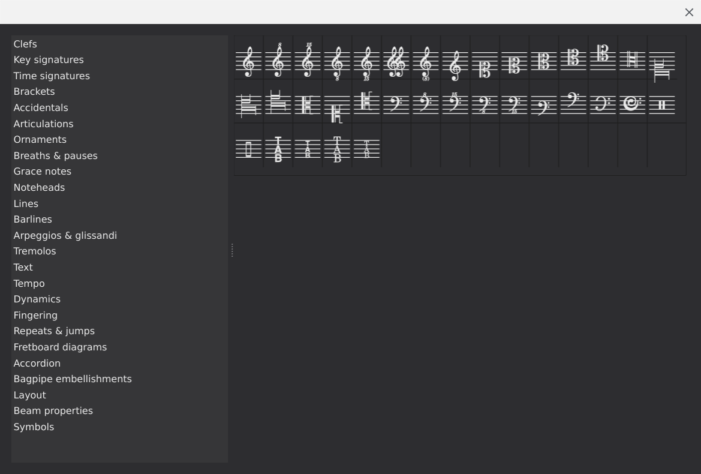
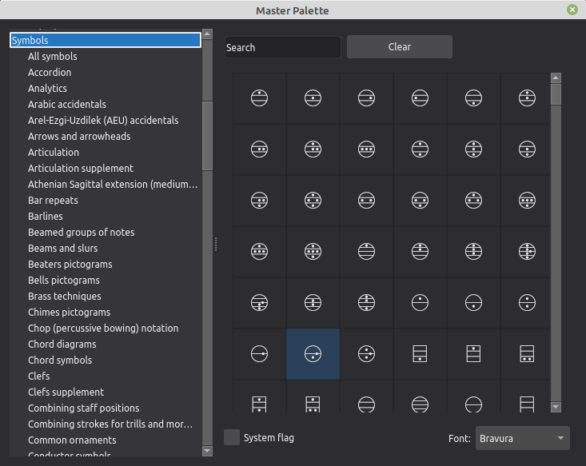
Het **Symbolen palet** is een categorie binnen het [Hoofdpalet](/nl/basics/using-the-palettes.md#the-master-palette) en bevat alle symbolen en tekst van alle ingebouwde muzieklettertypen.
In tegenstelling tot andere categorieën in het [Hoofdpalet](/nl/basics/using-the-palettes.md#the-master-palette), zijn de items in het **Symbolenpalet** niet-functioneel: ze dienen alleen ter weergave en hebben geen ander effect op de partituur.
De meeste symbolen en tekstelementen die je nodig hebt voor het noteren van de muziek vind je in het [Paletten panel](/nl/basics/using-the-palettes.md)—het **Symbolen palet** gebruik je voor specialistische elementen die niet in de kleinere paletten te vinden zijn, of in gevallen waarin je echt een niet-functioneel element nodig hebt.
## Het Symbolen palet
### Weergave
Om het **Symbolen palet** weer te geven, selecteer je **Weergave→Hoofdpalet**, of gebruik je de sneltoets `Shift`+`F9`.
Door "Symbolen" in de lijst met categorieën te selecteren, worden *alle* symbolen onder alle subcategorieën weergegeven. Door een subcategorie te selecteren, kun je een *specifieke* set weergeven.
### Zoek
Je kunt een symbool zoeken door een term in te voeren in het **Zoekvak** bovenaan het **Symbolen** gedeelte. Selecteer het gewenste muzieklettertype in het uitklapmenu rechtsonder.
## Een symbool toevoegen aan de partituur
Symbolen die zijn toegevoegd vanuit het **Symbolen palet** schalen mee met de partituur (zie [Notenbalkgrootte](/nl/formatting/score-size-and-spacing.md#staff-size)), maar hun lettergrootte is vast.
Als je een symbool nodig hebt met een *instelbare* lettergrootte, kun je overwegen om het toe te voegen vanuit het palet met [Speciale tekens](/nl/text/entering-and-editing-text.md#special-characters) als [notenbalktekst](/nl/text/staff-system-and-expression-text.md).
### Een symbool toevoegen
Gebruik een van de volgende methoden:
* Selecteer een of meer partituurelementen (noten, rusten, maatstrepen) en klik vervolgens op het gewenste symbool in het **Symbolen palet**.
* Sleep het gewenste symbool uit het **Symbolen palet** naar een partituurelement (noot, rust, maatstreep).
### Toevoegen aan andere symbolen
Nadat je een symbool hebt toegevoegd, kun je, indien nodig, een extra symbool aan het bestaande symbool toevoegen. Gebruik een van de volgende opties:
* Selecteer een symbool (dat je eerder aan de partituur hebt toegevoegd vanuit het Symbolen palet) en klik vervolgens op het gewenste symbool in het **Symbolen palet**.
* Sleep het gewenste symbool naar het bestaande symbool in de partituur.
### Symbolen positioneren
Om de positie van het symbool aan te passen, kun je het slepen of de correctie bewerken in het **Uiterlijk** gedeelte van het **Eigenschappen** paneel. Je kunt het symbool ook verplaatsen met de pijltjes op het toetsenbord – nadat je het hebt geselecteerd en de **bewerkingsmodus** hebt gestart door op `Alt`+`Shift`+`E` of `F2` te drukken.
Als twee symbolen aan elkaar zijn gekoppeld (zie [Toevoegen aan andere symbolen](#add-to-other-symbols) hierboven), verplaatst het verplaatsen van het eerst toegevoegde symbool beide symbolen. Je kunt het tweede symbool echter nog steeds ten opzichte van het eerste verplaatsen.
### Zie ook
* [De paletten gebruiken](/nl/basics/using-the-palettes.md) voor informatie over het zoeken naar en toepassen van palet items op de partituur.
* [Werken met afbeeldingen](/nl/formatting/working-with-images.md) voor informatie over hoe je afbeeldingen in de partituur kunt toepassen.
---
# Agent Instructions
This documentation is published with GitBook. GitBook is the documentation platform designed so that both humans and AI agents can read, navigate, and reason over technical content effectively. Learn more at gitbook.com.
## Querying This Documentation
If you need additional information that is not directly available in this page, you can query the documentation by asking a question.
Perform an HTTP GET request on the following URL with the `ask` and `goal` query parameters:
```
GET https://handbook.musescore.org/nl/notation/expressive-markings/other-symbols.md?ask=&goal=
```
`ask` is the immediate question: it should be specific, self-contained, and written in natural language.
`goal` is what the user is ultimately trying to achieve, the reason they need the answer. Sharing it helps GitBook give you a better, more relevant answer. A goal is most helpful when it describes the outcome the user wants rather than restating the question. For example, with `ask=how do I create an API token`, a goal like `automate deployments from our CI pipeline` lets GitBook tailor the answer to that use case.
The response will contain a direct answer to the question and relevant excerpts and sources from the documentation.
Use this mechanism when the answer is not explicitly present in the current page, you need clarification or additional context, or you want to retrieve related documentation sections.