Percussienotatie invoeren

circle-info

This section describes note entry for unpitched percussion instruments. For _pitched_ percussion instruments, see [Entering notes and rests](%1).

Overzicht

In MuseScore Studio, each unpitched percussion instrument, including combination instruments like drum kits and mixed percussion, comes preconfigured for seamless notation and playback.

This means that when you add an instrument – whether it be a single cow bell, or a complete drum kit – the notation for each sub-instrument in the kit (bass drum, snare drum, cymbals, etc.), as well as any techniques and variants (hits, rim shots, rim knocks, etc.) is configured automatically. MuseScore Studio takes care of the number of stave lines for the kit, as well as the shape and placement of all noteheads on the stave. What's more, the correct sound is automatically assigned in playback for MS Basic and MuseSounds libraries.

If you have unique notation requirements, there are of course options to customize the mapping for each instrument (See Percussion kit customization).

Een percussie-instrument toevoegen aan de partituur

You can add a percussion instrument just like any other instrument (see Setting up your score and the Layout panel).

Each unpitched percussion instrument comes with a pre-configured set of sub-instruments, as well as variants and techniques that are determined by the sound library chosen in the mixer.

Naast individuele orkestrale percussie-instrumenten en marsdrumsecties, wordt MuseScore Studio geleverd met verschillende combinatiesets die veelgebruikte sub-instrumenten op één notenbalk combineren. Deze omvatten:

  • Drumstellen (standaard, minimaal, uitgebreid)

  • Gemengd slagwerk

  • General MIDI percussie

It is possible to customize the stave of any existing unpitched instrument with a unique combination of sub-instruments, although playback support may not always be available. To learn more, see Percussion kit customization.

Noten en rusten invoeren in percussienotenbalken

Er zijn verschillende manieren om notatie op een percussienotenbalk te noteren. We zullen ze één voor één bespreken. Dit zijn:

  • Het percussie-invoerpaneel gebruiken

  • Invoer via de muis direct op de notenbalk

  • Sneltoetsen

  • Invoer via MIDI-keyboard

  • Invoer via het virtuele pianoklavier

Het percussie-invoerpaneel gebruiken

Om het percussie-invoerpaneel te openen:

  • Selecteer de notenbalk van een ongestemd percussie-instrument, of

  • Selecteer een noot of rust in een ongestemde percussienotenbalk.

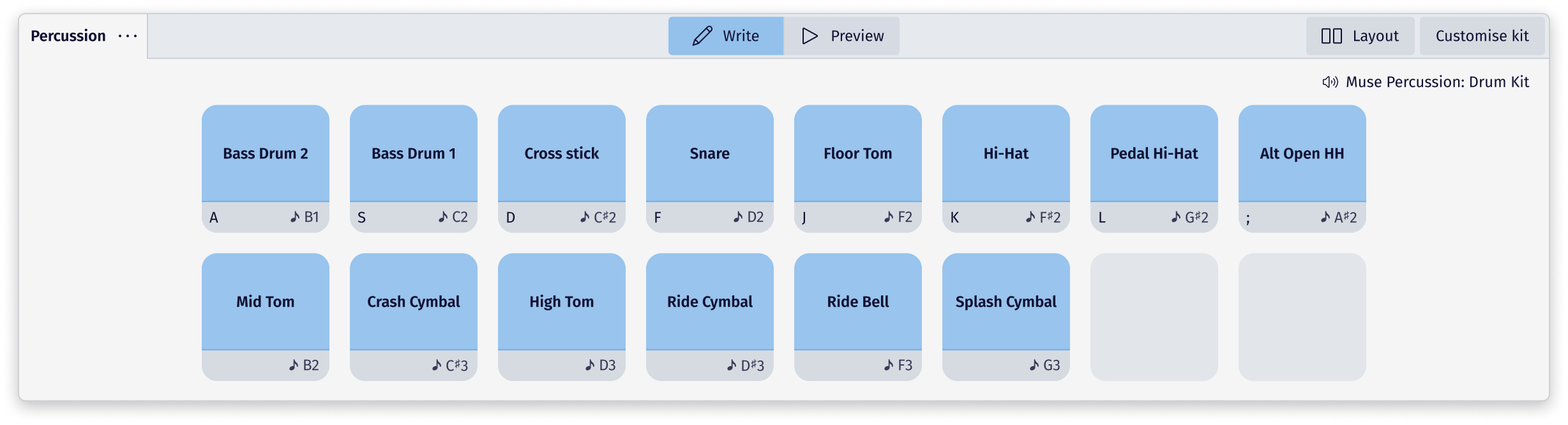
Het percussiepaneel verschijnt onderaan het app-venster. Het toont alle sub-instrumenten en varianten die beschikbaar zijn op de geselecteerde notenbalk, zoals bepaald door de geluidsbibliotheek die in de mixer aan dat instrument is toegewezen.

Picture of the percussion panel
The percussion panel in MuseScore Studio uses a drum pad style layout that makes it easy to see what sub-instruments and variants are available for your instrument.

Om notatie in te voeren via het percussie-invoerpaneel, klik je op een van de drumpads. De notatie wordt ingevoerd op de positie van de noteninvoercursor, ongeacht de stem waaraan het geselecteerde sub-instrument of de geselecteerde variant is toegewezen.

Write mode will be enabled by default. This means that any click on a drum pad will input notation directly on the stave.

Om het geluid van instrumenten die aan een drumpad zijn toegewezen te horen zonder notatie in te voeren:

  1. Klik op de Voorbeeld knop in de kop van het percussiepaneel.

  2. Klik op een drumpad om het geluid ervan te horen.

  3. Klik weer op de Schrijf knop om de notatie te hervatten.

See customizing-the-percussion-panel.md for more.

Invoer via de muis direct op de notenbalk

Om percussienotatie direct met de muis op de notenbalk in te voeren:

  1. Selecteer de notenbalk waar je de notatie wilt invoeren.

  2. Enter note input mode

  3. Beweeg je muiswijzer over de notenbalk om een ​​voorbeeldnoot te zien voor het instrument of de variant die aan die positie is toegewezen.

  4. (Optioneel) Houd Shift ingedrukt terwijl je de muis eroverheen beweegt om een ​​pop-upvenster te openen met de namen van de instrumenten op elke positie in de notenbalk. Klik op de pijlen naar links/rechts in het pop-upvenster om door de beschikbare varianten op dezelfde positie in de notenbalk of op dezelfde regel te bladeren.

  5. Left-click the notehead to input the note

De voorbeeldnoot toont welk instrument of welke variant beschikbaar is op de positie in de notenbalk waar je muiswijzer zich bevindt. Wanneer je de muis beweegt, verandert de voorbeeldnoot en toont deze wat er op elke nieuwe positie beschikbaar is.

Sneltoetsen

You can assign a keyboard shortcut to each pad in the percussion panel.

By default, the first row of pads will take the keys A, B, C, D, E, F, G, H. Any key can be assigned to a pad, although you'll be prompted if your chosen key conflicts with another shortcut command.

Om een ​​sneltoets aan een drumpad toe te wijzen:

  1. Klik op het onderste grijze opties gedeelte van een drumpad (of navigeer ernaartoe met de Tab toets).

  2. Selecteer Bepaal sneltoets.

Een MIDI-controller gebruiken

To add notes to an unpitched percussion stave using a MIDI keyboard:

  1. Selecteer een noot, rust of maat.

  2. Select a note duration

  3. Druk op een toets op je MIDI-keyboard om een ​​noot in te voeren.

  4. (Optional) Press 0 to enter a rest of the selected duration

Notation will be entered on the stave in whatever note input mode has been set as the default in Preferences. For more information on using different note input modes, see Entering notes and rests.

Each drum pad on the percussion panel displays the MIDI key assigned to each available sub-instrument or variant. Note that these will change depending on the sound library assigned to that instrument in the mixer.

Het virtuele pianoklavier op het scherm gebruiken

Om noten toe te voegen aan een ongestemde percussie-notenbalk met behulp van het virtuele pianoklavier op het scherm van MuseScore Studio:

  1. Open het pianoklavier door naar Weergave > Pianoklavier te gaan (of gebruik de sneltoets P)

  2. Selecteer een maat, noot of rust.

  3. Select a note duration

  4. Klik met de muis op een toets van het virtuele pianoklavier.

  5. (Optioneel) Om een ​​nieuwe noot aan een bestaande toe te voegen, houd je Shift ingedrukt terwijl je op een andere toets klikt.

  6. (Optional) Press 0 to enter a rest of the selected duration

Aanvullende technieken en varianten toepassen

Many sound libraries come with additional techniques and variants that can extend the performance of your instruments. For example, snares can be set to on or off, or different implements can be used, including sticks, brushes, and hot rods.

These are added using sound flags. Note that this feature is currently only available for selected MuseSounds libraries. Options will vary depending on the chosen sound library.

Learn more about sound flags.

Laatst bijgewerkt

Was dit nuttig?