> For the complete documentation index, see [llms.txt](https://handbook.musescore.org/llms.txt). Markdown versions of documentation pages are available by appending `.md` to page URLs; this page is available as [Markdown](https://handbook.musescore.org/fr/text/header-and-footer.md).
# En-tête et pied de page
*Not to be confused with the top vertical frame and text added to the first page, when a new score is created from certain templates, see* [*Create your first score*](/fr/introduction/create-your-first-score.md) *and* [*Using frames for additional content*](/fr/formatting/using-frames-for-additional-content.md) *chapters.*
## Overview
The **header** and **footer** are text automatically added to the top and the bottom area of *each* page respectively. To add text to certain page(s) only, use frame and Musescore Text objects instead, see [Entering and editing text](/fr/text/entering-and-editing-text.md) chapter.
## Adding a header or footer to your score
1. From the main menu, select **Format→Style→Header & Footer**.
2. Check the "Header Text" and "Footer Text" boxes as required.
**Note:** To create a header or footer for a [Part](/fr/basics/parts.md), open and view that Part first.
### Entering information
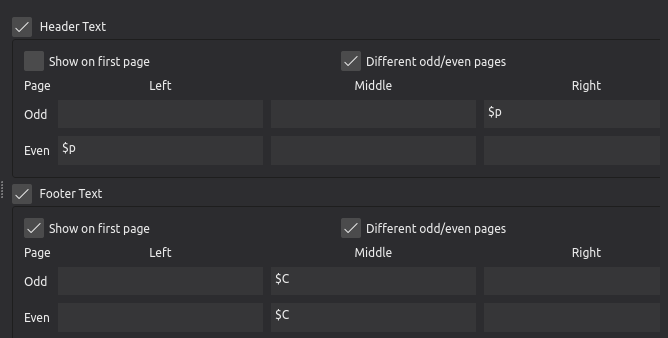
* From the main menu, select **Format→Style→Header & Footer**:
* The area on the top is for headers, area below it is for footers.
* Both of them are divided into two rows, labelled **Odd**, and **Even**, for content on odd and even pages respectively.
* They are also divided into three columns, labelled **Left**, **Middle**, and **Right**, representing the corresponding areas.
* There are three kinds of valid input:
* plain text,
* placeholder text, or special symbols, that converts into information automatically, they include
* *read-only* information such as the current page number, and
* *editable* metadata, see ["Using metadata"](#using-metadata) section.
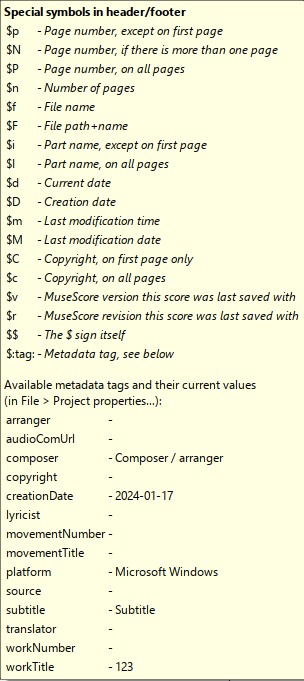
* To see a list of available placeholder text or special symbols, hover the mouse cursor over any text input area and wait for a popup box to appear. Shown below is the list for Musescore 4.2.
* Placeholder text or special symbols are *case-sensitive*, they must be entered letter-for-letter with the correct case. For example
* $d converts into current date
* $D converts into creation date
* $:movementNumber: converts into "Moverment number" metadata
* $:movementnumber: is invalid because of the wrong lower case 'n'
* Part name placeholder text is only available in a Part, but not the "Full Score". Its placeholder text is $I, $i, or $:partName: . To rename a Part's name, see [Parts: Renaming](/fr/basics/parts.md#renaming-duplicating-and-deleting-parts) chapter.
### Using metadata
Metadata are digital information, or tags, assigned in **File→Project properties**, use `$:[metadata tag]:` syntax to add them to header and footer. See the example in ["Entering information"](#entering-information) section, and the main chapter [Project properties](/fr/file-management/project-properties.md).
## Changing the appearance of headers and footers
* From the main menu, select **Format→Style→Header & Footer**:
* **Show on first page**
* **Different odd/even pages**: Use different content on odd pages and even pages.
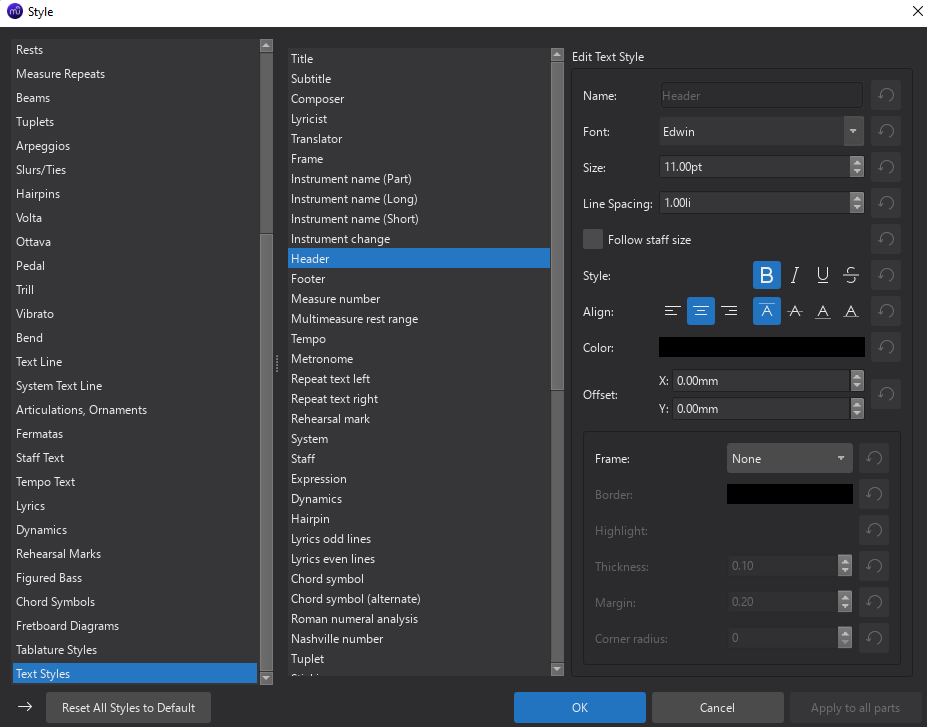
Header and footer respect page margins configured in **Format→Page Settings** (see the main chapter [Score size and spacing](/fr/formatting/score-size-and-spacing.md)). Page margins are always left blank, Musescore resizes the staffs area to show content of header and footer. Additional margin can be achieved by adjusting the **Offset** in style profiles, font options are also available there, see ["Header and footer Style"](#header-and-footer-style) section.
## Header and footer Properties
Header and footer are not Musescore Text objects, it is **not** possible to select and use [Properties panel](/fr/basics/properties-panel.md) to change properties of a header or footer on a particular page separately. To settings for all headers and footers, change values in the style profiles, see ["Header and footer Style"](#header-and-footer-style) section below.
To add text to certain page(s) only, use frame and Musescore Text objects instead, see [Entering and editing text](/fr/text/entering-and-editing-text.md) chapter.
## Header and footer Style
*See the main chapter* [*Templates and styles*](/fr/customization/templates-and-styles.md)
* Page numbers, only when referenced using the `$p` or `$P` symbols, will use the **Page number** text style, which can be edited in **Format→Style→Text styles→Page numbers**
* Copyright text, only when referenced using the `$c` or `$C` symbols, will use the **Copyright** text style, which can be edited in **Format→Style→Text styles→Copyright**
* All other text in the header fields will use the **Header** style, which can be edited in **Format→Style→Text styles→Header**
* All other text in the footer fields will use the **Footer** style, which can be edited in **Format→Style→Text styles→Footer**
## See also
* Specify a custom starting page in **Format→Page Settings : First page number**. See also the main chapter [Score size and spacing](/fr/formatting/score-size-and-spacing.md).
---
# Agent Instructions
This documentation is published with GitBook. GitBook is the documentation platform designed so that both humans and AI agents can read, navigate, and reason over technical content effectively. Learn more at gitbook.com.
## Querying This Documentation
If you need additional information that is not directly available in this page, you can query the documentation by asking a question.
Perform an HTTP GET request on the following URL with the `ask` and `goal` query parameters:
```
GET https://handbook.musescore.org/fr/text/header-and-footer.md?ask=&goal=
```
`ask` is the immediate question: it should be specific, self-contained, and written in natural language.
`goal` is what the user is ultimately trying to achieve, the reason they need the answer. Sharing it helps GitBook give you a better, more relevant answer. A goal is most helpful when it describes the outcome the user wants rather than restating the question. For example, with `ask=how do I create an API token`, a goal like `automate deployments from our CI pipeline` lets GitBook tailor the answer to that use case.
The response will contain a direct answer to the question and relevant excerpts and sources from the documentation.
Use this mechanism when the answer is not explicitly present in the current page, you need clarification or additional context, or you want to retrieve related documentation sections.