> For the complete documentation index, see [llms.txt](https://handbook.musescore.org/llms.txt). Markdown versions of documentation pages are available by appending `.md` to page URLs; this page is available as [Markdown](https://handbook.musescore.org/fr/text/formatting-text.md).
# Mettre en forme du texte
## Overview
### Levels of formatting
Layout and formatting in Musescore has 2 main levels, **read** [**Templates and styles**](/fr/customization/templates-and-styles.md) **first**. Text objects have finer levels:
* Level 1: **Properties of each individual text object in a score file**:
* Formatting of individual characters within a text object;
* Formatting of the object that contains all the characters.
* Level 2
* **"style for certain type of object"**: you can change their values in ['Style' window: left pane](/fr/customization/templates-and-styles.md)
* **"style for text inside certain type of object"**: you can change their values inside [items under 'Style' window: left pane 'Text style'](/fr/customization/templates-and-styles.md)
### Appearance and function of Text objects
\
The final visual and function of most object in a score file is determined by:
* Characters do not have any specific formatting. When formatting are added to them, they will always be used. See [Changing characters](#changing-formatting-of-characters) below.
* Text objects do not have any specific properties. When properties are [Properties panel](/fr/basics/properties-panel.md), they will always be used except for characters that already have their own formatting. see details in ["Text properties"](#changing-formatting-of-a-text-object) below.
* functional settings: all object on a score uses values in **"style for certain type of object"**, this behavior cannot be changed, but you can edit values in them.
* visual settings:
* an object on a score uses values in appropriate **"style for text inside certain type of object"**, such as "Style for text inside Chord symbols", "Style for text inside Lyrics Odd Lines" automatically. This behavior can be changed with the **More... > Text Style** property in [Properties panel](/fr/basics/properties-panel.md). You can also [utilize the 12 custom style](#changing-the-values-inside-a-user-1-to-user-12-style).
* **"Style for text inside Staff Text" is special.** Every Text-related object on a score uses its values unless overridden, this behavior cannot be changed, but you can edit values inside.
* A subset of characters always use font settings in ['Style' window](/fr/customization/templates-and-styles.md) > Score : "Musical symbol font" (8 options): musical glyphs such as Segno, Coda, ottavas, dynamics **glyphs** such as ***mf*** and some [Special characters](/fr/text/entering-and-editing-text.md#special-characters). See Musescore 3 handbook [Fonts](https://musescore.org/en/handbook/3/fonts) (mostly the same as in musescore 4.1.1 but upgraded and added 2 options).
Options in [Properties panel](/fr/basics/properties-panel.md) behave differently depending on the current selection.
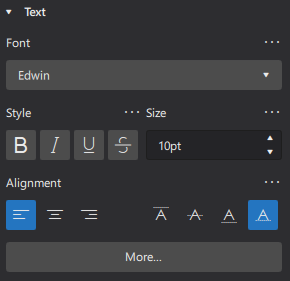
"Font", "Style", "Size", "Subscript and superscript" are both object properties, and individual character formatting options. When you change **an object** using the [Properties panel](/fr/basics/properties-panel.md), **incompatible formatting on individual characters are removed.**
"Alignment", "Frame", "Text style" are object properties. When you select individual characters and change these options in the [Properties panel](/fr/basics/properties-panel.md), the object properties are changed instead.
## Changing formatting of characters
*To edit text content, see* [*Entering and editing text*](/fr/text/entering-and-editing-text.md) *instead.*
Use the [Properties](/fr/basics/properties-panel.md) panel to change formatting of **individual characters**. Musescore 4 updated the Inspector present in Musescore 2 and Musescore 3 and integrated the function of [Text Toolbar (Text editing)](https://musescore.org/en/handbook/3/text-editing) into the Properties panel.
1. enter *text edit mode* using one of the following methods:
* Double-click on the text object.
* Select the object and press `F2` or `Alt`+`Shift`+`E`
* Right-click on the element and select `Edit element`
2. highlighted characters
3. apply formatting in **Text** section of the Properties panel, and/or use keyboard shortcuts (see [Editing text](/fr/text/entering-and-editing-text.md#editing-text-object-content)).
## Changing formatting of a text object
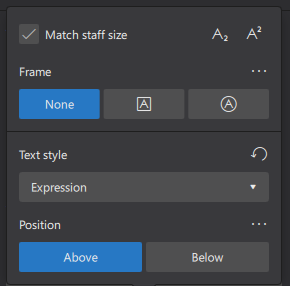
Click `More` to see:
*To edit text content, see* [*Entering and editing text*](/fr/text/entering-and-editing-text.md) *instead.*
Use the [Properties](/fr/basics/properties-panel.md) panel to change formatting of the Text object, which *may* change all of the characters inside:
1. Select text object(s) on a score
2. Edit settings in the **Text** section of the [Properties](/fr/basics/properties-panel.md) panel.
Options are self-explanatory, these special settings are shown after clicking `More`:\
**Match staff size**: whether text size changes proportionally, see [Page layout concepts](/fr/formatting/page-layout-concepts.md).\
**Text style** : Changes which style a text object on a score uses, see [below](#changing-which-style-a-text-object-on-a-score-uses)\
**Position** : Above or below the staff, see [below](#position)
### Changing which style a text object on a score uses
In the [Properties](/fr/basics/properties-panel.md) panel, use **Text style** property under `More`. [Concept of formatting is explained in the overview](#overview). Only the "style for text inside certain type of object" a text object on a score uses can be changed, they includes the "User-1" ... "User-12", see [below](#changing-the-values-inside-a-user-1-to-user-12-style). See [Templates and styles](/fr/customization/templates-and-styles.md).
### Position
The Properties panel is used for assigning formatting to the Text object(s). When a Text object is changed, all of the characters inside it *may* change. The [Properties](/fr/basics/properties-panel.md) panel also is used for assigning formatting to individual characters inside a Text object, when characters are selected.
It is important to know that, *even when characters inside a Text object are selected, some properties shown on the Properties panel are still the Text object's setting, but not the character property.* They includes the **Position** property.
In the [Properties](/fr/basics/properties-panel.md) panel, Use **Position** property under `More` to change layout of the Text **object**. If a overriding option exists for this type of object, is in "style for certain type of object", but not in "style for text inside certain type of object", see ["Changing the values inside a style"](#changing-the-values-inside-a-style) section below. See also the main chapter [Templates and styles](/fr/customization/templates-and-styles.md).
## Changing the values inside a style
[Concept of formatting is explained in the overview](#overview).
Understand [Templates and styles](/fr/customization/templates-and-styles.md) first. To change values inside a style, use the "Style" window: `Format`→`Style`.
* **"style for certain type of object"**: you can change their values in 'Style' window: left pane"
* **"style for text inside certain type of object"**: you can change their values inside items under 'Style' window: left pane 'Text style', or
* Use the more efficient way from the **Properties** panel:
1. Select a score object that use the style;
2. Edit a property;
3. Click on the ellipsis (…) above the property and select "Save as default style for this score".
4. Repeat for other properties as required.
### Changing the values inside a User-1 to User-12 style
To assign visual settings values to a custom style: "User-1" to "User-12", use the "Style" window: `Format`→`Style` > Text Style > User-1 ... User-12
---
# Agent Instructions
This documentation is published with GitBook. GitBook is the documentation platform designed so that both humans and AI agents can read, navigate, and reason over technical content effectively. Learn more at gitbook.com.
## Querying This Documentation
If you need additional information that is not directly available in this page, you can query the documentation by asking a question.
Perform an HTTP GET request on the following URL with the `ask` and `goal` query parameters:
```
GET https://handbook.musescore.org/fr/text/formatting-text.md?ask=&goal=
```
`ask` is the immediate question: it should be specific, self-contained, and written in natural language.
`goal` is what the user is ultimately trying to achieve, the reason they need the answer. Sharing it helps GitBook give you a better, more relevant answer. A goal is most helpful when it describes the outcome the user wants rather than restating the question. For example, with `ask=how do I create an API token`, a goal like `automate deployments from our CI pipeline` lets GitBook tailor the answer to that use case.
The response will contain a direct answer to the question and relevant excerpts and sources from the documentation.
Use this mechanism when the answer is not explicitly present in the current page, you need clarification or additional context, or you want to retrieve related documentation sections.