> For the complete documentation index, see [llms.txt](https://handbook.musescore.org/llms.txt). Markdown versions of documentation pages are available by appending `.md` to page URLs; this page is available as [Markdown](https://handbook.musescore.org/fr/sound-and-playback/sound-flags.md).
# Sound flags
*Sound flags are available starting in MuseScore Studio 4.3*
## Overview
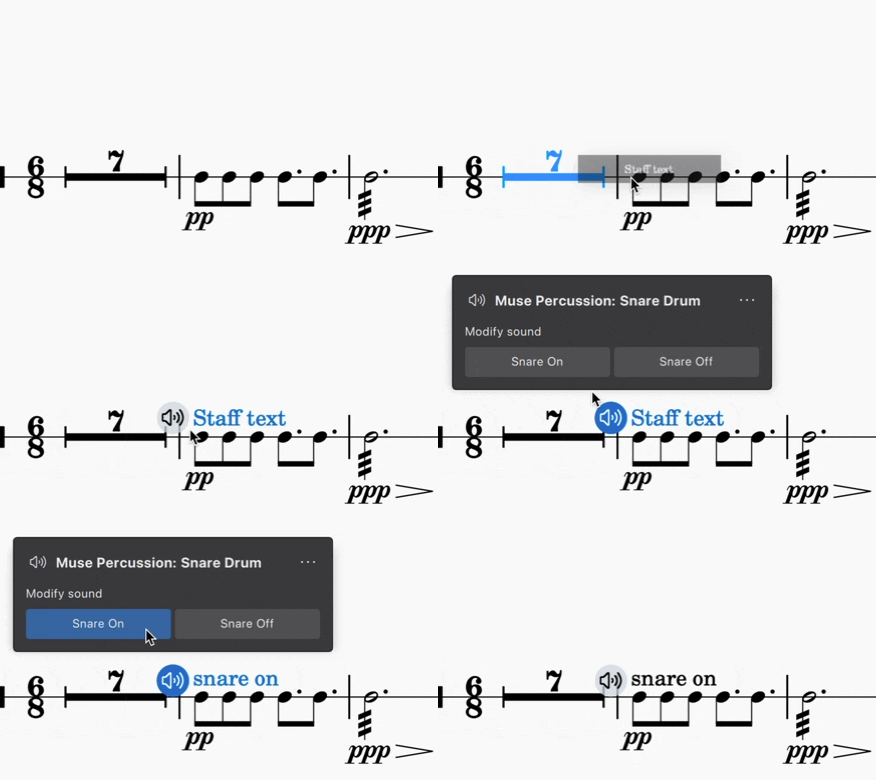
**Sound flags** can be added to [staff text](/fr/text/staff-system-and-expression-text.md) to access additional sounds and playing techniques on MuseSounds instruments. You can download all the free [MuseSounds instruments](/fr/sound-and-playback/musesounds.md) (and soon, more sounds from the world’s best audio developers) via the [Muse Hub](https://www.musehub.com/).
When you add a sound flag (pictured below), it affects playback on the entire instrument from that point forward in the score until it reaches another sound flag.
Using sound flags, you can:
* Set string playing techniques like *espressivo*, *sul ponticello*, and *bartok pizzicato*
* Turn the snare on or off on the MuseSounds Snare drum
* Choose from different choral phonemes, like *ooh*, *ahh*, and *mmm*
Sound flag buttons that appear in the score will never be visible when exporting, printing, or publishing your score to MuseScore.com.
### To add a sound flag
1. Make sure a MuseSounds instrument is selected in the [mixer](/fr/sound-and-playback/mixer.md)
2. Add **Staff text** from the **Text palette** or using `Ctrl`+`T` (Mac: `Cmd`+`T`) to the MuseSounds instrument's staff
3. Click the sound flag button next to the text field
4. Select any of the options to apply it to your score
5. Play the score to preview the new sound
### To use a sound flag without showing text in the score
Sound flags must always be attached to a **staff text** element. If you wish to hide the text:
1. Select the **staff text**
2. In the **Properties** panel under **General**, uncheck **Visible**
### To remove a sound flag
Selecting the sound flag button and pressing `Del` will remove it and leave the staff text in place.
Deleting the staff text will also remove the associated sound flag.
### To hide sound flags in the score
1. With nothing in the score selected, open the **Properties** panel
2. Under **General**, click the eye icon next to **Sound flags**
The sound flag buttons will be hidden. They can still be edited by clicking the associated staff text to reveal its sound flag button.
## Additional options
### To reset a sound flag
The first options in the **Modify sound** and/or **Playing techniques** sections of the sound flag popup are the default sounds. If you wish to quickly reset a sound flag to these sounds:
1. Select a sound flag button
2. Click the three-dot button in the top right and select **Reset to default sound**
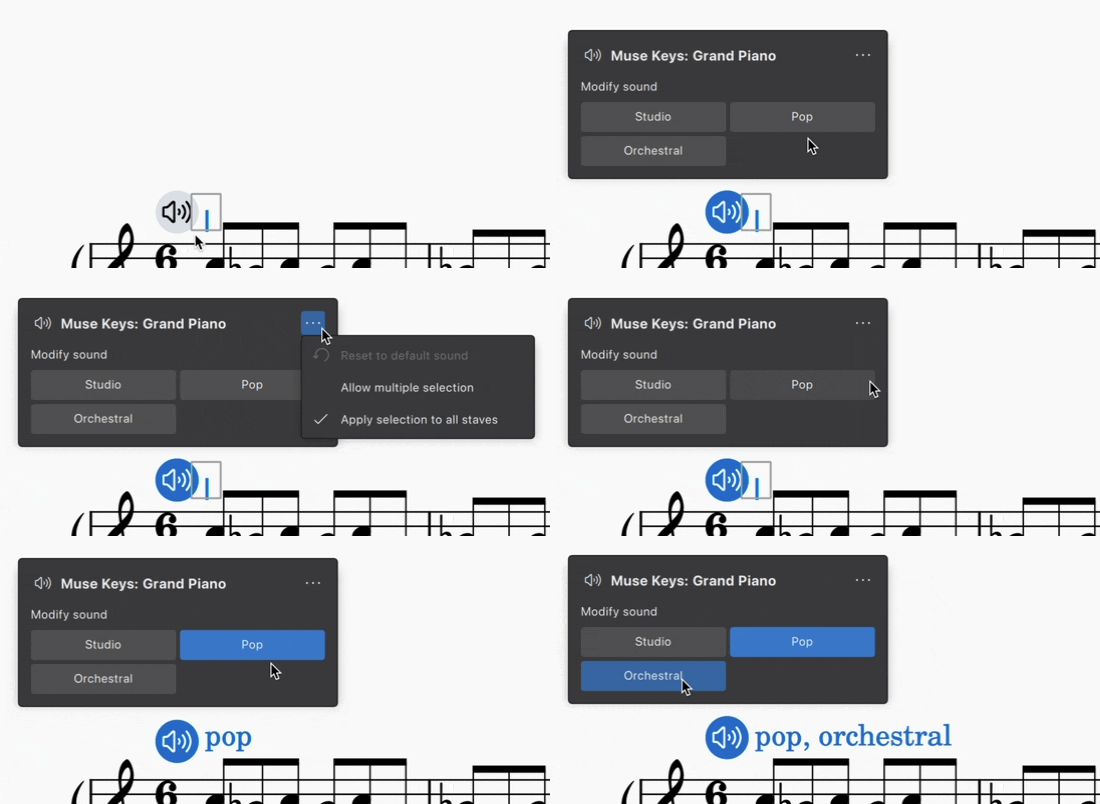
### To select multiple sounds on one sound flag
You may wish to combine more than one sound option to play at the same time. If a sound flag has the **Modify sound** section, you can do the following:
1. Select a sound flag button
2. Click the three-dot button in the top right and select **Allow multiple selection**
3. Then, select more than one sound flag button to hear the sounds together in playback
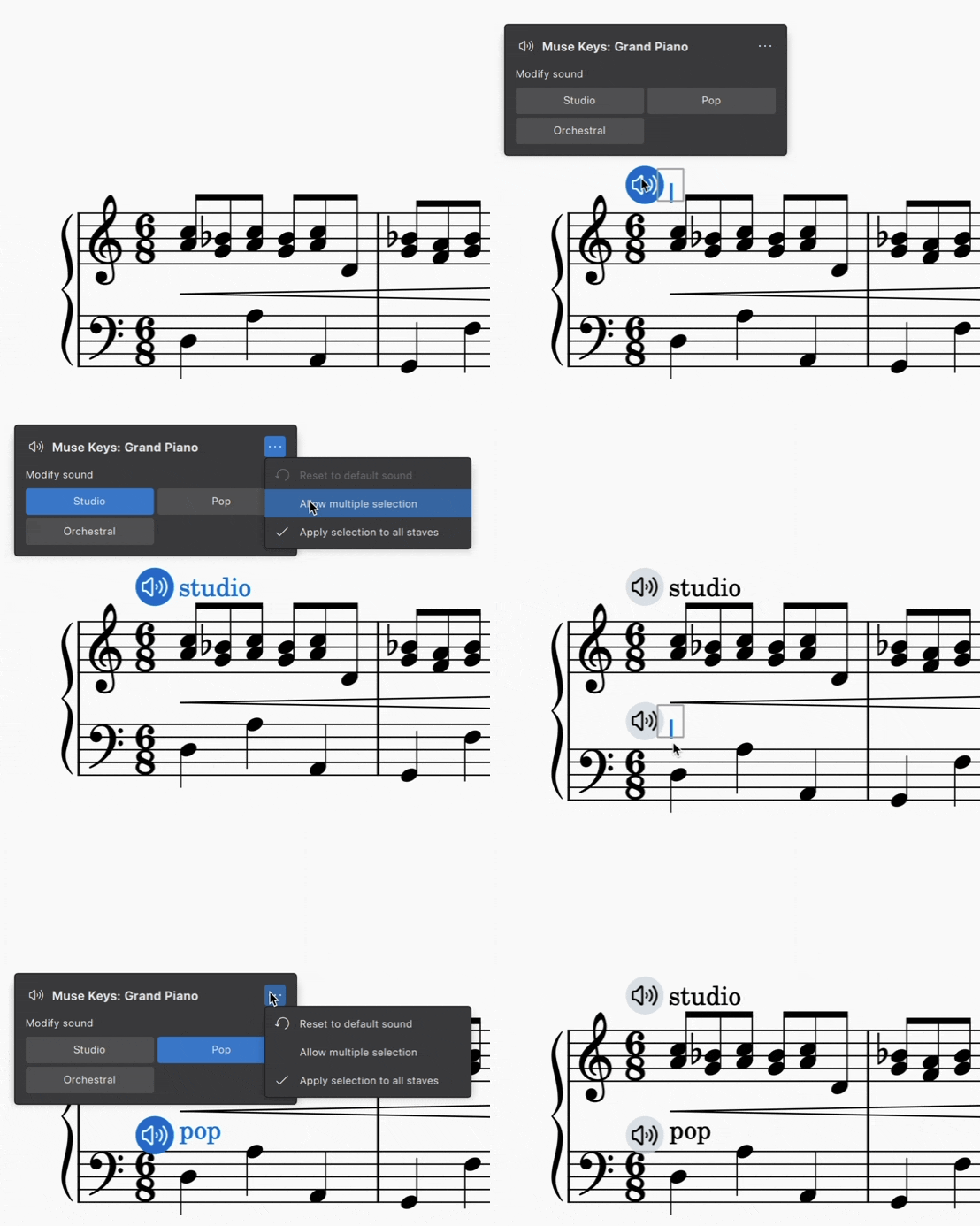
### To change which staves a sound flag affects
By default, sound flags affect all staves on an instrument, but this can be changed.
1. Select a sound flag button
2. Click the three-dot button in the top right and uncheck **Apply selection to all staves**
3. Repeat for sound flags on other staves
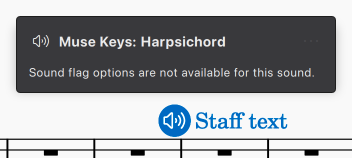
### Sounds without sound flags
Not all MuseSounds instruments have sound flag options. If we haven’t included any sound flag options yet, you’ll see this in the sound flag popup:
## Keyboard navigation
### To add a sound flag using the keyboard
1. Select a note or rest
2. Press `Ctrl`+`T` (Mac: `Cmd`+`T`) to add **Staff text**
3. Type anything in
4. Press `Esc` to select the text
5. Press `Alt`+`Left` (Mac: `Option`+`Left`) to open the popup
6. Use `Tab` and arrow keys to navigate within the popup and `Space` to select
## See also
* [Installing MuseSounds](/fr/sound-and-playback/musesounds.md)
---
# Agent Instructions
This documentation is published with GitBook. GitBook is the documentation platform designed so that both humans and AI agents can read, navigate, and reason over technical content effectively. Learn more at gitbook.com.
## Querying This Documentation
If you need additional information that is not directly available in this page, you can query the documentation by asking a question.
Perform an HTTP GET request on the following URL with the `ask` and `goal` query parameters:
```
GET https://handbook.musescore.org/fr/sound-and-playback/sound-flags.md?ask=&goal=
```
`ask` is the immediate question: it should be specific, self-contained, and written in natural language.
`goal` is what the user is ultimately trying to achieve, the reason they need the answer. Sharing it helps GitBook give you a better, more relevant answer. A goal is most helpful when it describes the outcome the user wants rather than restating the question. For example, with `ask=how do I create an API token`, a goal like `automate deployments from our CI pipeline` lets GitBook tailor the answer to that use case.
The response will contain a direct answer to the question and relevant excerpts and sources from the documentation.
Use this mechanism when the answer is not explicitly present in the current page, you need clarification or additional context, or you want to retrieve related documentation sections.