> For the complete documentation index, see [llms.txt](https://handbook.musescore.org/llms.txt). Markdown versions of documentation pages are available by appending `.md` to page URLs; this page is available as [Markdown](https://handbook.musescore.org/fr/sound-and-playback/playback-controls.md).
# Commandes de lecture
## Overview
The playback toolbar
Basic playback functions are accessed from the **Playback toolbar** at the top right of the app window.
The buttons from left to right are:
* [**Rewind**](#rewind): Starts playback from the start of the score (or looped section)
* [**Play**](#play): Starts and stops playback
* [**Toggle loop playback**](#loop): Plays back a selected range of music
* [**Metronome**](#metronome): Toggles metronome tick on and off
* [**Playback settings**](#playback-settings): Provides access to various playback controls
* [**Playback position counters**](#playback-position-counters): Shows the time, measure, and beat of the playback cursor
* [**Playback speed**](#playback-speed): Allows you to see and control the playback speed
The playback panel can be undocked and repositioned by clicking and dragging the dock handle to the left of the **Rewind** button.
## Playback controls
### Play
To start playback:
1. Press the **Play** button, or press `Space`
2. *(Optional)* Click on a note or rest to establish the playback starting point
To stop playback, press the **Play** button during playback (It will show a 'pause' icon), or press `Space`.
{% hint style="info" %}
If no selection is made before pressing \*\*Play\*\*, playback will commence at the start of the score, or from the location at which it was previously stopped.
{% endhint %}
During playback, all instruments will be heard, according to what is muted/soloed in the [mixer](/fr/sound-and-playback/mixer.md). To quickly play back a specific stave or range of staves *without* using the solo/mute controls in the [mixer](/fr/sound-and-playback/mixer.md):
1. Select a [measure](/fr/notation/rhythm-meter-and-measures.md) that you want to start from (by clicking a blank space within that measure)
2. *(Optional)* Hold `Shift` and click a measure on a different stave to create a [range selection](/fr/basics/selecting-elements.md#selecting-a-range-of-measures-and-staves)
3. Press the **Play** button, or press `Space`
MuseScore Studio will now play back only the selected instruments.
### Rewind
Press the **Rewind** button to start playback from the beginning of the score.
If a loop is set, pressing **Rewind** will start playback from the beginning of the loop.
### Loop
To loop playback over a section of music:
1. [Select a range](/fr/basics/selecting-elements.md#creating-a-range-selection) in the score that contains the section of music you want to play back
2. Click **Toggle loop playback**
3. Press **Play**
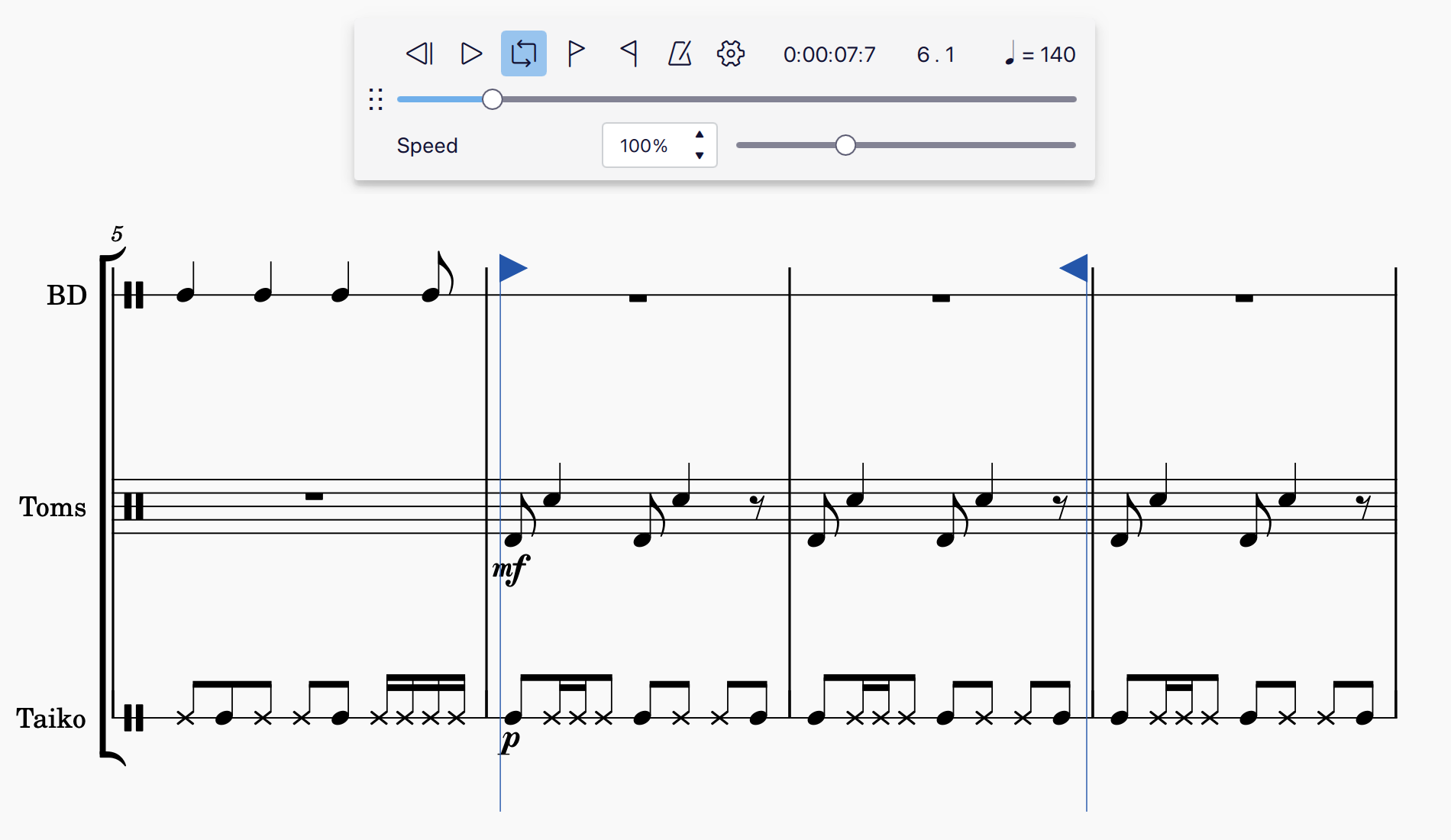
Flag markers will appear at the start and end of the looped section. To clear the looped section markers, press the **Toggle loop payback** button again.
The undocked playback panel, with start and end loop markers shown around measures 6 and 7.
### Metronome
To hear metronome ticks during playback, click the **Metronome** button.
Metronome ticks will be heard during playback when the **Metronome** button is coloured. To switch off the metronome, press the **Metronome** button again so that the coloured button background is no longer visible.
You can control the volume of the metronome, as well as the sound it uses, in the [Mixer](/fr/sound-and-playback/mixer.md).
{% hint style="info" %}
When the \*\*Metronome\*\* is on, metronome ticks will be included in your \[exported audio file]\(../file-management/file-export.md#audio-formats).
{% endhint %}
### Playback position counters
The current playback position is shown by two counters to the right of the playback controls. One shows the position in terms of **time elapsed**, the other in **measures and beats**.
To jump to a timestamp, measure or beat manually:
1. Click a counter
2. Enter a number
3. Press `Esc` or click outside of the counter field to clear the selection
4. Press **Play**
### Playback speed
The **Playback speed** button shows the relative tempo at the given position of the playback cursor. The tempo is shown in quarter-note (crotchet) beats, relative to whatever tempo is notated in the score.
{% hint style="info" %}
For example, if a tempo mark of \*\*♩= 80\*\* is added to the start of measure 5, then the \*\*Playback speed\*\* button will also show\*\*♩= 80\*\* when the playback cursor reaches the start of measure 5.
Ou encore, si un tempo de **♪=100** est placé au début de la mesure , le bouton de **Vitesse de lecture** affichera **♩= 50** lorsque le curseur de lecture atteindra la mesure 6.
{% endhint %}
The **Playback speed** button also takes into account [tempo changes](/fr/text/tempo-markings.md#tempo-change-lines), and [breaths and pauses](/fr/notation/expressive-markings/breaths-and-pauses.md). This means you'll see the number increase during an *accelerando*, and decrease during a *rallentando* or when the playback cursor reaches a *fermata.*
MuseScore Studio gives you the ability to control the *playback speed* of the whole score, independently of all notated tempo markings. This allows you to play back the score faster or slower without having to add or modify notated tempo markings.
To control the playback speed of the score independently of notated tempo markings:
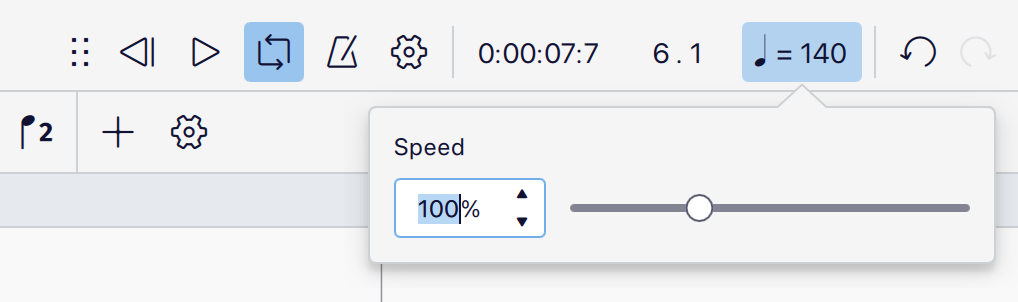
1. Click the **Playback speed button**
2. In the popup that appears, use your mouse to move the slider control left or right, or
3. Type a number into the text field to the left of the slider control
The playback speed popup can be opened by clicking the playback speed button
The playback speed is set as a percentage of the default tempo **(♩= 120)**, or whatever tempo marking prevails at the position of the playback cursor during playback.
{% hint style="info" %}
When you change the playback speed, MuseScore Studio maintains the relationship between all notated tempo markings, tempo changes, and breaths and pauses. This means that all notated tempi, and their relationship to other markings – including tempo changes, and breaths and pauses – stays the same, but is heard faster or slower depending on the playback speed you've chosen.
{% endhint %}
To permanently display the playback speed controls, undock the playback panel by clicking and dragging the dock handle to the left of the **Rewind** button.
## Playback settings
Click the **Playback settings** button to control various aspects of how playback works in MuseScore Studio. These settings can be checked or unchecked according to your requirements.
We'll look at each setting in turn.
### Enable MIDI input
When this option is checked, you'll be able to hear playback from, and input notation using a connected MIDI device (such as a keyboard or drum machine). Uncheck this option if you don't want to use your MIDI device in MuseScore Studio (For example, when using it for audition purposes only in another background application). See [Working with Midi](/fr/sound-and-playback/working-with-midi.md) for details.
### MIDI input pitch
There are two options in the **MIDI input pitch** sub-menu that allow you to control whether notation inputted using a MIDI device is entered at either the *written pitch* or *sounding pitch* for [transposing instruments](/fr/notation/pitch/transposition.md#working-with-transposing-instruments).
{% hint style="info" %}
Note that this setting only makes a difference when the \*\*Concert pitch\*\* toggle is unchecked. When entering notation in concert pitch, all notes played on a MIDI device will be entered at their sounding pitch.
{% endhint %}
* When **Written pitch** is selected, notes played on a MIDI device will be inputted at the stave position that corresponds to the note played.
* For example, when inputting notation for a Trumpet in B♭, a C played on the MIDI device will be inputted as a C, and will sound like a B♭.
* When **Sounding pitch** is selected, notes played on a MIDI device will be entered at the sounding pitch that corresponds to the pitch of the note played.
* For example, when inputting notation for a Trumpet in B♭, a C played on the MIDI device will be inputted as a D, and will sound like a C.
### Play repeats
When this option is checked, all sections of music contained within repeat markings will be repeated during playback. Uncheck this option if you want to ignore repeat markings during playback.
### Play chord symbols
When this option is checked, all chord symbols will be played during playback. Uncheck this option if you want ignore chord symbols during playback .
### Hear playback when editing
When this option is checked, you'll be able to hear a preview sound for every note you input, or select and modify. Uncheck this option to input, select, or modify notes without hearing a preview of their sound.
### Pan score automatically
When this option is checked, the position of the score will be adjusted during playback and editing. Uncheck this option if you want the score position to remain stationary.
### Set loop markers
To manually set the start of a looped section:
1. Select a measure, note, or rest
2. Click **Playback settings**
3. Select **Set loop marker left**
To manually set the end of a looped section:
1. Select a measure, note, or rest
2. Click **Playback settings**
3. Select **Set loop marker right**
Dedicated buttons for start and end loop markers can also be permanently visible in the **Playback toolbar** when it is in it is undocked.
## External links
Metronome tick demo score file
---
# Agent Instructions
This documentation is published with GitBook. GitBook is the documentation platform designed so that both humans and AI agents can read, navigate, and reason over technical content effectively. Learn more at gitbook.com.
## Querying This Documentation
If you need additional information that is not directly available in this page, you can query the documentation dynamically by asking a question.
Perform an HTTP GET request on the current page URL with the `ask` query parameter, and the optional `goal` query parameter:
```
GET https://handbook.musescore.org/fr/sound-and-playback/playback-controls.md?ask=&goal=
```
`ask` is the immediate question: it should be specific, self-contained, and written in natural language.
`goal` is optional and describes the broader end goal you are ultimately trying to accomplish on behalf of the user. GitBook uses it to tailor the answer towards what is most useful for that goal.
The response will contain a direct answer to the question and relevant excerpts and sources from the documentation.
Use this mechanism when the answer is not explicitly present in the current page, you need clarification or additional context, or you want to retrieve related documentation sections.