> For the complete documentation index, see [llms.txt](https://handbook.musescore.org/llms.txt). Markdown versions of documentation pages are available by appending `.md` to page URLs; this page is available as [Markdown](https://handbook.musescore.org/fr/notation/expressive-markings/other-lines.md).
# Autres lignes
## Overview
Musescore **Line** is a type of object capable of attaching (anchoring) to a [horizontal continuous range](/fr/basics/selecting-elements.md#creating-a-range-selection) of more than two notes or rests, or vertical collection of notes (chord). A Musescore Line object contains a length of string or arc, and optionally a text. These objects can functionally affect the score, and share similar configurable [line properties](#line-properties), [text properties](#text-tab), and [styles](#style-tab).
Musescore Line objects include these subtypes, follow the hyperlink on text to read their dedicated main chapters, or "jump to section" on this chapter:
* Standard line or Plain line (a simple general purpose, straight line) ([jump to section](#standard-lines))
* [Slurs](/fr/notation/expressive-markings/slurs-and-ties.md)
* Staff text lines and System text lines ([jump to section](#staff-and-system-text-lines))
* [Hairpins](https://github.com/shoogle/Handbook/blob/fr/docs/notation/expressive-markings/broken-reference/README.md) and crescendo, decrescendo lines
* Tempo lines such as rit --- ([jump to section](#tempo-lines}))
* [Voltas](/fr/notation/repeats/voltas.md) (repeat section brackets on top)
* [Idiomatic notation: Keyboard: Pedal](/fr/idiomatic-notation/keyboard/pedal.md) markings
* [Octave lines](/fr/notation/pitch/octave-lines.md) (8ve etc)
* (Long) Trill lines ([jump to section](#trill-lines))
* [Arpeggios](/fr/notation/expressive-markings/arpeggios-and-glissandos.md)
* [Glissandi](/fr/notation/expressive-markings/arpeggios-and-glissandos.md) (slides) and portamento between two notes
* Upprall, Downprall, Prallprall, affects playback
* Guitar-related lines ([jump to section](#guitar-related-lines)): including Barre line, "let ring" line, P.M. --- (palm mute), Vibrato line, and the custom Fingering/String number-line.
* vibrato sawtooth, tremolo sawtooth, does not affect playback
* [Ambitus](/fr/notation/pitch/ambitus.md) (an early music feature)
These markings contain length of string or arc, but do **not** belong to Musescore Line objects because they cannot attach (anchor) to a continuous range:
* [Bends](/fr/notation/expressive-markings/arpeggios-and-glissandos.md) (brass or guitar articulations)
* [Liaisons de prolongation](/fr/basics/entering-notes-and-rests.md#ties)
* [Tremolo and rolls](/fr/notation/expressive-markings/tremolos-and-rolls.md)
* Single note [Ornaments](/fr/notation/expressive-markings/ornaments.md) such as turns, (short) trills and mordents
* (Staff) [Brackets](/fr/notation/instruments-staves-and-systems/brackets.md) and curly braces
* [Barres de mesure](/fr/notation/rhythm-meter-and-measures/barlines.md)
* Staff line (To change global staff line thickness, see [Page layout concepts: Staff](/fr/formatting/page-layout-concepts.md#staff). Other related settings see [Staff/Part properties](/fr/notation/instruments-staves-and-systems/staff-part-properties.md) chapter.)
**Note**: The following description of actions and general behaviors applies to Line objects discussed here (those do not have a dedicated handbook chapter), for Line objects having dedicated handbook chapters, refer to those chapters for more accurate info.
## Adding a line to your score
The commonest way to add a new Musescore Line is to use either:
* a predefined keyboard shortcut, for example `S` to add slurs (see the respective chapter above), or
* the **Lines** palette and the **Guitar** [palette](https://musescore.org/en/handbook/3/palettes)
To apply a line to a [selected range](/fr/basics/selecting-elements.md#creating-a-range-selection):
1. Select a range of notes,
2. Click on a line in a palette;
Ou bien
1. Drag a line from a palette to the starting note,
2. Adjust the **end handle** to extend the range (see [Changing range of a line](/fr/basics/adjusting-elements-directly.md#changing-the-range-of-a-line)).
To apply a line to a single note:
1. Select a note and click on the desired palette line.
2. Drag a palette line to the desired start note.
## Adjusting a line
To adjust the range of a line, see [Changing range of a line](/fr/basics/adjusting-elements-directly.md#changing-the-range-of-a-line).
## Types of lines
### Standard lines
Plain lines are applied from the **Lines** palette. They can be purposed to anything you like such as to [create guitar fingering/string number lines](#guitar-related-lines). They can be adjusted to be diagonal or vertical.
### Staff and System Text lines
A staff text line, like [staff text](/fr/text/staff-system-and-expression-text.md), is affixed to one staff in a system, and is indicative *only* for that staff. It appears only in the [part](/fr/basics/parts.md) featuring *that* staff.
A system text line, like [system text](/fr/text/staff-system-and-expression-text.md), is affixed to one staff but is indicative for all the staffs in the system. It appears in all instrument parts.
### Tempo lines
[Tempo markings](/fr/text/tempo-markings.md) such as **rit ---** are new in Musescore 4, they affect playback tempo.
### Guitar-related lines
* **Barre lines** in **Guitar** palette: Used to indicate fret positions, see [Guitar techniques: Adding a barre line to your score](/fr/idiomatic-notation/guitar/guitar-techniques.md#adding-a-barre-line-to-your-score).
* To create a **Fingering/String number-line**:
1. add a [Fingering](/fr/text/fingering.md) from **Fingerings** palette,
2. add a [Standard lines](#standard-lines) from **Lines** palette,
3. [adjust the length](#adjusting-a-line) as required.
* **Vibrato** in the **Guitar** palette. You can change the shape of the line in the **Vibrato** section of the [Properties](/fr/basics/properties-panel.md) panel.
* **Palm mute** in the **Guitar** palette: Changes playback sound to that of a clean muted electric guitar.
* **Let ring** in the **Guitar** palette: Affect playback, acts like the sustain pedal on a keyboard.
### Trill lines
Not to be confused with (short) trills [Ornaments](/fr/notation/expressive-markings/ornaments.md).
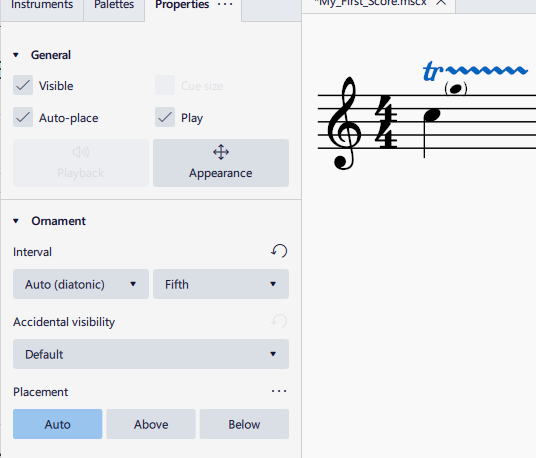
Trill lines are upgraded in Musescore 4, their have lots of new engraving settings such as showing a bracketed small note and accidentals to notate trill note pitch, these settings are explained in [Ornaments](/fr/notation/expressive-markings/ornaments.md).
They still create playback with [SoundFonts](/fr/sound-and-playback/soundfonts.md) instruments like in previous Musescore versions. If the instrument use [Muse Sounds](/fr/sound-and-playback/musesounds.md) and the sound sample exists, a trill line will utilize the beautifully recorded trill audio for playback, for example in case of a perfect fifth trill line.
## Line properties
The [Properties panel](/fr/basics/properties-panel.md) allows you to view and edit [General](/fr/basics/properties-panel.md#general), [Appearance](/fr/basics/properties-panel.md#inside-the-appearance-tab), and [Playback](#types-of-lines) settings.
The name of the section below varies depending on the type of line. But it will have two tabs marked **Style** and **Text**:
### Style tab
Clicking on the **Style** tab allows you to set the properties of the line itself:
**Line type**: A choice of straight, hooked, angle-hooked, or double-hooked.\
**Thickness** / **Hook height**:\
**Style**: Choice of solid, dashed or dotted line.\
**Dash** / **Gap**: Adjust the appearance if "Dashed" is selected.
### Text tab
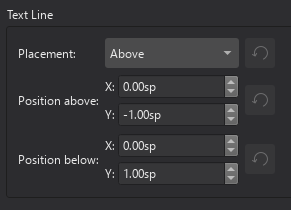
Clicking on the **Text** tab allows you to apply and position any text associated with the line:
**Beginning text**: Enter the text, if any, to appear at the beginning of the line.\
**Vertical offset**: Allows you to move the text vertically in relation to the line (in sp.).\
**Text when continuing to a new system**: If the line spans a system, this is the text that will appear before the line in the next system.\
**Vertical offset**: As above.
## Line style
See [Templates and styles](/fr/customization/templates-and-styles.md)
Values of the "Style for Text line" can be edited in **Format→Style→Text line**.\
Values of the "Style for System text line" can be edited in **Format→Style→System text line**.\
Values of the "Style for text inside Text line" can be edited in **Format→Style→Text styles→Text line**
---
# Agent Instructions
This documentation is published with GitBook. GitBook is the documentation platform designed so that both humans and AI agents can read, navigate, and reason over technical content effectively. Learn more at gitbook.com.
## Querying This Documentation
If you need additional information that is not directly available in this page, you can query the documentation dynamically by asking a question.
Perform an HTTP GET request on the current page URL with the `ask` query parameter, and the optional `goal` query parameter:
```
GET https://handbook.musescore.org/fr/notation/expressive-markings/other-lines.md?ask=&goal=
```
`ask` is the immediate question: it should be specific, self-contained, and written in natural language.
`goal` is optional and describes the broader end goal you are ultimately trying to accomplish on behalf of the user. GitBook uses it to tailor the answer towards what is most useful for that goal.
The response will contain a direct answer to the question and relevant excerpts and sources from the documentation.
Use this mechanism when the answer is not explicitly present in the current page, you need clarification or additional context, or you want to retrieve related documentation sections.