> For the complete documentation index, see [llms.txt](https://handbook.musescore.org/llms.txt). Markdown versions of documentation pages are available by appending `.md` to page URLs; this page is available as [Markdown](https://handbook.musescore.org/fr/customization/toolbars-and-windows.md).
# Barres d'outils et fenêtres
## Overview
Windows, toolbars and panels within MuseScore can be repositioned, and you can choose which elements you want to see displayed in them.
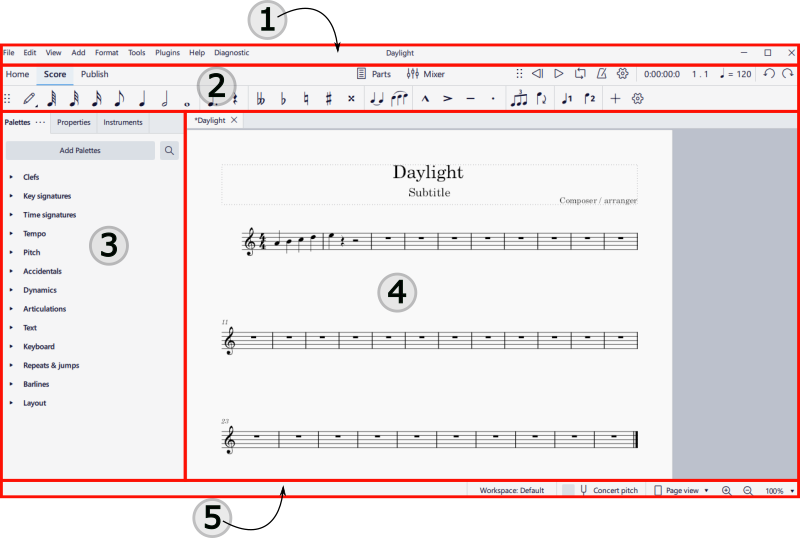
The default appearance of MuseScore is shown below:
1. The Menu bar
2. Toolbars
3. Palette, Property and Instrument Panels
4. The Score Window
5. The Status Bar
## Toolbars
### Showing and hiding toolbars
To show or hide the [playback](/fr/sound-and-playback/playback-controls.md) controls, [note input](/fr/basics/entering-notes-and-rests.md) toolbar, or the **status bar**:
* Select **View→Toolbars...** and check/uncheck the applicable element.
### Rearranging toolbars
Pour changer la position des barres d'outils **saisie de notes** ou **lecture**, cliquez et maintenez les six points à gauche de celles-ci puis glissez-les à l'endroit souhaité. Elles *peuvent* être laissées flottantes mais celle de **saisie de notes** peut aussi être glissée à gauche ou en bas de la fenêtre principale — un rectangle bleu apparaît pour indiquer où celle-ci peut être lâchée pour la **refixer**. La barre de **lecture** ne peut être refixée qu'à son emplacement *default*.
### Customizing contents of toolbars
To select the icons that you want on view in the **note input** or **playback** toolbars, click on the gear icon to the right of the toolbar:
In the case of the **note input** toolbar, this reveals a dropdown list from which you can hide or display the various icons by clicking on the eye symbol to the left of each one (closed=hidden, open=displayed).
In the case of the **playback toolbar**, uncheck or check the various options in the gear menu to hide or display the corresponding elements.
## Windows and Panels
### Docking and undocking panels
To undock and move one of the **side panels** (Palette, Instruments, Properties, or Selection filter), click on the three dots on the tab, select the **Undock** option, then drag the undocked panel to the desired position.
You *can* leave the panel free-standing but there are also dock positions at the top and right hand edges of the document window—a blue rectangle appears to show that you can drop the panel to redock it at that location.
In a similar way, you can redock the free panel back to the sidebar:
* To display half-length at the top of the sidebar, drag and drop the free panel to the top left of the sidebar.
* To display half-length at the bottom of the sidebar, drag and drop the free panel to the bottom left of the sidebar.
* To display full-length in the sidebar, drag and drop the free panel to the center left of the side.
You can also redock the free panel in its original position by clicking on the three dots on the tab, and selecting **Dock**.
Panels such as the [Mixer](/fr/sound-and-playback/mixer.md) or virtual [Piano](/fr/basics/entering-notes-and-rests.md#selecting-pitch-using-the-virtual-piano-keyboard) can be undocked if desired, by dragging them into position or clicking on the three dots icon and selecting **Undock**. To redock, click on the three dots icon and select **Dock**.
The undocked **mixer** can be resized by dragging the edges inwards or outwards.
### Customizing contents of panels
To choose which elements to display within the [mixer](/fr/sound-and-playback/mixer.md) or the virtual [Piano](/fr/basics/entering-notes-and-rests.md#selecting-pitch-using-the-virtual-piano-keyboard), click on the three dots, select **View** and uncheck or check the applicable options.
To customize the palettes area, see [Customization: Palettes](/fr/customization/palettes.md).
---
# Agent Instructions
This documentation is published with GitBook. GitBook is the documentation platform designed so that both humans and AI agents can read, navigate, and reason over technical content effectively. Learn more at gitbook.com.
## Querying This Documentation
If you need additional information that is not directly available in this page, you can query the documentation by asking a question.
Perform an HTTP GET request on the following URL with the `ask` and `goal` query parameters:
```
GET https://handbook.musescore.org/fr/customization/toolbars-and-windows.md?ask=&goal=
```
`ask` is the immediate question: it should be specific, self-contained, and written in natural language.
`goal` is what the user is ultimately trying to achieve, the reason they need the answer. Sharing it helps GitBook give you a better, more relevant answer. A goal is most helpful when it describes the outcome the user wants rather than restating the question. For example, with `ask=how do I create an API token`, a goal like `automate deployments from our CI pipeline` lets GitBook tailor the answer to that use case.
The response will contain a direct answer to the question and relevant excerpts and sources from the documentation.
Use this mechanism when the answer is not explicitly present in the current page, you need clarification or additional context, or you want to retrieve related documentation sections.