> For the complete documentation index, see [llms.txt](https://handbook.musescore.org/llms.txt). Markdown versions of documentation pages are available by appending `.md` to page URLs; this page is available as [Markdown](https://handbook.musescore.org/formatting/working-with-images.md).
# Working with images
**Images** may be inserted into scores by attaching them to score objects or to frames.
The supported image formats are **SVG** (\*.svg), **PNG** (\*.png), **JPEG** (\*.jpg and \*.jpeg).
* **SVG** is recommended for symbols and 2D graphics because it enables you to adjust the image size without pixelation.
* Transparency and gradients are supported.
* Advanced SVG features such as shading, blurring, clipping and masking are not supported.
* **PNG** also supports transparency and is preferable to JPEG for symbols and 2D graphics.
* Use PNG if you can't obtain an SVG version of the graphic.
* Don't try to convert PNG to SVG because this won't provide the benefits of a true SVG image.
* Consider using a free tool such as [TinyPNG](https://tinypng.com/) to reduce the PNG file size without reducing quality.
* **JPEG** is recommended for photographs and detailed 3D textures.
* Use it for 2D graphics only if you have no other option.
* Don't try to convert JPEG to SVG or PNG as this will increase file size without providing the benefits of those formats.
In addition, images saved in the **Bitmap** (\*.bmp), and **TIFF** (\*.tif and \*.tiff) formats work but are not fully supported. It's best to convert these images to PNG or JPEG before importing into MuseScore Studio.
Other formats such as **GIF** (\*.gif), **WebP** (\*.webp) and **X PixMap** (\*.xpm) are not supported. These images must be converted to PNG or JPEG before importing in MuseScore Studio.
### Importing images
#### Add an image to a vertical or horizontal frame
This method doesn't work with **Bitmap** (\*.bmp) or **TIFF** (\*.tif and \*.tiff) images.
1. Right-click on the frame
2. Select **Add→Image**
3. Search for and add the image from the “Insert image” window.
#### Attach an image to a score object
Use this method for small images associated with staves, such as musical symbols, or for image formats not supported by the above method (e.g. Bitmap, TIFF).
1. Locate the image file in your operating system's file manager (i.e. outside of MuseScore Studio).
2. Shrink the file manager's window so it fits on the same screen as MuseScore Studio.
3. Drag the image file from the file manager across to MuseScore Studio.
4. Keep dragging until the cursor is positioned over a note, rest, measure, or a vertical or horizontal frame.
### Saving images to palettes
To save an imported image to a palette, see [Adding elements from the score](/customization/palettes.md#adding-elements-from-the-score).
### Copying imported images
Once an image has been imported into the score it can be copied/cut and pasted to another location, such as a frame, note or rest, using the standard commands and procedure (see [Copy and paste](/basics/copy-and-paste.md)).
### Adjusting images
#### Change image height/width
Select the image and use either of the following methods:
* Drag either of the image adjustment handles.
* Edit the “Image height/width” in the **Image** section of the **Properties** panel.
As long as the **padlock** symbol is active (colored blue in **Properties: Image**) the aspect ratio (height/width) of the image will be maintained throughout. If you want to adjust a side independently of the other, click on the padlock to break it (colored grey).
#### Scale image
To scale an image to the height of the containing frame:
1. Adjust the frame to the desired height
2. Check “Scale to frame size” in the **Image** section of the **Properties** panel.
As long as “Scale to frame size” remains checked the image size will follow the frame height.
#### Adjust image position
The image can be repositioned by dragging, or adjusting the horizontal/vertical offsets in the **Appearance** section of the **Properties** panel. Ctrl+R restores the image to its default position.
### Image properties
The image properties of a selected image can be adjusted in the **Image** section of the **Properties** panel.
* **Image height** / **Padock** / **Image width**: Adjust dimensions of image. The padlock, which is active by default, ensures that the desired aspect ratio (height/width) is maintained.
* **Scale to frame size**: See [Scale image](#scale-image) (above).
* **Use staff space units**: When checked (the default setting), the image automatically scales proportionally with the Scaling setting in **Format→Page Settings**, and uses the staff space unit, **sp**. If unchecked, the image uses **mm** and does not scale proportionally. See [Page layout concepts](/formatting/page-layout-concepts.md#spatium-plural-spatia--space--staff-space--sp).
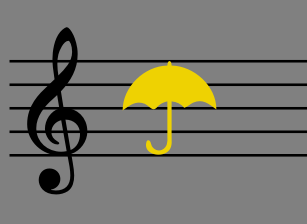
\ \_This symbol is 4sp in height so it fits perfectly into the space between the top and bottom line of a 5-line staff. Its "Use staff space units" option is checked so it scales proportionally.\_
## See also
* [Using the palettes](/basics/using-the-palettes.md) for info on how apply palette items.
---
# Agent Instructions
This documentation is published with GitBook. GitBook is the documentation platform designed so that both humans and AI agents can read, navigate, and reason over technical content effectively. Learn more at gitbook.com.
## Querying This Documentation
If you need additional information that is not directly available in this page, you can query the documentation dynamically by asking a question.
Perform an HTTP GET request on the current page URL with the `ask` query parameter, and the optional `goal` query parameter:
```
GET https://handbook.musescore.org/formatting/working-with-images.md?ask=&goal=
```
`ask` is the immediate question: it should be specific, self-contained, and written in natural language.
`goal` is optional and describes the broader end goal you are ultimately trying to accomplish on behalf of the user. GitBook uses it to tailor the answer towards what is most useful for that goal.
The response will contain a direct answer to the question and relevant excerpts and sources from the documentation.
Use this mechanism when the answer is not explicitly present in the current page, you need clarification or additional context, or you want to retrieve related documentation sections.