> For the complete documentation index, see [llms.txt](https://handbook.musescore.org/llms.txt). Markdown versions of documentation pages are available by appending `.md` to page URLs; this page is available as [Markdown](https://handbook.musescore.org/fi/text/staff-system-and-expression-text.md).
# Staff, system, and expression text
## Overview
**Staff Text objects** and **System Text objects** are for indicative purposes listed right below. They can optionally affect Musescore playback, only the section after the attached note or rest is affected.
* Applying [swing](#swing-playback) and straight time (staff text and system text only)
* Applying score and movement titles
* Other general purpose **not covered by other text types only.** Different types of text-based objects are not interchangeable, see [Text types](/fi/text/entering-and-editing-text.md#types-of-text).
**Expression text objects** indicate musical expressions and performance indications. They do not affect Musescore playback. To indicate dynamics and create playback at the same time, use [Dynamics symbol object](/fi/notation/expressive-markings/dynamics-and-hairpins.md). To indicate and affect tempo at the same time, use [Tempo markings](/fi/text/tempo-markings.md).
### Similarity and difference between Staff Text and System Text
Staff Text and System Text are similar in behavior and function.
* Both of them attaches to a note or rest.
* Both of them can be set-up to have effect on audio created by Musescore's Synthesizer, a **Staff Text** only affects the [Musescore Instrument](/fi/basics/setting-up-your-score.md) that that note belongs to, a **System Text** affects **all** Musescore Instruments on a score.
* **Staff Texts** are hidden along with "Hide empty staves within systems" option (and the sub-option "Don't hide empty staves in first system") under "Style" window : "Score", see [Templates and styles](/fi/customization/templates-and-styles.md).
* A **Staff Text** only appears in the [Musescore Part(s)](/fi/basics/parts.md) that features the Musescore Instrument. A **System Text** appears on **all** Musescore Parts.
* New **System Text** is positioned above the top staff of each [system (layout concept)](/fi/formatting/page-layout-concepts.md).
## Adding Staff Text to your score
1. Select a note
2. Use one of the following methods:
* Press `Ctrl`+`T`.
* From the menu, select `Add`→`Text`→`Staff Text`.
* Click on the "Staff Text" icon in the **Text** [palette](/fi/basics/using-the-palettes.md)
3. Enter the desired text in the bounding box.
Alternatively, drag the "Staff Text" icon onto a note in the score before entering the desired text.
## Adding expression text to your score
1. Select a note
2. Use one of the following methods:
* Press `Ctrl`+`E`.
* From the menu, select `Add`→`Text`→`Expression text`.
* Click on the "Expression text" icon in the **Text** [palette](/fi/basics/using-the-palettes.md)
3. Enter the desired text in the bounding box.
Alternatively, drag the "Expression text" icon onto a note in the score before entering the desired text.
## Adding System Text to your score
1. Select a note
2. Use one of the following methods:
* Press `Ctrl`+`Shift`+`T`.
* From the menu, select `Add`→`Text`→`System Text`.
* Click on the "System Text" icon in the **Text** [palette](/fi/basics/using-the-palettes.md)
3. Enter the desired text in the bounding box.
Alternatively, drag the "System Text" icon onto a note in the score before entering the desired text.
## Repeating System Text on other staves
New **System Text** is positioned above the top staff of each [system (layout concept)](/fi/formatting/page-layout-concepts.md). If you need a similar indication on a lower staff, add it to that staff using [Staff Text](#adding-staff-text-to-your-score).
[Some templates](/fi/introduction/create-your-first-score.md) have an additional feature. When you create a System Text, it is automatically duplicated and shown just above another lower staff. If either instance of the object is edited the content of both is updated. If either one is removed, both are removed. These templates includes:
* Symphony Orchestra : duplicated and shown above violin.
* Classical Orchestra : duplicated and shown above violin.
* SATB + Piano : duplicated and shown above piano.
* SATB + Organ : duplicated and shown above organ.
* SATB Closed Score + Piano : duplicated and shown above piano.
* SATB Closed Score + Organ : duplicated and shown above organ.
## Properties
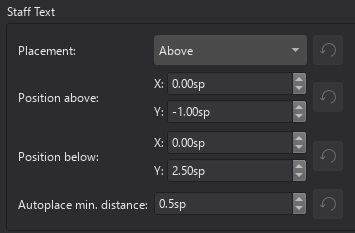
Edit properties of *selected* Staff Text, System Text, and Expression Text object(s) in the [Properties panel](/fi/basics/properties-panel.md). Text related settings are covered in [Formatting text](/fi/text/formatting-text.md) chapter.
An Expression Text can be added to a note that already has a Dynamics symbol attached. Doing so snaps it to the dynamics symbols, this behavior and the **Properties : Expression: Snap to dynamic** property is explained in [Dynamics](/fi/notation/expressive-markings/dynamics-and-hairpins.md) chapter.
### Swing playback
Staff and system text can optionally be used to introduce [Swing playback](#swing-playback).
To apply swing:
1. Right-click on a text object (staff text or system text only)
2. Select **Staff text properties** or **System text properties**
3. This opens a dialog where you can [adjust swing settings](/fi/sound-and-playback/swing-playback.md#adjust-the-type-and-degree-of-swing).
## Style
*See main chapter* [*Templates and styles*](/fi/customization/templates-and-styles.md)*.*
"Style for text inside Staff Text" is special, see [Formatting text](/fi/text/formatting-text.md).
* Values of the "Style for Staff Text" can be edited in **Format→Style→Staff Text**.
* Values of the "Style for Expression text" can be edited in **Format→Style→Expression text**
* Values of the "Style for text inside Staff Text" can be edited in **Format→Style→Text styles→Staff**
* Values of the "Style for text inside System Text" can be edited in **Format→Style→Text styles→System**
* Values of the "Style for text inside Expression" can be edited in **Format→Style→Text styles→Expression**
---
# Agent Instructions
This documentation is published with GitBook. GitBook is the documentation platform designed so that both humans and AI agents can read, navigate, and reason over technical content effectively. Learn more at gitbook.com.
## Querying This Documentation
If you need additional information that is not directly available in this page, you can query the documentation by asking a question.
Perform an HTTP GET request on the following URL with the `ask` and `goal` query parameters:
```
GET https://handbook.musescore.org/fi/text/staff-system-and-expression-text.md?ask=&goal=
```
`ask` is the immediate question: it should be specific, self-contained, and written in natural language.
`goal` is what the user is ultimately trying to achieve, the reason they need the answer. Sharing it helps GitBook give you a better, more relevant answer. A goal is most helpful when it describes the outcome the user wants rather than restating the question. For example, with `ask=how do I create an API token`, a goal like `automate deployments from our CI pipeline` lets GitBook tailor the answer to that use case.
The response will contain a direct answer to the question and relevant excerpts and sources from the documentation.
Use this mechanism when the answer is not explicitly present in the current page, you need clarification or additional context, or you want to retrieve related documentation sections.