> For the complete documentation index, see [llms.txt](https://handbook.musescore.org/llms.txt). Markdown versions of documentation pages are available by appending `.md` to page URLs; this page is available as [Markdown](https://handbook.musescore.org/fi/text/rehearsal-marks.md).
# Harjoitusmerkit
## Overview
**Rehearsal marks** (sometimes called Rehearsal Letters) can be used in a number of ways. e.g.
* To identify specific points in a score to facilitate rehearsing.
* As bookmarks in the score to which you can instantly navigate—using the [Find/Search](#finding-rehearsal-marks) command.
* To mark the various sections in the score.
**Rehearsal marks** are a type of [system text](/fi/text/staff-system-and-expression-text.md). In a full score they show only above the top staff of a [system](/fi/formatting/page-layout-concepts.md#system), but appear in all instrument [parts](/fi/basics/parts.md).
Rehearsal marks can be added to the score in two ways: (1) *manually*, allowing you to name them as you wish, or (2) *automatically*, which ensures that they are named in sequence
## Adding a rehearsal mark to your score
### Manual placement and naming
Luo harjoitusmerkki manuaalisesti ja nimeä se haluamallasi tavalla seuraavasti:
1. Klikkaa nuottia (tai taukoa) haluamassasi kohdassa;
2. Valitse jokin seuraavista vaihtoehdoista:
* Paina `Ctrl`+`M` (Mac: `Cmd`+`M`);
* Valitse valikosta **Lisää -> Teksti -> Harjoitusmerkki**;
3. Kirjoita haluamasi teksti.
### Automatic placement and naming
MuseScore osaa nimetä **Harjoitusmerkit** automaattisesti. Tee jompikumpi seuraavista:
* Klikkaa nuottia (tai taukoa) haluamassasi kohdassa ja klikkaa sitten harjoitusmerkin \[B1] kuvaketta "Teksti"-[paletissa](/fi/customization/palettes.md).
* Vedä ja pudota harjoitusmerkki "Teksti"-paletista partituuriin.
**Huomautukset**: (1) Oletuksena merkit lisätään aakkosjärjestyksessä (A, B, C jne. (2) Jos haluat muuttaa seuraavaksi lisättävien merkkien muotoa (esimerkiksi pieniksi kirjaimiksi tai numeroiksi), muokkaa edellistä harjoitusmerkkiä vastaavasti. (3) Nykyisten harjoitusmerkkien väliin lisätty merkki lisää numeron tai kirjaimen edelliseen merkkiin. Tämän jälkeen on suositeltavaa käyttää [Järjestä uudelleen](#resequence-rehearsal-marks) -komentoa (katso ohjeet alta).
## Using measure numbers in rehearsal marks
Jos haluat, että harjoitusmerkit näytetään tahtinumeroina:
1. Lisää ensimmäinen harjoitusmerkki ja muokkaa se vastaamaan *saman* tahdin numeroa, johon merkki on ankkuroitu;
2. Lisää seuraavat merkit, kuten kohdassa [Automaattinen sijoittelu ja nimeäminen](#automatic-placement-and-naming) (yllä) on neuvottu. Ne noudattavat automaattisesti tahtinumeromuotoa.
## Resequencing rehearsal marks
MuseScore mahdollistaa harjoitusmerkkien automaattisen järjestämisen, jos niiden järjestys on jostain syystä sekoittunut. Käytä seuraavaa menetelmää:
1. Ennen valinnan tekemistä voit halutessasi määrittää harjoitusmerkeille uuden muodon (pienet/suuret kirjaimet, numero tai tahtinumero) muuttamalla alueen ensimmäistä merkkiä manuaalisesti vastaavalla tavalla.
2. Valitse tahtialue, johon haluat käyttää **Järjestä uudelleen** -komentoa (jos valintaa ei ole tehty, ohjelma olettaa, että haluat järjestää kaikki tahdit uudelleen).
3. Valitse valikosta **Työkalut -> Järjestä harjoitusmerkit uudelleen**.
MuseScore tunnistaa järjestyksen automaattisesti valitun alueen *ensimmäisen harjoitusmerkin perusteella* – kaikki valinnan sisällä olevat harjoitusmerkit muutetaan tämän mukaisesti. Seuraavat sarjat ovat mahdollisia:
* A, B, C jne. (suuret kirjaimet)
* a, b, c jne. (pienet kirjaimet)
* Numerot: 1, 2, 3 jne.
* Numerot: tahtinumeroiden mukaan.
## Finding rehearsal marks
Katso [Etsi / Siirry](/fi/navigation/navigating-your-score.md#findgo-to) (Selaa partituuria).
## Repeating rehearsal marks on other staves
In most full scores any **Rehearsal marks** are shown only above the topmost staff of a system, but appear in all the generated instrument [parts](/fi/basics/parts.md). If duplicate marks are required on lower staves they should be added as [staff text](/fi/text/staff-system-and-expression-text.md).
[Some templates](/fi/introduction/create-your-first-score.md) have an additional feature, e.g. *Symphony Orchestra* or *Classical Orchestra*, see the list of templates in [Staff Text and System Text](/fi/text/staff-system-and-expression-text.md#repeating-system-text-on-other-staves) chapter. On a new score created using either of the two templates listed abve, when you create a rehearsal mark above the top staff, an identical one is automatically added just above the string section. If either instance of the mark is edited the content of both is updated. If either one is removed, both are removed.
## Changing appearance of rehearsal marks
By default, rehearsal marks appear in a large bold font, enclosed in frames, and aligned to the center of the start barline of the measure. You can edit the *default* text properties from **Format→Style→**[**Text style**](https://musescore.org/en/handbook/3/text-styles-and-properties).
## Rehearsal mark properties
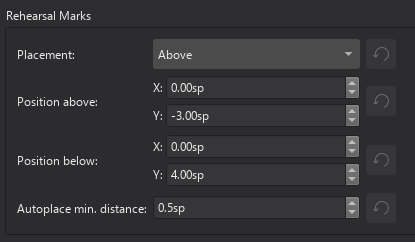
Valittujen **harjoitusmerkkien** ominaisuuksia voi muuttaa [Ominaisuudet-paneelissa](/fi/basics/properties-panel.md).
## Rehearsal mark style
*See* [*Templates and styles*](/fi/customization/templates-and-styles.md)*.*
"Harjoitusmerkkien tyyli" -arvoja voi muokata kohdassa **Muotoilu -> Tyyli -> Harjoitusmerkit**.\
"Harjoitusmerkin tekstityyli" -arvoja voi muokata kohdassa **Muotoilu -> Tyyli -> Tekstityylit -> Harjoitusmerkki**.
## External links
* [Harjoitusmerkki](https://en.wikipedia.org/wiki/Rehearsal_letter) (Wikipedia-artikkeli)
---
# Agent Instructions
This documentation is published with GitBook. GitBook is the documentation platform designed so that both humans and AI agents can read, navigate, and reason over technical content effectively. Learn more at gitbook.com.
## Querying This Documentation
If you need additional information that is not directly available in this page, you can query the documentation by asking a question.
Perform an HTTP GET request on the following URL with the `ask` and `goal` query parameters:
```
GET https://handbook.musescore.org/fi/text/rehearsal-marks.md?ask=&goal=
```
`ask` is the immediate question: it should be specific, self-contained, and written in natural language.
`goal` is what the user is ultimately trying to achieve, the reason they need the answer. Sharing it helps GitBook give you a better, more relevant answer. A goal is most helpful when it describes the outcome the user wants rather than restating the question. For example, with `ask=how do I create an API token`, a goal like `automate deployments from our CI pipeline` lets GitBook tailor the answer to that use case.
The response will contain a direct answer to the question and relevant excerpts and sources from the documentation.
Use this mechanism when the answer is not explicitly present in the current page, you need clarification or additional context, or you want to retrieve related documentation sections.