> For the complete documentation index, see [llms.txt](https://handbook.musescore.org/llms.txt). Markdown versions of documentation pages are available by appending `.md` to page URLs; this page is available as [Markdown](https://handbook.musescore.org/fi/text/chord-symbols.md).
# Sointumerkit
## Overview
A chord symbol is an abbreviated way of representing a musical chord and its harmony.
MuseScore Studio supports the following ways of representing chords:
* **Chord symbols**: alphabetical chord name plus chord quality. e.g. 'Am'.
* **Roman numeral analysis** (RNA): Roman numeral plus chord quality. e.g. 'vi'.
* **Nashville number system** (NNS): Arabic numeral plus chord quality. e.g. '6m'.
## Chord symbols
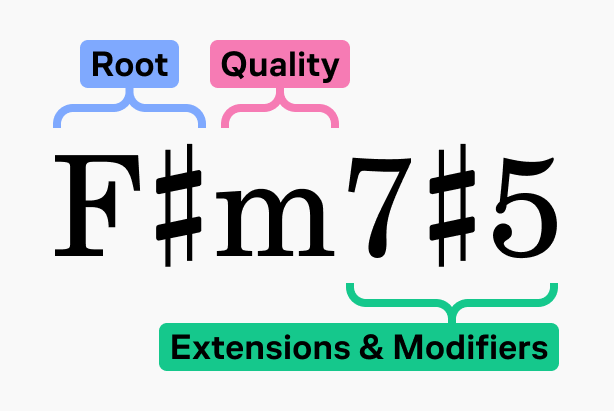
MuseScore käyttää seuraavaa terminologiaa sointumerkin osista:
* **Root**: The note that names the chord.
* **Quality**: Major, minor, diminished, half diminished, or augmented.
* **Extensions & modifiers**: Other alterations to the chord (7, sus, no 3, etc.).
Chord symbols are specified in plain text. As soon as you finish editing a chord (by moving to another chord, or by leaving edit mode), the characters are parsed and, as long as MuseScore Studio can understand the sequence, will be formatted correctly.
### Entering chord symbols
1. Select a note, [note slash](/fi/alternative-notation/slash-notation.md), or rest.
2. Press `Ctrl`+`K` (Mac: `Cmd`+`K`); the chord symbol entry cursor appears above the staff ready for input.
3. Kirjoita sointumerkki seuraavalla kirjoitustavalla:
* Root note: any letter `A` to `G` (case is not important).
* Accidentals: `#` (sharp), `b` (flat), `x` or `##` (double sharp), `bb` (double flat).
* For other symbols, extensions, and modifiers, see [#chord-symbol-syntax](#chord-symbol-syntax).
4. To move the input cursor forward to the next beat, note, or rest (whichever comes first), press `Space`. For other ways to move the cursor, see [#navigation-commands](#navigation-commands).
5. Syöttötilasta poistuminen, paina `Esc`-näppäintä tai klikkaa partituurin tyhjää kohtaa.
{% hint style="info" %}
A chord symbol must begin with a root note (any of the letters \`a\` to \`g\`), or an open parenthesis \`(\`.
When chord symbols are formatted, any root note typed in lower case will become capitalized (for alternative options, see [Automatic capitalization](#spelling)) and any characters entered for accidentals are automatically converted into the appropriate music symbols. Do not directly input (or copy and paste) unicode characters such as U+266F (sharp sign, `♯`), or U+266D (flat sign, `♭`), as MuseScore will not render them correctly in chord notation.
{% endhint %}
### Editing a chord symbol
Chord symbols are text items. Double-click on a chord symbol to enter [edit mode](/fi/text/entering-and-editing-text.md#editing-text-object-content). While editing, the chord symbol will be shown using text that follows the [syntax](#chord-symbol-syntax) described below. When you leave edit mode, it will again be converted to the correct formatting.
### Chord symbol syntax
MuseScore ymmärtää useimmat sointumerkeissä käytettävät vakioasuiset lyhenteet ja toistaa ne oikein. Sointuja voidaan syöttää seuraavasti:
* **Major**: `M`, `Ma`, `Maj`, `ma`, `maj`, `t`
* `t` produces Δ; on Mac, `ˆ` also works
* **Minor**: `m`, `mi`, `min`, `-`
* **Diminished**: `dim`, `o` (renders as ° if using the [Jazz style](#rendering-style-of-chord-symbols-and-nns-but-not-rna); as o, the Greek omicron, otherwise)
* **Half-diminished**: `0` (renders as ø if using the [Jazz style](#rendering-style-of-chord-symbols-and-nns-but-not-rna); as 0 otherwise), or you can use abbreviations such as `mi7b5` etc.
* To get Dø, type `D0`, not `Dm70` or `Dm0`.
* **Augmented**: `aug`, `+`
The following syntax is also accepted:
* **Extensions** and **modifiers:** Examples include `7`, `b9`, `#5`, `sus`, `alt`, `add`, and `no3`.
* **Inversions** and slash chords: Type a slash (`/`) before the altered bass note, for example `C7/E`.
* **Polychords** (multiple chords stacked): type a pipe character (`|`) between two chords, for example `F|C`.
* *Full playback of polychords is not yet supported. Only the first chord will be played.*
You can further format chords using these methods:
* **Parentheses**, which can enclose any part of a chord symbol (or the whole thing)
* **Commas**
* To enter a **space** character within a chord symbol, use `Ctrl`+`Space` (Mac: `Alt`+`Space`).
* To enter an explicit **natural** after the root note, use the keyboard shortcut `Ctrl`+`Shift`+`H` (Mac:`Cmd`+`Shift`+`H`).
* *When using an explicit natural, playback is reduced to just the chord's root note.*
* Inputting `type` followed by any characters at the end of a chord (for example, `Ctype1` or `Ctype2`) adds **superscript** that can be used to denote different versions of the same chord. One way this might be used is to differentiate fretboard diagrams that otherwise have the same chord name.
#### 'No chord' syntax
Type `N.C.` into a chord symbol to indicate that no chord should be played at that point in the score, stopping [playback](#chord-symbol-playback) of any preceding chord symbols on that instrument.
This is the most common marking for specifying silence on the chord symbol track, but you can type any text that MuseScore does not recognize as a chord to achieve the same effect.
### Chord symbols & fretboard diagrams
MuseScore Studio can automatically create guitar fretboard diagrams for most common chords symbols. See [#adding-a-fretboard-diagram-to-your-score](/fi/idiomatic-notation/guitar/fretboard-diagrams.md#adding-a-fretboard-diagram-to-your-score).
## Roman numeral analysis
MuseScore Studio käyttää erikoisfonttia ([Campania](https://github.com/MarcSabatella/Campania)) tarjotakseen oikean muotoilun roomalaisille numeroanalyyseille (RNA). Toisin kuin sointumerkkien kohdalla, syötettäessä roomalaisia numeroanalyyseja alla kuvatulla kirjoitustavalla, oikeat symbolit ja muotoilut näytetään jokaisella näppäinpainalluksella.
### Entering Roman numeral analysis
1. Select a note, [note slash](/fi/alternative-notation/slash-notation.md), or rest
2. From the menu, select **Add -> Text -> Roman numeral analysis** (if you use this feature often, you can assign a keyboard shortcut to do the same thing in [Preferences](https://musescore.org/en/handbook/3/preferences#shortcuts))
3. Kirjoita soinnun RNA-symbolit aivan kuten normaalia tekstiä seuraavasti:
* major chord: upper case roman numerals (`I`, `II`, `III`, `IV`, etc.)
* minor chord: lower case roman numerals (`i`, `ii`, `iii`, `iv`, etc.)
* diminished chord: `o` (lower case)
* half-diminished chord: `0`
* augmented chord: `+`
* sointujen käännökset: syötä enintään 3 yksinumeroista lukua, ylin nuotti ensin
* accidentals: `#` (sharp), `b` (flat) or `h` (natural)
4. To move the input cursor, the commands are the same as for chord symbols: see [Navigation commands](#navigation-commands)
5. Syöttötilasta poistuminen, paina `Esc`-näppäintä tai klikkaa partituurin tyhjää kohtaa.
While inputting, you can prevent any character from being interpreted by prefixing it with `\` (backslash). This could be used, for example, to add the literal letters 'b' or 'h', or to input a non-superscripted number, etc.
Käännöksiä voidaan merkitä käyttämällä kirjaimia a, b, c, d kirjoittamalla kyseiset kirjaimet.
Katso [seuraavat esimerkit](#examples) monimutkaisemmasta kirjoitustavasta.
### Examples
Kirjoita näin:
Saat tämän lopputuloksen:
{% hint style="info" %}
Käännösmerkintöjä, joissa käytetään pystysuoraan kohdistettuja arabialaisia numeroita ja etumerkkejä, kuten 6#3 (eli muunnettu sointu), ei tueta. Kiertotienä: luo sen sijaan \[kenraalibasso]\(figured-bass.md)tekstiä tai luo erillisiä tekstikohteita ja siirrä ne manuaalisesti paikoilleen.
{% endhint %}
## Nashville number system
Nashvillen numerojärjestelmä (NNS) on lyhennetty menetelmä sointujen esittämiseksi niiden asteikon asteilla sointukirjainten sijaan. Tämä mahdollistaa säestyksen soittamisen missä tahansa saman sointukartan sävellajissa.
### Entering Nashville numbers
Kun aloitat Nashville-merkintöjen syöttämisen:
1. Select a note, [note slash](/fi/alternative-notation/slash-notation.md), or rest
2. Valitse valikosta **Lisää -> Teksti -> Nashville-numero**.
Aivan kuten tavallisten sointumerkkien kohdalla, voit kirjoittaa Nashville-merkintöjä normaalisti, ja MuseScore tekee parhaansa tunnistaakseen ja muotoillakseen symbolit asianmukaisesti.
Samoja [navigointikomentoja](#navigation-commands) käytetään myös muille sointumerkkityypeille.
An example of the Nashville number system
## Navigation commands
Use the following keyboard shortcuts to move the cursor in chord symbol entry mode:
| Toiminto | Komento (Windows) | Komento (macOS) |
| --------------------------------------------------------------------------------------------------- | -------------------- | -------------------- |
| Siirrä kohdistin edelliseen nuottiin, taukoon tai iskuun | `Välilyönti` | `Välilyönti` |
| Siirrä kohdistin seuraavaan iskuun | `;` | `;` |
| Siirrä kohdistin edelliseen nuottiin, taukoon tai iskuun | `Shift`+`Välilyönti` | `Shift`+`Välilyönti` |
| Siirrä kohdistin edelliseen iskuun | `:` | `:` |
| Siirrä kohdistin seuraavaan iskuun | `Ctrl`+`Oikea` | `Cmd`+`Oikea` |
| Siirrä kohdistin edelliseen tahtiin | `Ctrl`+`Vasen` | `Cmd`+`Vasen` |
| Siirrä kursoria [keston](/fi/basics/entering-notes-and-rests.md#selecting-duration) numeron mukaan: | `Ctrl`+`1`-`9` | `Cmd`+`1`-`9` |
| Poistu sointumerkkien syöttötilasta | `Esc` | `Esc` |
## Chord symbol playback
{% hint style="info" %}
Only \*\*chord symbols\*\* and \*\*Nashville numbers\*\* can be played back; \*\*Roman numeral analysis\*\* cannot.
{% endhint %}
#### To disable or re-enable playback of chord symbols entirely
1. Click the cog button at the right end of the playback controls.
2. In the menu, select **Play chord symbols** to toggle the setting off or on.
#### To disable or re-enable playback of a specific chord symbol
1. Select the chord symbol.
2. Go to the **Properties** panel.
3. In the **General** selection, check or uncheck the **Play** box.
#### To toggle playback of chord symbols on a specific instrument
1. Open the [**Mixer**](/fi/sound-and-playback/mixer.md#opening-the-mixer).
2. Find the channel strip for the chords on that instrument (it will be named 'Chords.\[Instrument name]').
3. Toggle its **Mute** button on or off.
#### To change the sound that is used to play chord symbols
1. Open the **Mixer**.
2. Find the channel strip for the chords on that instrument (it will be named 'Chords.\[Instrument name]').
3. Select the dropdown arrow that appears when hovering over the sound name to [choose a new sound](/fi/sound-and-playback/mixer.md#to-change-an-instruments-sound).
## Chord symbol style
The global style options for chord symbols are found in **Format -> Style -> Chord symbols**. Not every setting is applicable to every type of chord symbol notation. When not relevant, they will have no effect (for example, switching to **Jazz** style will affect chord symbols and NNS, but not RNA).
Each type of chord symbol notation has its own default text style, which can be configured in **Format -> Style -> Text styles** (**Chord symbol**, **Roman numeral analysis**, **Nashville number**).
### Appearance
#### Style
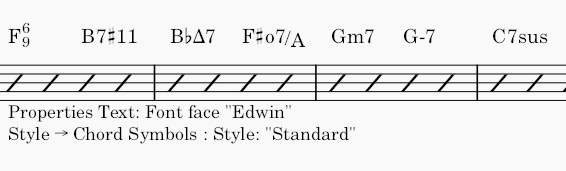
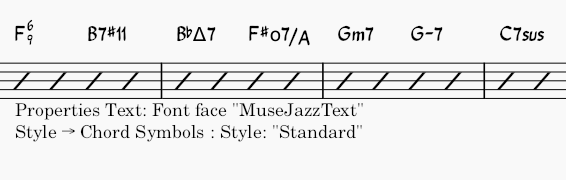
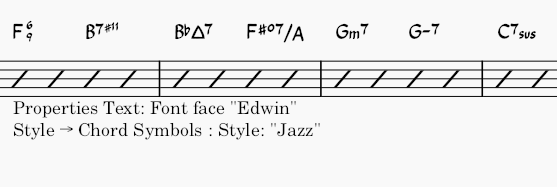
Tämä määrittää, miten sointumerkit piirretään. Se vaikuttaa kaikkiin partituurin sointumerkkeihin, eikä sitä voi ohittaa yksittäisen kohteen kohdalla.
* **Normaali**: oletusarvo, jossa soinnut piirretään käyttäen vakiotekstifonttia ilman lisämuotoiluja
* **Jazz**: MuseJazz-fonttia käytetään käsinkirjoitetun ulkoasun luomiseen; sille ovat ominaisia yläindeksit ja muut erityispiirteet
* **Legacy MuseScore**: used for scores created in versions of MuseScore Studio prior to [4.6](#user-content-fn-1)
* **Custom**: with this option you can customize the appearance of chord symbols by means of a chord symbols style file (in XML format, with extension `.xml`)
{% hint style="info" %}
Creating and modifying chord symbols style files is a feature for advanced users, but it does offer a way to customize the parsing, formatting and interpretation of chord symbols that goes beyond the options available in the \*\*Style\*\* dialog.
The relevant files are normally to be found in the Styles folder of your installation (e.g. in Windows, by default, `C:\Program Files\MuseScore 4\styles`). Consult the comments in these files for an explanation of their syntax and functionality.
{% endhint %}
You can customize the scale for extensions and modifiers via **Extension/Modifier scaling** (as a proportion of the overall chord symbol size), and their vertical position via **Extension/Modifier vertical offset** (expressed in spaces).
Tässä on muutamia esimerkkejä siitä, miltä soinnut näyttävät eri asetuksilla:
#### Spelling
{% hint style="info" %}
Nämä asetukset vaikuttavat vain sointumerkkeihin (eivät roomalaiseen numeroanalyysiin tai Nashville-numeroihin).
{% endhint %}
Seuraavat asetukset ovat käytettävissä **Kirjoitusasu**-kohdassa:
* **Normaali**: A, B♭, B, C, C♯... (tämä on oletusarvo)
* **Saksalainen**: A, B♭, H, C, C♯...
* **Täysin saksalainen**: A, B, H, C, Cis...
* **Solfeesi**: Do, Do♯, Re♭, Re...
* **Ranskalainen**: Do, Do♯, Ré♭, Ré...
Jos **Automaattinen isojen kirjainten käyttö** on päällä (mikä on oletus), MuseScore kirjoittaa kaikki sointujen perusnuotit isolla alkukirjaimella riippumatta siitä, onko ne kirjoitettu isolla vai pienellä kirjaimella. Voit poistaa tämän toiminnon kokonaan käytöstä poistamalla valinnan ruudusta, jolloin kirjainkoko säilyy juuri sellaisena kuin sen kirjoitat. Vaihtoehtoisesti voit mukauttaa toimintoa alla olevien asetusten avulla:
* **Pienet mollisoinnut**: mollisoinnut kirjoitetaan pienellä alkukirjaimella (duurisoinnut kirjoitetaan edelleen isolla alkukirjaimella)
* **Pienet bassonuotit**: bassonuotit kirjoitetaan pienillä kirjaimilla
* **Nuottien nimet kokonaan isoilla kirjaimilla**: kaikki nuottien nimissä olevat kirjaimet, ei vain alkukirjain, kirjoitetaan isolla alkukirjaimella (esim. DO, RE, MI)
### Positioning
* **Etäisyys otetaulukkoon**: sointumerkin ja sen alapuolella olevan otetaulukon välinen etäisyys
* **Sointujen minimiväli**: kahden sointumerkin välinen pienin mahdollinen vaakaetäisyys
* **Tahtiviivan suurin etäisyys**: (*tätä käytettiin tahdin viimeisen sointumerkin ja seuraavan tahdin välisen etäisyyden säätämiseen, mutta se on nyt vanhentunut*)
* **Suurin siirtymä ylös/alas**: suurin etäisyys, jonka verran sointumerkkiä voidaan siirtää ylös- tai alaspäin, jotta se on linjassa edellisen sointumerkin kanssa järjestelmässä. Jos nämä on asetettu arvoon 0, symbolit eivät ole linjassa; jos haluat pakottaa kaikki sointujärjestelmät linjaamaan järjestelmässä, aseta tämä arvo suureksi.
### Playback
{% hint style="info" %}
These options affect chord symbols and Nashville numbers only (not Roman numeral analysis, which is not realized for playback).
They can be overridden for any specific chord symbol via the [**Properties**](#chord-symbol-properties) panel.
{% endhint %}
* **Interpretation**
* **Literal**
* **Jazz:** Adds color tones (e.g. the major 9th) but may also omit certain notes. This depends both on the chord itself and its context, like what chord follows it.
* **Voicing**
* **Automatic**
* **Root only:** Just the bass note
* **Close:** Keeps the notes within the span of an octave
* **Drop two:** Lowers the second-highest note by one octave
* **Six note**
* **Four note:** 3rd, 5th, 7th and 9th intervals
* **Three note**
* **Duration**
* **Until next chord symbol:** Holds the chord until the next chord symbol appears.
* **Until end of measure:** Holds the chord until the end of the measure.
* **Chord/rest duration**: Holds the chord as long as the duration of the note or rest to which the chord symbol is attached.
These options also affect how chords will be realized into notation. See [#generating-chord-voicings-onto-a-staff](#generating-chord-voicings-onto-a-staff).
{% hint style="info" %}
To voice a chord using notes only from the major triad (particularly when using the \*\*Jazz\*\* interpretation), use the triangle symbol (Δ) in the chord's name.
{% endhint %}
#### Capo fret position
{% hint style="info" %}
This feature only applies to chord symbols, not Nashville numbers or Roman numeral analysis.
{% endhint %}
MuseScore can create an extra bracketed chord symbol next to the main one for when playing with a capo. The bracketed symbol, when played using a capo at that position, sounds identical to the unbracketed one.
Ota tämä ominaisuus käyttöön asettamalla **Kapon nauhaväli** suuremmaksi kuin 0.
## Chord symbol properties
**Ominaisuudet**-paneelin **Sointumerkki**-osiossa on mahdollista muuttaa valittujen sointujen toistoasetuksia, mikä ohittaa koko partituuria koskevat yleisasetukset.
In the **Text** section you can override properties for the text formatting of the symbol, as for all other text items.
{% hint style="info" %}
The \*\*Font\*\* property is ignored when \*\*Interpretation\*\* is set to \*\*Jazz\*\*.
{% endhint %}
## Transposition
(Katso myös [Transponointi](/fi/notation/pitch/transposition.md)-luku.)
### Transposing instruments
When switching [**Concert pitch**](/fi/notation/pitch/transposition.md#transposed-and-concert-pitch) on or off, chord symbols on transposing instruments will adjust automatically. When concert pitch is off and chord symbols are copy-pasted between transposing and non-transposing instruments, they will be transposed accordingly. Note, however, that chords associated with [fretboard diagrams](/fi/idiomatic-notation/guitar/fretboard-diagrams.md) are *not* transposed automatically.
### The Transpose dialog
{% hint style="info" %}
This feature only applies to chord symbols, not Nashville numbers or Roman numeral analysis.
{% endhint %}
Use the [**Transpose**](/fi/notation/pitch/transposition.md#using-the-transpose-dialog) dialog (**Tools -> Transpose**) to transpose selected, standalone[^1] chord symbols. To prevent chord symbols from being transposed, uncheck the **Transpose chord symbols** box in the dialog.
### Generating chord voicings onto a staff
MuseScore Studio allows you to generate notes from selected chord symbols and Nashville numbers (but not Roman numeral analysis) . The result will depend on the chord's [playback properties](#chord-symbol-playback).
#### To realize a selection of chord symbols:
1. Make a selection of chord symbols
2. Right-click on any chord in the selection
3. Click **Realize chord symbols**
4. In the **Realize chord symbols** dialog, if you wish to override the default options for the selection, check **Override with custom options** and configure the options below as necessary
5. Click **OK**.
## External links
Jos haluat muuttaa soinnun laatua sen jälkeen, kun olet [luonut soinnun asettelut viivastolle](#generating-chord-voicings-onto-a-staff), käytä lisäosaa, kuten:
* [Chord Level Selector](https://musescore.org/en/project/chord-level-selector) (sointutason valitsin)
* [Seuraava käänteinen: korvaa kaikki (kosketinsoittimen) valinnassa olevat soinnut niiden seuraavalla käänteisellä soinnulla](https://musescore.org/en/project/next-inversion-replaces-all-chords-keyboard-selection-their-next-inversion)
Harmonian tai soinnun tunnistamiseen käytä lisäosaa, kuten:
* [Sointutunniste (Pop & Jazz)](https://musescore.org/en/project/chord-identifier-pop-jazz) musiikille, jossa on runsaasti harmonista kromatismia, sillä luotu RNA-analyysi sisältää jazz-vaikutteita.
* [Sointutunniste (ID) ja roomalainen numeroanalyysi](https://musescore.org/en/project/chord-id-and-roman-numeral-analysis) musiikille, jossa on vakaa tonaalisuus, kuten perinteisessä asteanalyysissä RNA.
Sointumerkkien tyylitiedostot:
* [chords.xml, jossa on ala-/yläindeksi ja päällekkäiset sointu-muutokset](https://musescore.org/en/node/312296), RunasSudon jakama
* [GitHub-ongelma "Support for chords with stacked extensions #16241"](https://github.com/musescore/MuseScore/issues/16241) kiertotapa, jonka on luonut MarcSabatella
[^1]: Chord symbols with linked fretboard diagrams are not currently transposable.
---
# Agent Instructions
This documentation is published with GitBook. GitBook is the documentation platform designed so that both humans and AI agents can read, navigate, and reason over technical content effectively. Learn more at gitbook.com.
## Querying This Documentation
If you need additional information that is not directly available in this page, you can query the documentation dynamically by asking a question.
Perform an HTTP GET request on the current page URL with the `ask` query parameter, and the optional `goal` query parameter:
```
GET https://handbook.musescore.org/fi/text/chord-symbols.md?ask=&goal=
```
`ask` is the immediate question: it should be specific, self-contained, and written in natural language.
`goal` is optional and describes the broader end goal you are ultimately trying to accomplish on behalf of the user. GitBook uses it to tailor the answer towards what is most useful for that goal.
The response will contain a direct answer to the question and relevant excerpts and sources from the documentation.
Use this mechanism when the answer is not explicitly present in the current page, you need clarification or additional context, or you want to retrieve related documentation sections.




.png?alt=media)
.png?alt=media)
.png?alt=media)
.png?alt=media)