> For the complete documentation index, see [llms.txt](https://handbook.musescore.org/llms.txt). Markdown versions of documentation pages are available by appending `.md` to page URLs; this page is available as [Markdown](https://handbook.musescore.org/en_gb/text/entering-and-editing-text.md).
# Entering and editing text
## Overview
Musescore has different text editing functionalities. This chapter and other chapters under handbook Text section focus on the Musescore Text objects, individual objects that can be placed on a score, and objects containing it. There are also score settings that add text onto pages automatically.
## Types of text
### MuseScore Text object
A MuseScore Text object is an object on a score that contains individual characters that can be entered and removed by using (typing on) a computer keyboard. It is usually attached to a note or a rest, some of them attach to another object.
* Staff Text can be attached to a staff;
* Jumps and Markers are attached to measures;
* Some types (**Title, Subtitle** etc.) must be attached to a frame, see Frame, and Text blocks chapters.
Different types of Text object are not interchangeable. They have distinct property fields that affect how Musescore functions. For example, a **Staff Text** object styled as a metronome mark can never be configured to change playback tempo inside Musescore. The **Tempo** object should be used to change playback tempo inside Musescore.
To check the object type, select an object on a score, its type is displayed on the status bar.\\
| Text object type | Uses |
| --------------------------------------------------------------- | ---------------------------------------------------------------------------------------------------------------------------------------------------------------------------------------------------------------------------------------------------------------------------------------------------- |
| Stave Text | General purpose text for one MuseScore instrument. Can be configured to apply swing playback or sound flags. See Setting up your score and Staff Text, System Text and Expression Text chapter. |
| System Text | Similar to Staff Text, but for all instruments in the system (page layout concept). See Page layout concepts and Staff Text, System Text and Expression Text chapter. |
| Expression Text | The *expression* item in the **Text** Palette. A new type introduced in Musescore 4. Does not affect Musescore playback as of Musescore 4.2. See Staff Text, System Text and Expression Text chapter. |
| Instrument change | The **Change instr.** item in the **Text** Palette. Change the Musescore Instrument after the anchored note or rest. See Setting up your score and Mid-score instrument changes chapters. |
| Dynamic | Such as ***p*** and ***mf***, are Text that affects Musescore playback dynamics. See Dynamics chapter. |
| Hairpin | Such as *crese.* and *dim.*, are Text line that affects Musescore playback dynamics. See Hairpins chapter. |
| Playing technique annotation | The legato. pizz. etc items in the **Text** Palette. **\[This info is a work in progress, the software function is under active dev, pls see and update** **Staff Text, System Text and Expression Text, and** **Dynamics, and** **Mixer, and** **Glossary** **and** **Articulations** **chapters]** |
| Tempo | Numerical metronome mark, verbal direction. A Text type that specifies Musescore playback tempo. See Tempo marks chapter. |
| Gradual Tempo Change | Such as **accel.**. A new Text line type introduced in Musescore 4 that affects Musescore playback tempo. See Tempo marks chapter. |
| **Swing** and **Straight** item in the **Tempo** Palette | A pre-configured System Text. See Swing playback and Staff Text, System Text and Expression Text chapters. |
| Lyrics | Ctrl+V keyboard shortcut breaks up words stored in clipboard, paste and then jump to next anchor conveniently. See Lyrics chapter. |
| Jump | Such as "D.C."(Da Capo), "D.S. al Coda" etc found in the **Repeats & Jumps** Palette. See Jumps and markers chapter. |
| Marker | The Capo symbol, Segno symbol, "Fine", "To Coda" etc found in the **Repeats & Jumps** Palette. See Jumps and markers chapter. |
| Rehearsal mark | The boxed **B1** item in the **Text** Palette. Facilitate rehearsals, divide score into sections, bookmark passages etc. See Rehearsal marks chapter. |
| Chord symbol | Has playback, notes automatically decided. See Chord symbol chapter. |
| Nashville number | Has playback, similar to Chord symbol. See Chord symbol:NNS chapter. |
| Roman Numeral | No playback. See Chord symbol:RNA chapter. |
| Figured bass | A period keyboard notation. No playback. See Figured bass chapter. |
| Sticking | Letters (L and R) attached to (drum) notes showing which hand or foot to use. See Sticking chapter. |
| Fingering | Numbers or letters attached to notes showing which fingers to use. See Fingering chapter. |
| Title, Subtitle, Composer, Lyricist, and Text (text block type) | They are Text types designed to be added into a frame. See Text blocks and Frame chapters. They are *not* the placeholder text used in the header and footer, see "Score setting" section. |
| Text line, including Volta, Pedal etc types | Volta etc found in **Repeats & Jumps** Palette. Pedal found in **Keyboard** Palette. Ottava (8--, 8ve, 8va, 15--) etc found in **Pitch** Palette. Guitar Barre lines etc. See Other lines chapter. |
### Score settings
Long and short name of Musescore Instrument (see [Setting up your score](/en_gb/basics/setting-up-your-score.md) chapter) is automatically added to the left of stave in each system (page layout concept, see [Page layout concepts](/en_gb/formatting/page-layout-concepts.md) chapter). Names can be changed direcly on a score using **text edit mode**, or using **Stave/Part property** window, see [Stave/Part properties](/en_gb/notation/instruments-staves-and-systems/staff-part-properties.md) chapter. They are, by default, only added when there are more than one instrument. To change this default behaviour, change the setting under **Format → Style → Score**.
Measure numbers can be added automatically. Configure it at **Format → Style → Measure nubmers**, see Measure numbering chapter.
Musescore's header and footer functionality adds text to *every* pages *automatically*. Configure it at **Format → Style → Header & footer**. Placeholder text (special symbols) can be used to add information like the current page number, copyright claim etc. Placeholder text is also used to add metadata tags, the digital data of a score file, onto the score dynamically. See Header and footer chapter.
## Adding text object to a score
Different types of Text object are not interchangeable, *decide on the suitable object type before adding it.* Use the chart under "Musescore Text object" section. For general engraving or visual display purpose, it is recommended to use a Staff text or System text.
The following explains how to add text to a note or a rest or a valid anchor outside frames. Adding text to a frame is covered in the Text blocks chapter.
### From a palette
To add a text element to your score from a Palette, either select one or more notes/rests and click on the desired palette item; or drag the text from the palette onto a note/rest. e.g.
### From the menu
If the text object is associated with a staff you can add it by selecting a note, then choosing a text option from **Add→Text**.
### Using a keyboard shortcut
Many text types can be entered using keyboard shortcuts. Shortcuts are shown to the right of items in **Add→Text**.
To create a text object, select a note, then enter the required shortcut.
## Deleting text object on a score
*To edit \*text automatically added by score settings\*, see* *"Score setting"* *section.*
To delete *object(s) on a score*, select the objects then press `Backspace` or `Del`.
## Editing text object content
*To edit \*text automatically added by score settings\*, see* *"Score setting"* *section.*
Text and text line objects are edited with two different methods, depending on the object type:
* edit directly in **text edit mode**, as explained below; or
* edit properties in the Properties panel, see the text object's specific chapter.
To enter **text edit mode** use one of the following methods:
* Double click on the text object, or
* Select the text object and press `Return`, or
* Select the text object and press `F2` or `Alt`+`Shift`+`E`, or
* Right-click on the text object and select "Edit element."
To leave **text edit mode** either press `Esc` or click on a part of the score outside the edit area.
### Keyboard shortcuts available inside text edit mode
The following keyboard shortcuts are available in **text edit mode**:
| Function | Windows & Linux | Mac |
| ------------------------------------------- | ------------------------------------------------------ | -------------------------------------- |
| **Bold** (toggle) | `Ctrl`+`B` | `Cmd`+`B` |
| *Italic* (toggle) | `Ctrl`+`I` | `Cmd`+`I` |
| Underline (toggle) | `Ctrl`+`U` | `Cmd`+`U` |
| Move cursor | (`Ctrl`+) `Left`, `Right`, `Up`, `Down`, `Home`, `End` | (`Alt`+) `Left`, `Right`, `Up`, `Down` |
| Remove character to the left of the cursor | `Backspace` | `Backspace` |
| Remove character to the right of the cursor | `Del` | `Del` or `Fn`+`Backspace` |
| Start new line | `Return` | `Return` |
| Insert special characters (see below) | `Shift`+`F2` | `Shift`+`F2` |
### Special characters
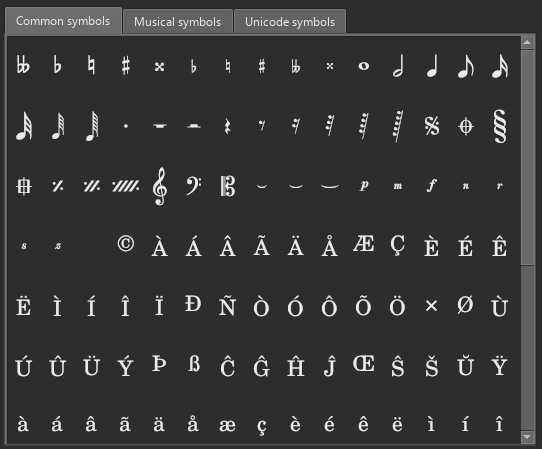
Characters not available from the standard keyboard may be accessed using the **Special Characters** window.
To open **Special Characters**, in **text edit mode** (see "Editing text object content" section), press `Shift`+`F2`; or click on `Insert special characters` in the **Text** section of the Properties panel.
The dialog is divided into 3 tabs: **Common symbols, musical symbols and unicode symbols**. The musical and unicode tabs are further subdivided into alphabetically-arranged categories. It is preferable to use items in **Common symbols** tab as they are functional, see Musescore 3 handbook Fonts chapter.
Clicking an item in the Special Characters dialog immediately adds it to the text where the cursor is positioned. Multiple items can be applied without closing the dialog box, and the user can even continue to type normally, delete characters, enter numerical character codes etc., with it open.
In **text edit mode**, the following keyboard shortcuts add a *functional* version of special characters (whenever possible) into the current Text object, see Musescore 3 handbook Fonts chapter.
| Character | Windows & Linux | Mac | Note |
| ---------------------------- | ------------------ | ----------------- | ------------------------------------- |
| **Sharp ♯** | `Ctrl`+`Shift`+`#` | `Cmd`+`Shift`+`#` | May not work on some keyboard layouts |
| **Flat ♭** | `Ctrl`+`Shift`+`B` | `Cmd`+`Shift`+`B` | |
| **Natural ♮** | `Ctrl`+`Shift`+`H` | `Cmd`+`Shift`+`H` | |
| **Piano *****p*** | `Ctrl`+`Shift`+`P` | `Cmd`+`Shift`+`P` | |
| **Forte *****f*** | `Ctrl`+`Shift`+`F` | `Cmd`+`Shift`+`F` | |
| **Mezzo *****m*** | `Ctrl`+`Shift`+`M` | `Cmd`+`Shift`+`M` | |
| **Rinforzando *****r*** | `Ctrl`+`Shift`+`R` | `Cmd`+`Shift`+`R` | |
| **Sforzando *****s*** | `Ctrl`+`Shift`+`S` | `Cmd`+`Shift`+`S` | |
| **Niente *****n*** | `Ctrl`+`Shift`+`N` | `Cmd`+`Shift`+`N` | |
| **Z *****z*** | `Ctrl`+`Shift`+`Z` | `Cmd`+`Shift`+`Z` | |
| **Elision *****‿*** | `Ctrl`+`Alt`+`-` | `Cmd`+`Alt`+`-` | |
---
# Agent Instructions
This documentation is published with GitBook. GitBook is the documentation platform designed so that both humans and AI agents can read, navigate, and reason over technical content effectively. Learn more at gitbook.com.
## Querying This Documentation
If you need additional information that is not directly available in this page, you can query the documentation by asking a question.
Perform an HTTP GET request on the following URL with the `ask` and `goal` query parameters:
```
GET https://handbook.musescore.org/en_gb/text/entering-and-editing-text.md?ask=&goal=
```
`ask` is the immediate question: it should be specific, self-contained, and written in natural language.
`goal` is what the user is ultimately trying to achieve, the reason they need the answer. Sharing it helps GitBook give you a better, more relevant answer. A goal is most helpful when it describes the outcome the user wants rather than restating the question. For example, with `ask=how do I create an API token`, a goal like `automate deployments from our CI pipeline` lets GitBook tailor the answer to that use case.
The response will contain a direct answer to the question and relevant excerpts and sources from the documentation.
Use this mechanism when the answer is not explicitly present in the current page, you need clarification or additional context, or you want to retrieve related documentation sections.