> For the complete documentation index, see [llms.txt](https://handbook.musescore.org/llms.txt). Markdown versions of documentation pages are available by appending `.md` to page URLs; this page is available as [Markdown](https://handbook.musescore.org/en_gb/notation/rhythm-meter-and-measures/measure-numbering.md).
# Bar numbering
## Showing and hiding measure numbers
By default, MuseScore shows measure numbers at the start of each system except for the first in a section.
To turn measure numbers on or off for the whole score:
1. Go to **Format -> Style -> Measure numbers**.
2. Toggle **Show measure numbers**.
To configure whether a number should be shown or hidden on a particular measure:
1. Right-click the measure and choose **Measure properties...**
2. Change **Measure number mode** to **Always show** or **Always hide**.
The default setting for **Measure number mode** is **Auto** which means that a number will be shown or not according to the score's style settings.
You can also show a number on a specific measure by applying the 'Measure number' item from the **Text** palette (under **More**). This is equivalent to setting **Measure number mode** to **Always show**.
To remove a number from a specific measure, you can select it and press `Del`. If this is an automatically generated number, this sets Measure number mode to **Always hide**. If it was an explicitly added measure number (and is not in a measure where a number would be generated anyway) this sets Measure number mode to **Auto**.
## Changing the measure number sequence
There are ways to alter the sequence of numbers which can be useful in various circumstances. Note that this affect the visual numbering only. Internally, MuseScore Studio always numbers the bars consecutively through the whole score, starting at 1, and these are the numbers that will be shown in the status bar.
### Excluding a measure from the count
1. Right-click the measure and choose **Measure properties...**
2. Check **Exclude from measure count**.
This option is automatically checked for anacrusis bars when one is specified in the New Score Wizard.
### Altering the numbering of a measure
1. Right-click the measure and choose **Measure properties...**
2. Change the value of **Add to measure number**.
Both positive and negative values are accepted. This can be useful when starting a new movement in the same score. If the first movement is 100 bars long, the second will start at bar 101. If you set **Add to measure number** to -100 on the first bar of the second movement, it will now be numbered as bar 1.
### Resetting measure numbering for a new section
By default, the numbering of measures always restarts from 1 at the beginning of a new section (after a section break). To prevent this so that the numbering is continuous:
1. Select the section break.
2. Go to the **Properties** panel.
3. Uncheck **Reset measure numbers for new section**.
See using-sections-for-multiple-movements-or-songs.md for more details.
## Measure number properties
Measure numbers are text items, so the usual properties for text are available in the **Properties** panel under **Text**.
{% hint style="info" %}
It is important to note that measure numbers are usually automatically generated items, rather than explicitly entered by the user. As such, while it is possible to make adjustments to them via \*\*Properties\*\*, these changes may be lost if the layout of the score changes and the numbers are regenerated.
{% endhint %}
## Measure number style
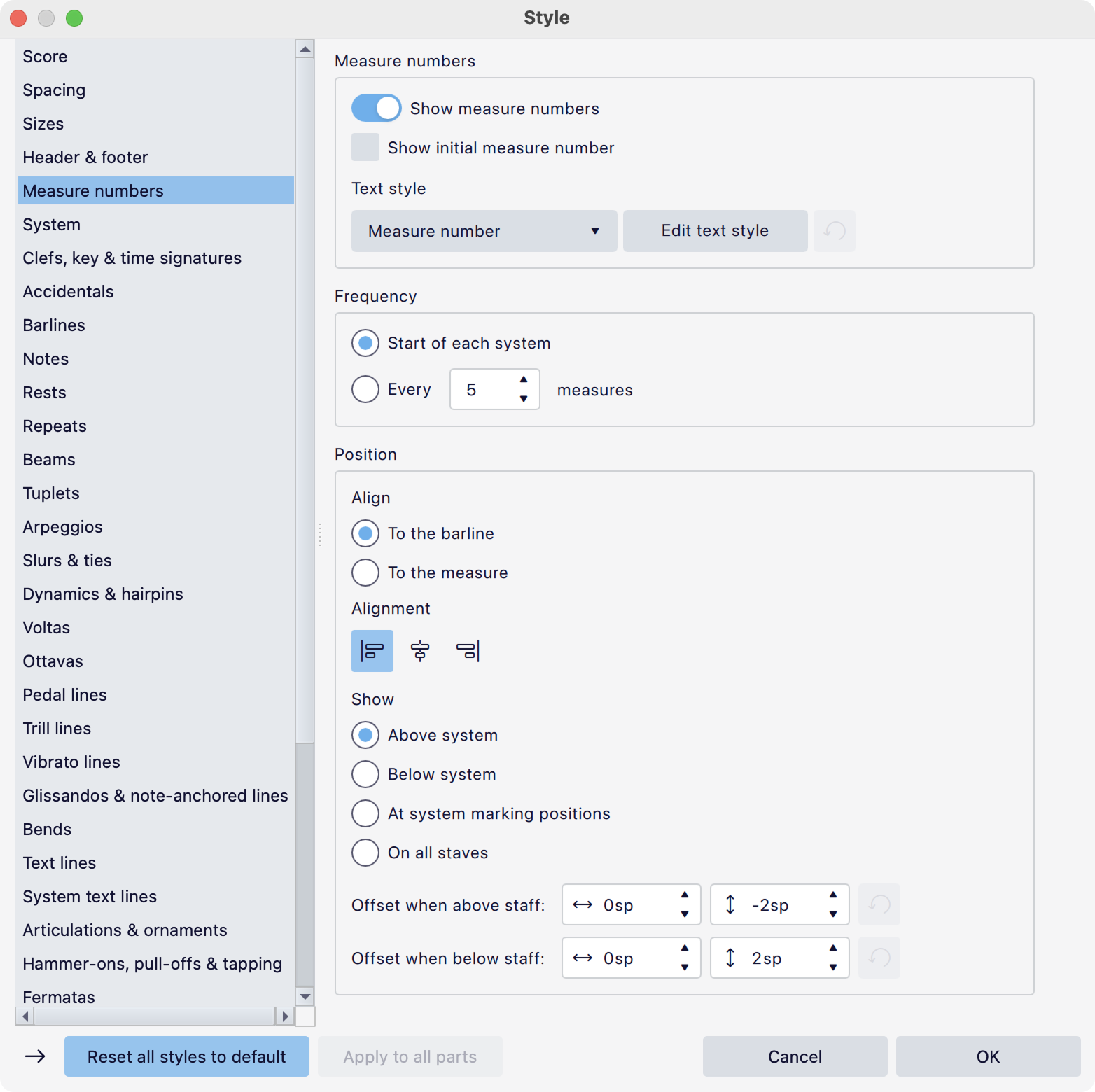
This section describes all the options available in **Format -> Style... -> Measure numbers**.
### Bar numbers
The top section contains the most general settings:
* **Show measure numbers:** Whether measure numbers should be shown at all.
* **Show initial measure number:** Whether a number should be shown on measure 1 (unchecked by default).
* **Text style:** Which text style to use for measure numbers. 'Measure number' is the default, but there is also a 'Measure number (alternate)' style provided so that you can quickly switch between two different styles. You can also choose any other style from the dropdown, or define your own.
* The **Edit text style** button takes you to the page in **Text styles** where the currently selected text style can be configured.
### Frequency
Here you can specify how often bar numbers should appear. **Start of each system** is the default.
### Position
These options specify where the bar numbers should be placed.
* **Align:** The numbers can be aligned (via the next setting) relative **To the barline** or **To the measure**.
* **Alignment:** Left, center or right.
* **Show:** At which positions the bar numbers should appear. Choose from:
* **Above system:** Only at the top of the system (above the top staff).
* **Below system:** Only at the bottom of the system (below the bottom staff).
* **At system marking positions:** At the positions where system markings are shown.
* **On all staves:** On every staff in the score. When this option is selected, an extra **Position** setting becomes available, to specify whether the numbers should be **Above** or **Below** the staves.
* **Offset when above/below staff:** The default offset for measure numbers above and below the staff respectively
The **At system marking positions** option can be used if you need a more unusual configuration (for example, above certain sections of instruments, or above and below the system). See #managing-system-markings.
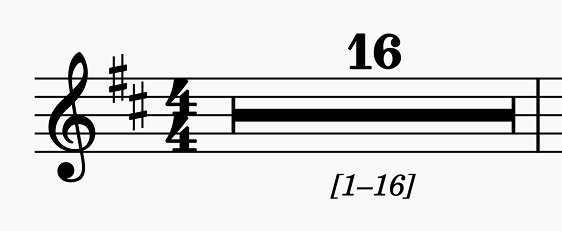
### Bar number range at multibar rests
When shown, measure number ranges appear bracketed below their multimeasure rests by default.
Here, you can determine if and how measure number ranges are shown next to multimeasure rests.
* **Show measure number ranges:** Turn measure number ranges on or off.
* **Text style:** Choose the text style used for the range text.
* The **Edit text style** button takes you to the page in **Text styles** where the currently selected text style can be configured.
* **Bracket type:** Use square brackets, parentheses, or nothing.
* **Alignment:** Left, center or right.
* **Position:** Choose whether the range goes above or below the multimeasure rest.
* **Offset:** Fine-tune the positioning of the range text.
---
# Agent Instructions
This documentation is published with GitBook. GitBook is the documentation platform designed so that both humans and AI agents can read, navigate, and reason over technical content effectively. Learn more at gitbook.com.
## Querying This Documentation
If you need additional information that is not directly available in this page, you can query the documentation by asking a question.
Perform an HTTP GET request on the following URL with the `ask` and `goal` query parameters:
```
GET https://handbook.musescore.org/en_gb/notation/rhythm-meter-and-measures/measure-numbering.md?ask=&goal=
```
`ask` is the immediate question: it should be specific, self-contained, and written in natural language.
`goal` is what the user is ultimately trying to achieve, the reason they need the answer. Sharing it helps GitBook give you a better, more relevant answer. A goal is most helpful when it describes the outcome the user wants rather than restating the question. For example, with `ask=how do I create an API token`, a goal like `automate deployments from our CI pipeline` lets GitBook tailor the answer to that use case.
The response will contain a direct answer to the question and relevant excerpts and sources from the documentation.
Use this mechanism when the answer is not explicitly present in the current page, you need clarification or additional context, or you want to retrieve related documentation sections.