> For the complete documentation index, see [llms.txt](https://handbook.musescore.org/llms.txt). Markdown versions of documentation pages are available by appending `.md` to page URLs; this page is available as [Markdown](https://handbook.musescore.org/en_gb/notation/instruments-staves-and-systems/instruments-and-system-markings.md).
# Instruments and system markings
## Overview
The **Layout** panel (formerly called **Instruments**) gives you control over your instruments, the position of system markings, and some basic stave properties without having to leave the score view. All of the instruments in your score will appear in this panel.
### Accessing the panel
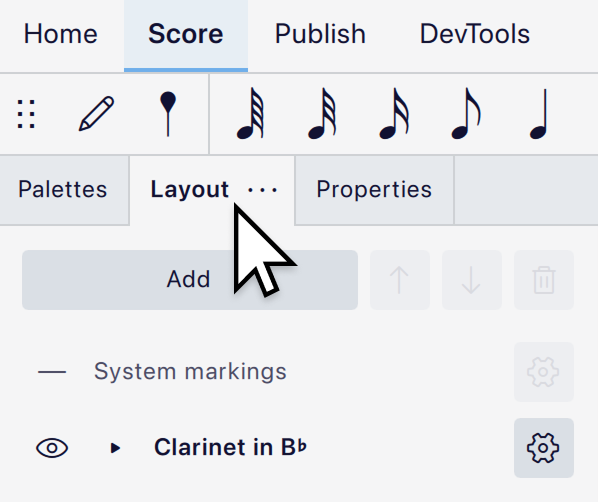
Open the panel by clicking on the **Layout** tab:
If the tab is not visible, show it by selecting **View -> Layout**, or by pressing `F7`.
## Managing instruments
### Adding instruments
Open the **Instruments** dialog:
1. Click the **Add** button at the top of the panel.
2. Choose **Add instrument** from the popup.
You can also open this dialog by pressing `I`.
See Choose instruments for information on using the dialog.
### Deleting instruments
Select an instrument and click the remove button at the top of the panel, or press `Del`. This removes the instrument entirely, along with all the music it contains.
### Reordering instruments
Select an instrument and click the up/down arrow buttons at the top of the panel to change its position in the score. Alternatively, drag the instrument up or down using the mouse.
### Renaming instruments
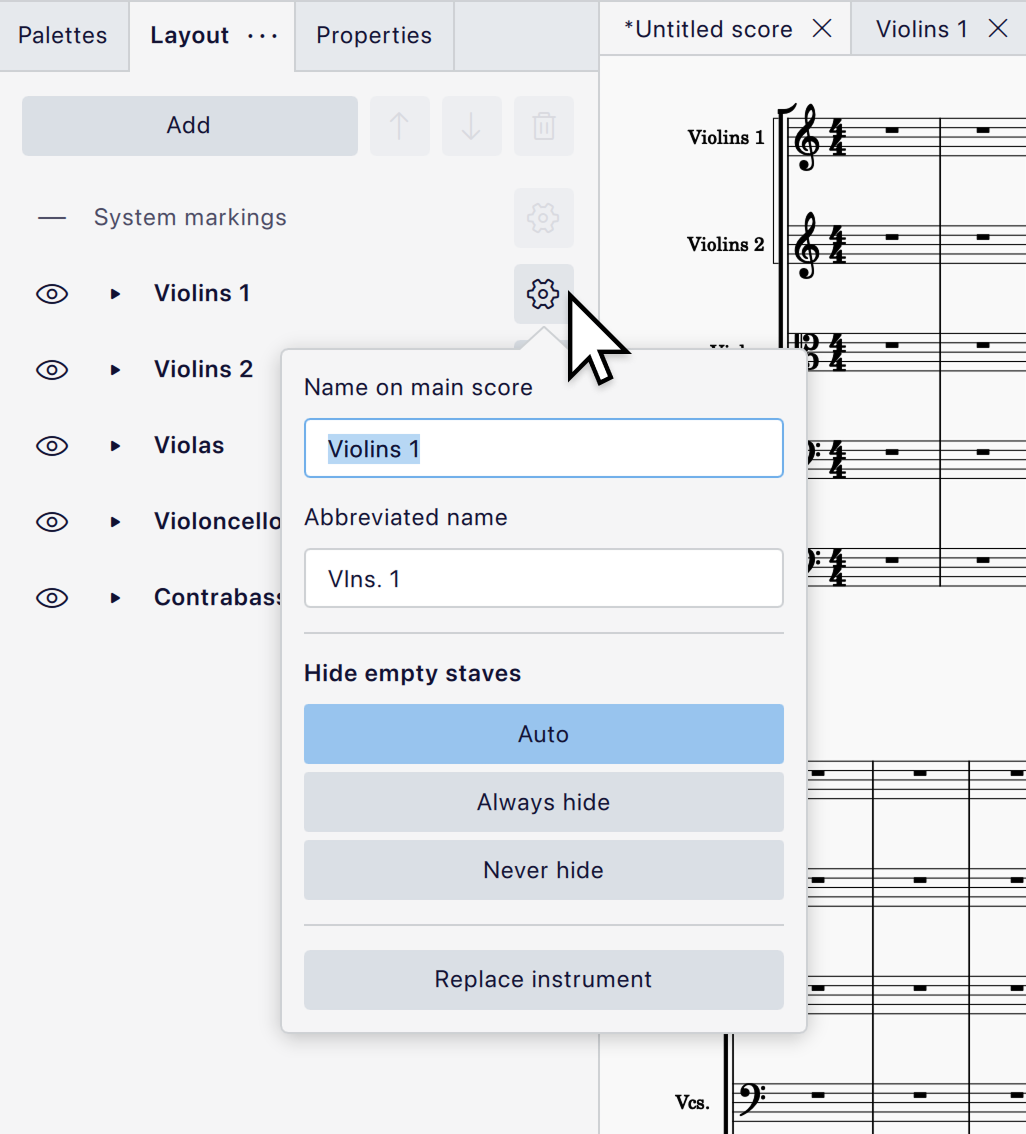
Click the cog button to the right of an instrument to show instrument name settings. **Name on main score** is the long name, usually used at the beginning of a score, and **Abbreviated name** is the short one, often used after the first system of a section. These can also be edited via [Stave/Part properties](/en_gb/notation/instruments-staves-and-systems/staff-part-properties.md). **Part name** is used at the top of a part.
To hide instrument labels entirely or control where the long and short names are used, use the settings in **Format -> Style -> Score -> Instrument labels**, rather than deleting the names here.
### Replacing instruments
To replace an instrument in the **Layout** panel:
1. Click the cog button to the right of the instrument's name.
2. In the popup that appears, click **Replace instrument**.
3. Select your desired replacement instrument in the dialog that appears.
4. Click **OK**.
## Managing staves
The **Layout** panel can also be used to add staves to an existing instrument and configure some of their basic properties.
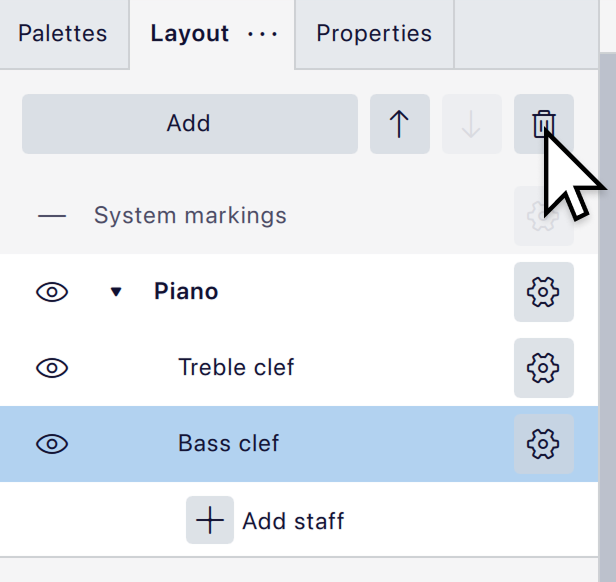
Initially, the panel only shows an entry for each instrument. To show the individual staves of an instrument, expand the instrument by clicking the small black triangle to the left of the instrument name. Staves are usually labelled according their default clef (for example, a piano will have a 'Treble clef' and 'Bass clef')
### Adding a stave to an existing instrument
1. Expand the instrument by clicking the arrow button to reveal its staves.
2. Click **Add stave**.
The new stave is part of the same instrument but its notation is completely independent of its other staves. To create a stave which stays in sync with the notation of an existing stave, add a [linked stave](#adding-a-linked-staff-to-an-existing-instrument) instead.
### Adding a linked stave to an existing instrument
Staves that are linked together will keep their notation synchronized, so any change on one stave will be reflected on the other(s). However, the staves can have different stave styles, which makes this useful for creating stave notation alongside tablature notation for guitar, banjo, ukulele, etc.
To create a linked stave:
1. Expand the instrument by clicking the arrow button to reveal its staves.
2. Click the cog button to the right of the stave's name.
3. Click **Create a linked stave**.
4. Click the cog button on the newly-added stave to configure it, for example to change the **Stave type**, if required (see [Configuring staves](#configuring-staves), below).
### Deleting staves
1. Expand the instrument by clicking the arrow button to reveal its staves.
2. Select the stave you wish to delete.
3. Click the remove button at the top of the panel, or press `Del`.
This will only work when an instrument has more than one stave To delete the last stave, select and delete the instrument itself.
### Reordering staves
To change the order of staves within an instrument, select a stave and click the up/down arrow buttons at the top of the panel to move it, or drag it up or down using the mouse. Staves cannot be moved between instruments.
### Configuring staves
You can configure some properties of individual staves by clicking the cog button to the right of the stave name:
* **Stave type** allows you to choose between a Standard stave and a variety of predefined tablature types.
* **Small stave** makes the stave small ('cue-size'). The size for small staves can be configured in **Style -> Sizes**.
* **Hide any bars that do not contain notation (cutaway)** will prevent the stave from being drawn for any bars which are empty. See [Cutaway staves](/en_gb/notation/instruments-staves-and-systems/showing-staves-only-where-needed.md#cutaway-staves) for more details.
For more information about stave customisation, see [Stave/part properties](/en_gb/notation/instruments-staves-and-systems/staff-part-properties.md).
## Managing system markings
System markings are items like tempo marks, rehearsal marks, voltas and jumps, which apply to all instruments in the score. By default they are shown at the top of the system, but in larger scores are often duplicated at least once further down. In orchestral scores, for example, it is common to duplicate them above the strings.
You can control where these markings appear via the **Layout** panel. Every score has one 'instance' of system markings at the top, which cannot be moved or deleted, but you can add extra instances and position them freely.
In a blank score, the instances are listed simply as 'System markings' in the panel, but as you add markings to the score they will update to list which types of markings are shown there. You can configure which types of item you want to show at each position.
If your score uses big time signatures (above or across the staves), these will also be treated as system markings, and will appear wherever you create a system markings instance. See Time signatures for information on how to choose these styles.
If you want to specify specific positions on the score where measure numbers will appear, these can also be treated as system markings. See Measure numbering position for more details.
### Adding a instance of system markings
To add a new system marking instance:
1. Open the **Layout** panel.
2. Select the instrument above which you want the markings to appear.
3. Click the **Add** button.
4. Choose **System markings** from the popup.
If you do not select an instrument first, the new instance will appear at the first available space from the top of the score.
### Deleting an instance of system markings
Select a system markings instance and click the remove button at the top of the panel, or press `Del`.
### Moving an instance of system markings
Select a system markings instance and drag it up or down to a new position, or use the up/down arrow buttons at the top of the panel.
If you move one instance on top of another, the one being moved will replace the other, since two cannot exist at the same position.
It is possible to show system markings below the bottom of the system by dragging an instance below the bottommost instrument. (This is not possible if the score only contains one instrument.)
### Configuring which types of system markings to show
To choose which types of markings to show at a given position:
1. Click the cog button to the right of the instance in the list.
2. In the popup, click the eye buttons to toggle visibility for each item type.
By default, all types are shown everywhere.
The available item types are: tempo, gradual tempo change, rehearsal mark, system text, system text line, volta, jump, play count text, measure number and time signature (if you are using large time signatures).
### System markings and parts
System markings cannot be configured in parts. There is only a single instance, shown at the top, with all types of marking visible. You can still make individual markings invisible in parts in the usual way.
## Hiding instruments and staves
To hide or unhide an instrument, click the eye buttons to the left of the instrument label. This hides the instrument and all its staves completely.
To hide or unhide a specific stave:
1. Expand the instrument by clicking the arrow button to reveal its staves.
2. Click the eye button to the left of the stave.
Hidden instruments and staves are not deleted, they are just hidden throughout the whole score and will not affect its layout. You can still create parts for hidden instruments.
A hidden *instrument* will not play back, but hidden *staves* will. If you wish to hide an instrument but still hear it, do one of the following:
* Unmute the instrument in the Mixer.
* Hide all of its staves individually, but don't hide the instrument itself.
{% hint style="info" %}
Control whether instruments are automatically muted when hidden via \*\*Preference -> Audio & MIDI -> Toggle track mute by showing/hiding instruments in the Layout panel\*\*.
{% endhint %}
If you only wish to hide instruments or staves when there is no music for them on a given system, see Showing staves only where needed.
---
# Agent Instructions
This documentation is published with GitBook. GitBook is the documentation platform designed so that both humans and AI agents can read, navigate, and reason over technical content effectively. Learn more at gitbook.com.
## Querying This Documentation
If you need additional information that is not directly available in this page, you can query the documentation by asking a question.
Perform an HTTP GET request on the following URL with the `ask` and `goal` query parameters:
```
GET https://handbook.musescore.org/en_gb/notation/instruments-staves-and-systems/instruments-and-system-markings.md?ask=&goal=
```
`ask` is the immediate question: it should be specific, self-contained, and written in natural language.
`goal` is what the user is ultimately trying to achieve, the reason they need the answer. Sharing it helps GitBook give you a better, more relevant answer. A goal is most helpful when it describes the outcome the user wants rather than restating the question. For example, with `ask=how do I create an API token`, a goal like `automate deployments from our CI pipeline` lets GitBook tailor the answer to that use case.
The response will contain a direct answer to the question and relevant excerpts and sources from the documentation.
Use this mechanism when the answer is not explicitly present in the current page, you need clarification or additional context, or you want to retrieve related documentation sections.