> For the complete documentation index, see [llms.txt](https://handbook.musescore.org/llms.txt). Markdown versions of documentation pages are available by appending `.md` to page URLs; this page is available as [Markdown](https://handbook.musescore.org/en_gb/notation/expressive-markings/articulations.md).
# Articulations
This chapter discusses symbols available in the **Articulations** palette (accents, staccato, vibrato markings etc).
To add verbal articulation objects available in the **Text** palette (*legato, pizz., arco, tremolo* etc) to a score, see Entering and editing text chapter. Guitar articulation is covered in chapters under Idiomatic notation: Guitar. Brass or woodwind articulation (fall, doit, plop, scoop) is covered in Arpeggios and glissandi.
## Adding articulations to a score
### Keyboard shortcuts
To add an articulation with a keyboard shortcut:
1. Select one or more notes
2. Apply the relevant shortcut from the list below:
* Marcato: `Shift`+`O`
* Accent: `Shift`+`V`
* Tenuto: `Shift`+`N`
* Staccato: `Shift`+`S`.
### From the toolbar
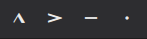
Certain articulations (accent, marcato, staccato, and tenuto) can be added from the note input toolbar:
1. Select one or more notes
2. Click on the desired icon in the articulations toolbar area.
### Articulations palette
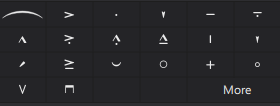
The Articulations palette
To add an item to a score:
1. Select one or more notes
2. Click on the desired articulation in the **Articulations** palette.
Alternatively, drag and drop an articulation symbol from the palette to a notehead.
## Articulations playback
Certain articulations affect note playback - such as staccato, staccatissimo, louré (tenuto + staccato), and accents. This is handled automatically by the program.
## Articulation properties
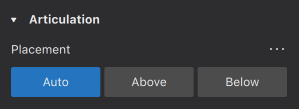
Editable properties of selected articulations on the score are shown in the **Properties** panel.
* **Placement**: This alters the position of the symbol above or below the note.
## Articulation style
*See the main chapter* *Templates and styles*
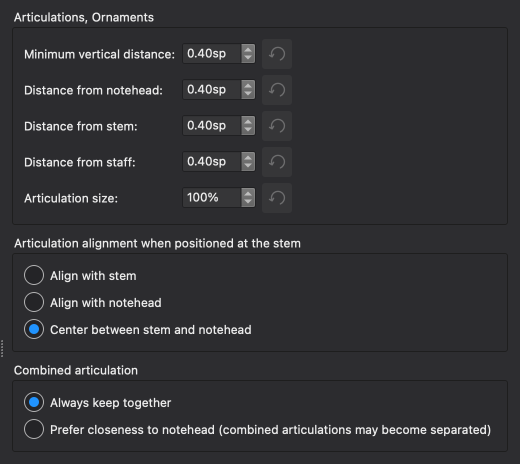
* Values of the "Style for Articulations & Ornaments" can be edited in **Format -> Style -> Articulations & ornaments**.
Shown below are the result of some options on the score.
### Alignment options
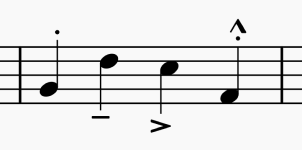
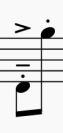
Align with stem
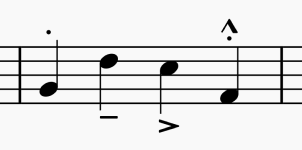
Align with notehead
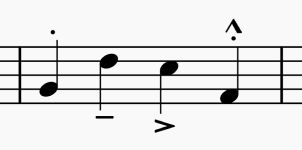
Center between stem and notehead
### Combined articulation options
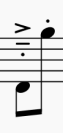
Always keep together
Prefer closeness to notehead (combined articulations may become separated)
---
# Agent Instructions
This documentation is published with GitBook. GitBook is the documentation platform designed so that both humans and AI agents can read, navigate, and reason over technical content effectively. Learn more at gitbook.com.
## Querying This Documentation
If you need additional information that is not directly available in this page, you can query the documentation dynamically by asking a question.
Perform an HTTP GET request on the current page URL with the `ask` query parameter, and the optional `goal` query parameter:
```
GET https://handbook.musescore.org/en_gb/notation/expressive-markings/articulations.md?ask=&goal=
```
`ask` is the immediate question: it should be specific, self-contained, and written in natural language.
`goal` is optional and describes the broader end goal you are ultimately trying to accomplish on behalf of the user. GitBook uses it to tailor the answer towards what is most useful for that goal.
The response will contain a direct answer to the question and relevant excerpts and sources from the documentation.
Use this mechanism when the answer is not explicitly present in the current page, you need clarification or additional context, or you want to retrieve related documentation sections.