> For the complete documentation index, see [llms.txt](https://handbook.musescore.org/llms.txt). Markdown versions of documentation pages are available by appending `.md` to page URLs; this page is available as [Markdown](https://handbook.musescore.org/en_gb/introduction/create-your-first-score.md).
# Create your first score
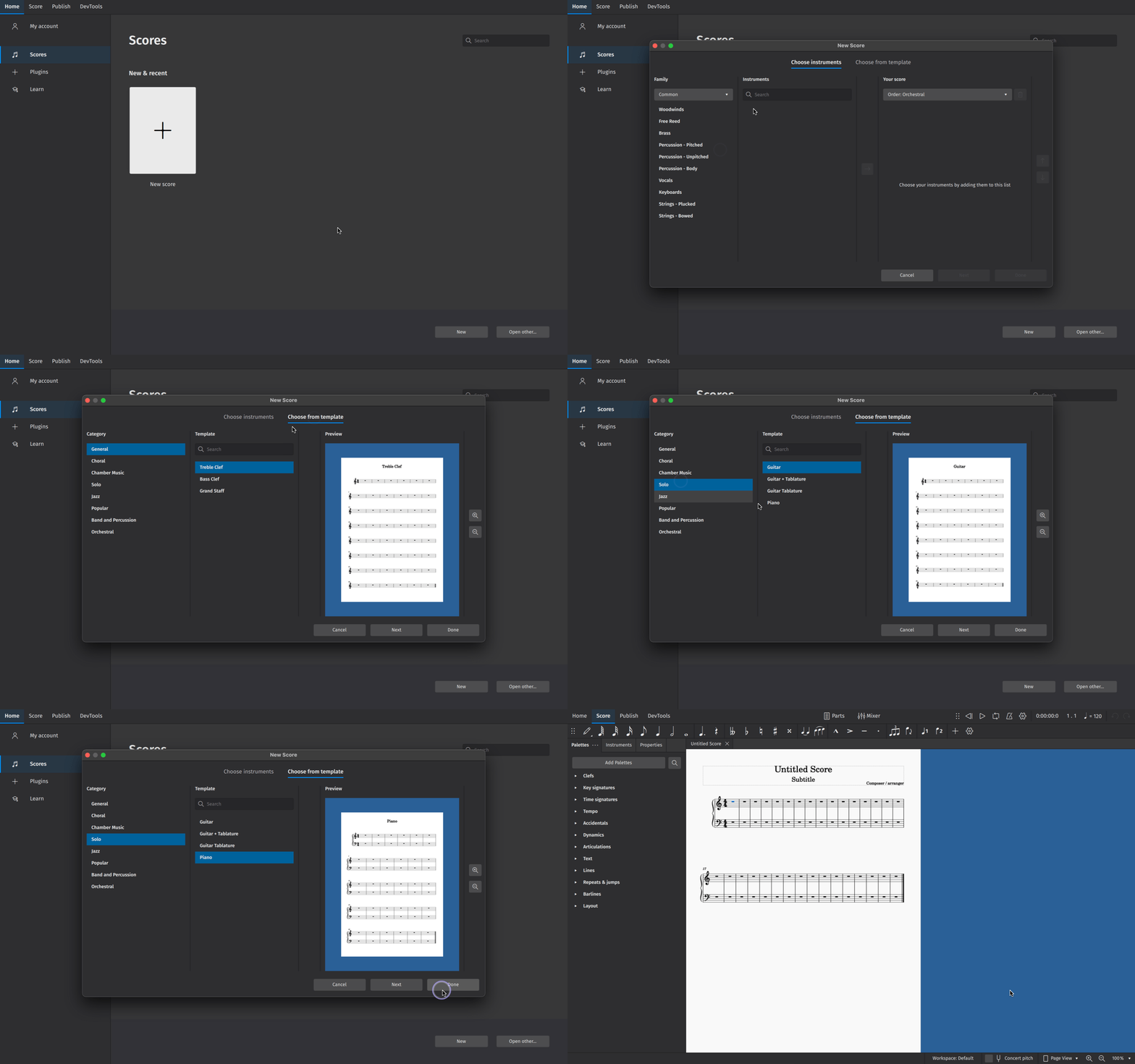
We’ll start by creating a new score from a template (Alternatively, you can learn about creating a score from scratch in Adding and removing instruments).
To create a score from a template:
1. Click **New score** in the **Scores** screen
2. In the **New score** dialog that appears, browse templates by **Category**, or use the search bar to look up a template directly
3. Click **Next** to enter additional score information (or skip this step and let MuseScore pre-fill your score with default information, which you can always change later)
4. Click **Done** to create your new score
## Entering score information
In the **Additional score information** screen, you can set:
* The initial key signature (the default key signature contains no sharps or flats)
* The initial time signature (the default time signature is 4/4)
* The initial tempo (Click **Tempo**, then **Show tempo marking on my score** for this to appear)
* A [pickup bar (anacrusis or upbeat bar), and its duration](/en_gb/appendix/glossary.md#pickup-measure)
* The initial number of bars in the score (the default is 32, but you can [add/remove bars](/en_gb/basics/adding-and-removing-measures.md) from the score edit window)
## Entering notes
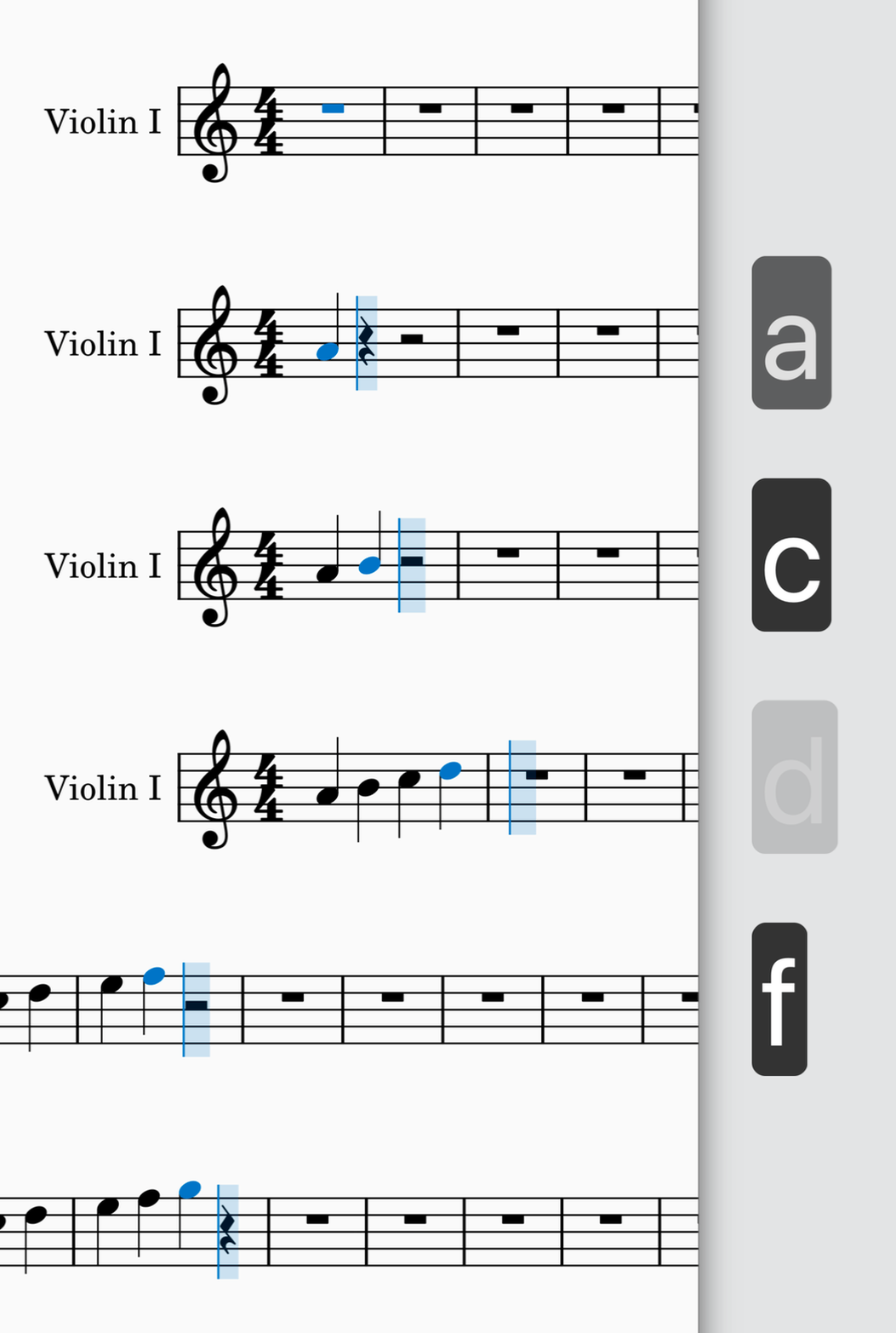
The simplest way to enter notes in MuseScore is to:
1. Hit `N` on your keyboard to enter the note entry mode
2. Start typing note names (`A`, `B`, `C`, `D`, `E`, `F`, `G`)
You’re now engraving in MuseScore! You’ll notice the blue note input highlight, which indicates that you are in note input mode. It shows you where in the bar your next note will be entered.
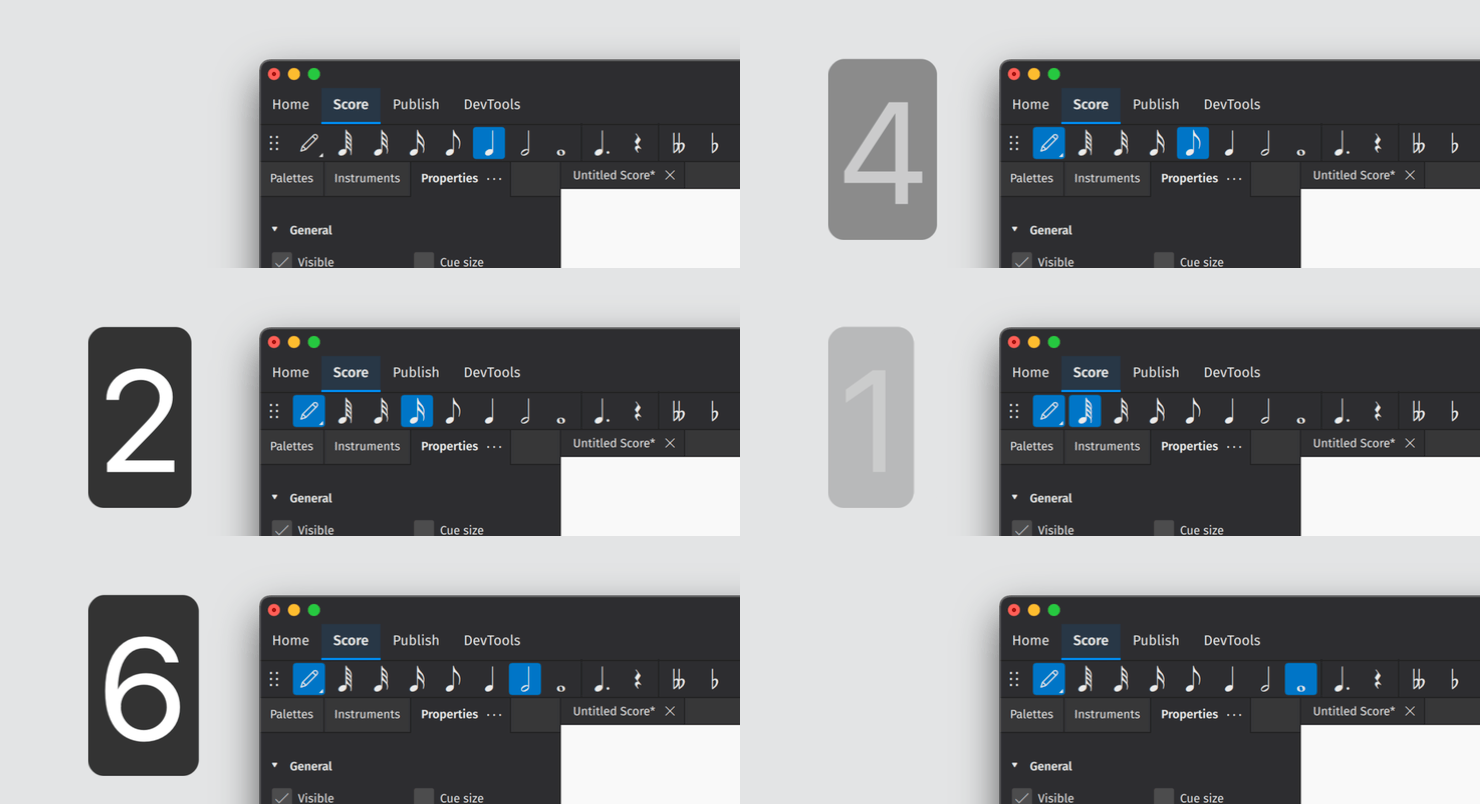
You can specify the duration of each note you enter in the **Note input** toolbar. To change note duration:
1. Ensure you are in note input mode (See above)
2. Click on the desired note duration, or
3. Use shortcut keys `1` through `7` to select different note values
Learn more about this topic in Entering notes and rests.
## Adding items from the palettes
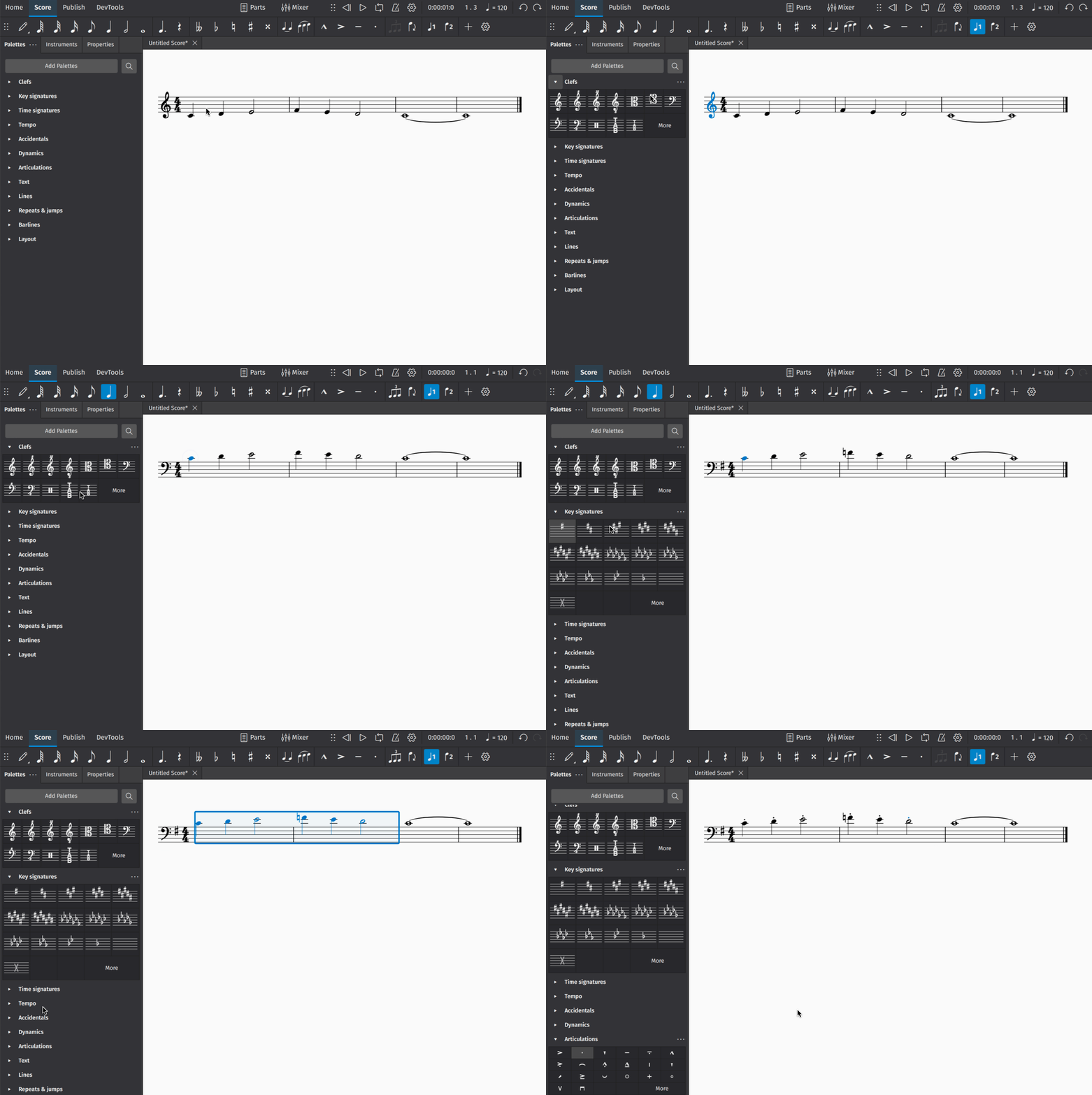
The **Palettes** panel contains almost every notational object you might need to add detail to your score. The simplest way to add palette items to your notation is to:
1. Select an existing object (or range of objects) in your score (e.g. a notehead, clef, bar, etc.)
2. In the **Palettes** panel, open a palette by clicking the triangular arrow button
3. Click once on a palette object
Learn more about this topic in Palettes
## Making adjustments in Properties
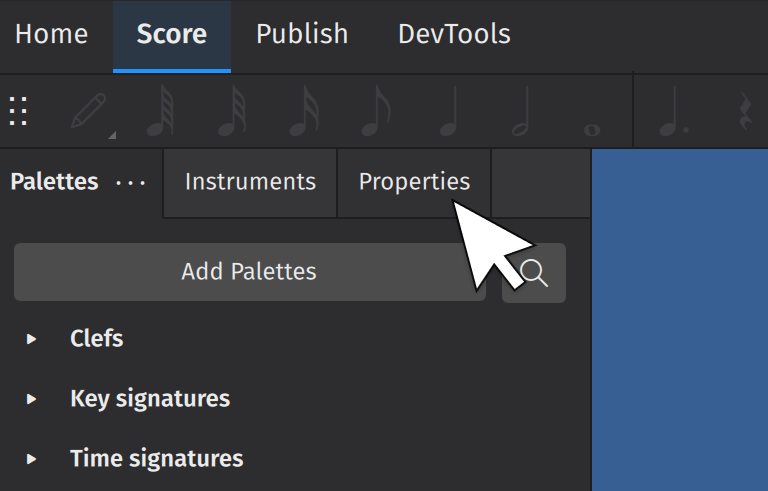
The **Properties** panel can be revealed by clicking on the **Properties** tab on the left side of the screen:
(Users of MuseScore prior to version 4 will know this as the Inspector).
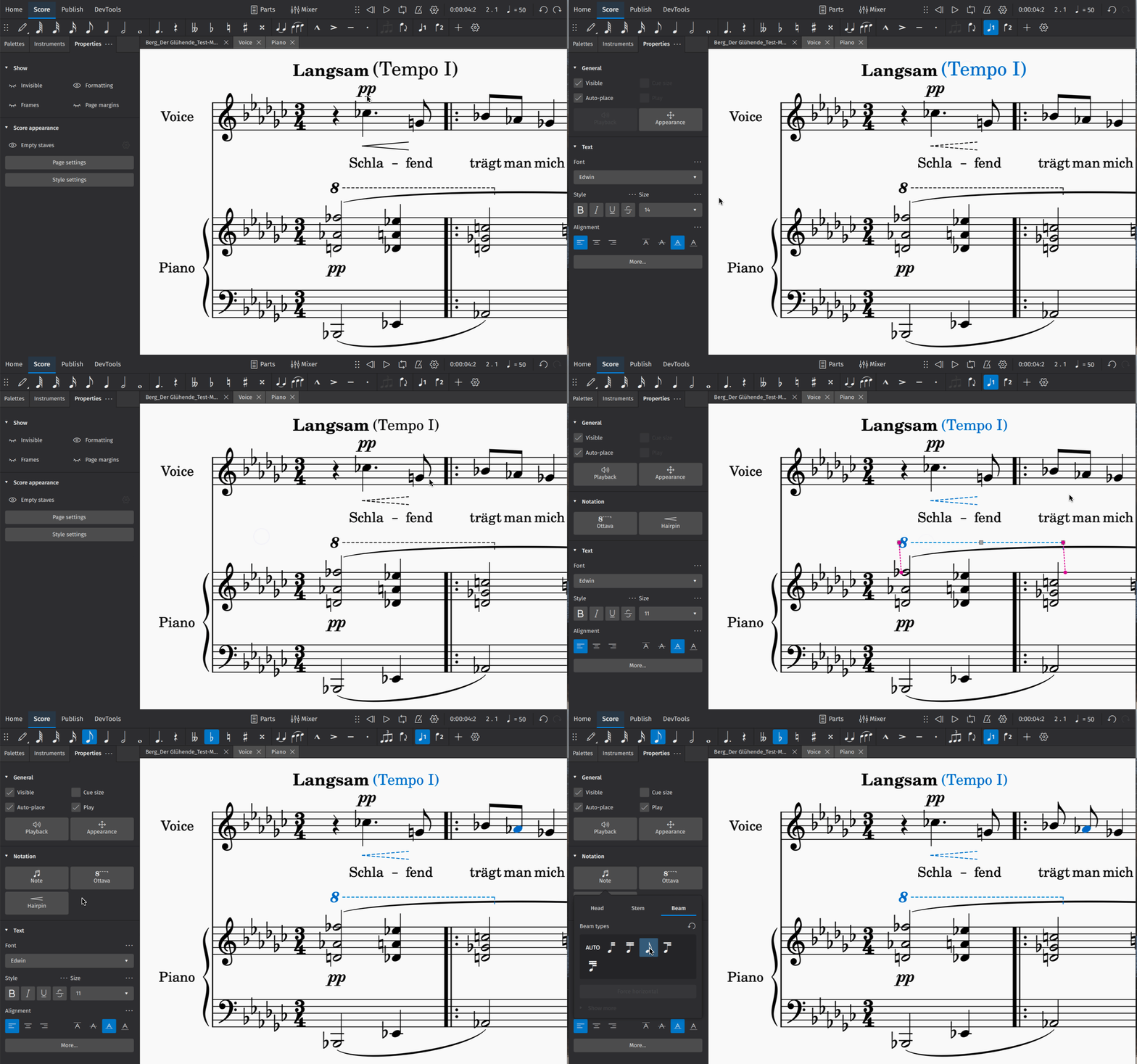
The properties panel will show settings that are specific to the object being selected. These settings usually affect the visual appearance of the selected object. Most of the time, changes you make in **Properties** will apply only to the object you have selected (e.g. you’ll change the selected hairpin, and not every hairpin in your score).
As you add details to your score, click on any object to see what settings are available.
Learn more about this topic in Properties.
## Inserting and deleting bars
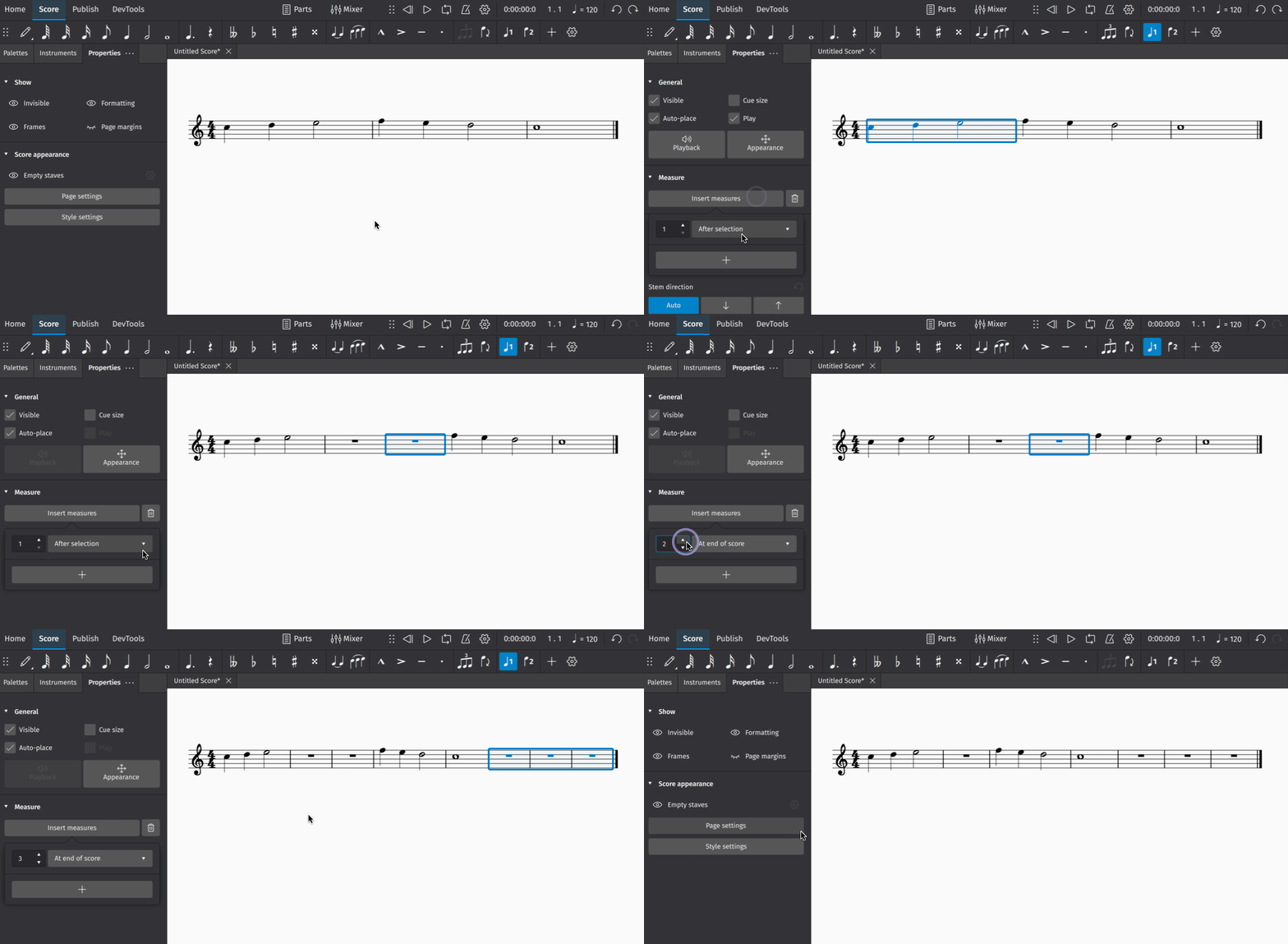
To insert a single bar:
1. Click on a bar to select it
2. In the **Bar** section of **Properties**, click **Insert bars**
3. Click the **+** button
This **Bar** section contains controls that allow you to insert multiple bars at once. Simply set the number of bars you wish to insert in the text field. You can also use the dropdown menu to change the point where new bars will be inserted.
To delete a bar or group of bars:
1. Select the bar(s) you wish to delete
2. In the **Bars** popup, click the trash can icon
More information on this topic can be found in [Bars](/en_gb/basics/adding-and-removing-measures.md#measures).
## Saving your score
To save your score locally to your computer's harddrive:
1. Select **File→Save**
2. In the dialog that appears, select folder and fill in the required info such as file name, click **Save** or **OK**
To save your score to the cloud on musescore.com:
1. Select **File→Save to Cloud**.
2. You may be asked to sign in to your account on musescore.com.
3. Fill in the Name of your score.
4. Set a Visibility. **Private** means only you may see your score. **Unlisted** means anyone with the correct link may see your score. **Public** means anyone may see your score.
5. Press **Save**.
You can find all your cloud scores by going to **Home > Scores > My online scores** (look for the files marked with a small blue cloud symbol). Read more about this in Opening and saving scores.
## Exporting your score
Export allows you to create non-MuseScore files, such as PDF, MusicXML, MIDI, and various audio and image formats.
To export your score:
1. Select the **Publish** tab
2. Click **Export**
3. Select the parts you wish to export
4. Choose the file format for your exported file(s)
5. If exporting multiple parts, choose whether you want each part combined into one file or exported to as separate files
6. Click **Export**
You can also share scores online on musescore.com.
---
# Agent Instructions
This documentation is published with GitBook. GitBook is the documentation platform designed so that both humans and AI agents can read, navigate, and reason over technical content effectively. Learn more at gitbook.com.
## Querying This Documentation
If you need additional information that is not directly available in this page, you can query the documentation by asking a question.
Perform an HTTP GET request on the following URL with the `ask` and `goal` query parameters:
```
GET https://handbook.musescore.org/en_gb/introduction/create-your-first-score.md?ask=&goal=
```
`ask` is the immediate question: it should be specific, self-contained, and written in natural language.
`goal` is what the user is ultimately trying to achieve, the reason they need the answer. Sharing it helps GitBook give you a better, more relevant answer. A goal is most helpful when it describes the outcome the user wants rather than restating the question. For example, with `ask=how do I create an API token`, a goal like `automate deployments from our CI pipeline` lets GitBook tailor the answer to that use case.
The response will contain a direct answer to the question and relevant excerpts and sources from the documentation.
Use this mechanism when the answer is not explicitly present in the current page, you need clarification or additional context, or you want to retrieve related documentation sections.