# Percussion kit customisation

## Overview

You can customize the name, notehead style, stave position, stem direction, keyboard shortcut, and default voice assignment for each sub-instrument and variant in an unpitched percussion instrument.

To access these options, click **Customise kit** from the percussion panel header.

## Customising percussion notation

Using the options in the **Customise kit** dialog, you can:

* [Rename sub-instruments and variants](#rename-sub-instruments-and-variants)
* [Customise noteheads](#customize-noteheads)
* [Assign a default voice](#assign-a-default-voice)
* [Change stave positions](#change-stave-positions)
* [Assign a keyboard shortcut](#assign-a-keyboard-shortcut)
* [Choose the default stem direction](#choose-the-default-stem-direction)

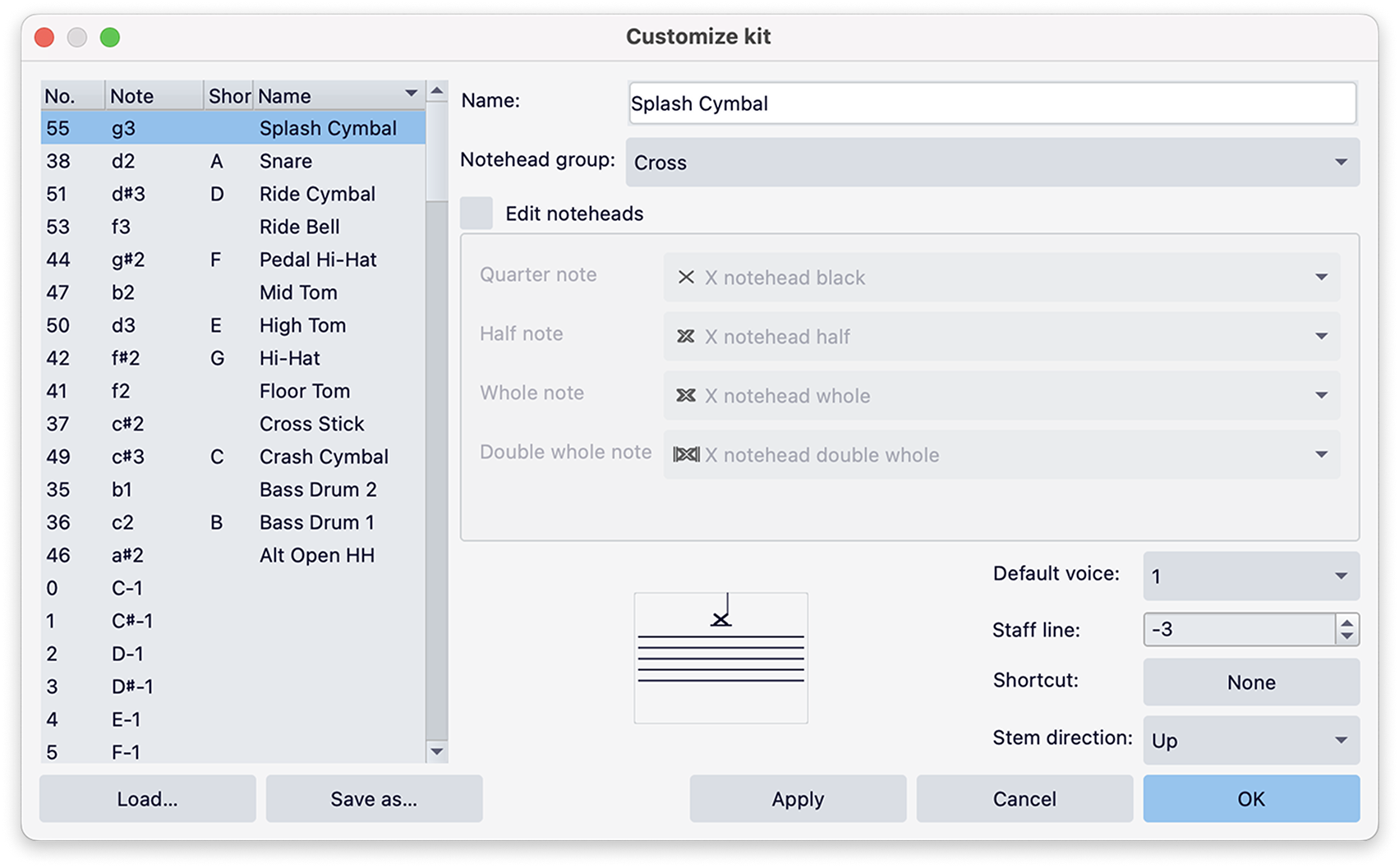
<figure><img src="https://3437726813-files.gitbook.io/~/files/v0/b/gitbook-x-prod.appspot.com/o/spaces%2FhlQyZtOnJ5I68XsXPBVv%2Fuploads%2Fgit-blob-f7b988e48770f0e42b71fdc47f981e135d6280b9%2Fedit-drumset-dialog.png?alt=media" alt="Picture of the Customize Kit dialog"><figcaption><p>The Customize Kit dialog allows you to edit the appearance of all sub-instruments and variants in your kit.</p></figcaption></figure>

In the panel on the left, you can sort the list of sub-instruments and variants in the following ways:

* Click the **No.** column header to sort by MIDI number
* Click the **Note** column header to sort by pitch
* Click the **Shortcut** column header to sort by keyboard shortcut
* Click the **Name** column header to sort by name

{% hint style="info" %}
Sorting by \*\*MIDI number\*\* allows you to see the names of sub-instruments and variants in same order as they appear in the percussion panel as drum pads.
{% endhint %}

{% hint style="info" %}
Any customisations made in this dialog will be immediately shown in the preview panel. Changes will also be automatically shown in the score, however these will only be committed when you click \*\*OK\*\*. These changes are undoable.
{% endhint %}

### Rename sub-instruments and variants

To rename a sub-instrument or variant:

1. Select an instrument from the panel on the left
2. Type your desired label in the field next to **Name**.

The corresponding drum pad label in the percussion panel will be updated when you click either **Apply** or **OK**.

### Customise noteheads

To customise the noteheads assigned to a sub-instrument or variant:

1. Select an instrument from the panel on the left
2. Click the dropdown next to **Notehead group**
3. Choose from the large range of noteheads in the dropdown menu

Each notehead group comes with up to four possible style variants for different durations (quarter note, half note, whole note, double whole note). These come pre-defined, but can be edited if you have specific requirements.

To edit noteheads for individual durations within a notehead group:

1. Click the **Edit noteheads** checkbox
2. Choose your required notehead for each duration in the corresponding dropdown menus

### Assign a default voice

To change the default voice to which a sub-instrument or variant is assigned:

1. Select an instrument from the panel on the left
2. Choose from either voice 1, 2, 3, or 4 in the dropdown next to **Default voice**

Changing a voice assignment affects all future notation for the selected sub-instrument or variant but does not alter existing notation.

### Change stave positions

To change the stave line or space at which a sub-instrument or variant is positioned:

1. Select an instrument from the panel on the left
2. Move its notehead up or down by clicking the arrows in the spin box next to **Stave line**

### Assign a keyboard shortcut

To assign a keyboard shortcut for a sub-instrument or variant:

1. Select an instrument from the panel on the left
2. Click the button next to **Shortcut**
3. Type a key to set a shortcut
4. Click **Save** to confirm your selection

A message will appear if your chosen shortcut conflicts with another assignment. Clicking **Save** at this point will trigger a prompt asking you to confirm your choice.

In some cases, it may be okay to assign a shortcut already in use. MuseScore Studio can recognize when a shortcut is being used for percussion notation input and when it applies to something else outside the percussion system.

Should a change in shortcut render an existing function no longer possible, either choose a different shortcut, or remove the shortcut by clicking **Clear** in the **Define percussion keyboard shortcut** dialog.

<figure><img src="https://3437726813-files.gitbook.io/~/files/v0/b/gitbook-x-prod.appspot.com/o/spaces%2FhlQyZtOnJ5I68XsXPBVv%2Fuploads%2Fgit-blob-65b15cb62d748452010c3af091d83bad9ae5a8a5%2FDefinePadShortcut%20(1).png?alt=media" alt="Picture of the &#x22;Define keyboard shortcut dialog&#x22;"><figcaption><p>This dialog allows you to define or clear a shortcut assignment for each percussion sub-instrument or variant.</p></figcaption></figure>

### Choose the default stem direction

To change the default stem direction for a sub-instrument or variant:

1. Select an instrument from the panel on the left
2. Choose from either **Up**, **Down**, or **Auto** in the dropdown next to **Stem direction**

Changing the stem direction affects all future notation for the selected sub-instrument or variant but does not alter existing notation.

## Saving changes and using them in other scores

When you've finished making customizations, press **OK** to commit your changes. These are saved to your score file.

It's also possible to save all your customisations, as well as the drum pad layout in the percussion panel, for use in other scores.

To save your percussion kit for use in other scores:

1. Save your setup as a drumset file (.drm) by clicking **Save as...** in the bottom left corner of the dialog
2. Choose a file location on your computer. By default, the file will be saved in MuseScore Studio's **Styles** folder
3. Click **Save**

{% hint style="info" %}
When loading your drumset file into another score, bear in mind that, while a drumset file can technically be loaded onto any unpitched percussion instrument, playback will only work correctly if the right sound library is chosen in the mixer.

When setting up your score, it's safest to add an instrument that matches the one you've previously customised.
{% endhint %}

To load your percussion kit in another score

1. Create or open another score containing an unpitched percussion instrument
2. Select the instrument's stave
3. Click **Edit kit** in the percussion panel header
4. In the **Customise kit** dialog that appears, click the **Load...** button in the bottom left corner
5. Locate your saved drumset (.drm) file
6. Click **Open**

Your customizations, including any changes made to the layout of the percussion panel, will now be ready to use in your new score.

##


---

# Agent Instructions: Querying This Documentation

If you need additional information that is not directly available in this page, you can query the documentation dynamically by asking a question.

Perform an HTTP GET request on the current page URL with the `ask` query parameter:

```
GET https://handbook.musescore.org/en_gb/idiomatic-notation/percussion/percussion-kit-customization.md?ask=<question>
```

The question should be specific, self-contained, and written in natural language.
The response will contain a direct answer to the question and relevant excerpts and sources from the documentation.

Use this mechanism when the answer is not explicitly present in the current page, you need clarification or additional context, or you want to retrieve related documentation sections.
