> For the complete documentation index, see [llms.txt](https://handbook.musescore.org/llms.txt). Markdown versions of documentation pages are available by appending `.md` to page URLs; this page is available as [Markdown](https://handbook.musescore.org/en_gb/idiomatic-notation/guitar/creating-a-tablature-staff.md).
# Creating a tablature stave
## Overview
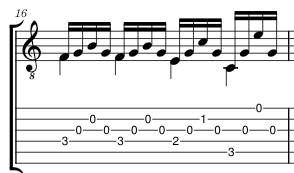
Music for fretted, stringed instruments is commonly notated using **tablature** (often abbreviated as **tab**); this gives a visual representation of the strings and fret numbers. Tablature is frequently found in combination with traditional staff notation.
## Types of tablature staves
A variety of tablature templates for common instruments are supplied. If this isn't quite what you're looking for, you can easily change the template (see Changing tablature staff type), and/or customize the staff (see Tablature: customization).
## Adding a tablature staff to your score
There are three possibilities:
* Create tablature as part of a new score.
* Add tablature to an existing score.
* Change an existing staff from standard to tablature.
### Add tablature using the New Score dialog
To create tablature as part of a new score:
1. Open the New Score dialog.
2. Select the required tablature from either the **Choose Instruments** or **Create from template** tabs.
3. Complete the rest of the New Score dialog.
### Add tablature using the Instruments dialog
To create a tablature staff in an existing score:
1. In the **Layout** panel, click on the `Add` button; or press the shortcut key, `I`. This brings up the **Add or remove instruments** dialog.
2. Click on the **Strings – Plucked** family and choose the desired tablature from the **Instruments** column.
3. Press `OK`.
### Change an existing staff from standard to tablature
1. Make sure that the standard staff contains a plucked string instrument;
2. Use one of the methods described under Changing tablature staff type.
## Creating paired standard and tablature staves
Music for the guitar (and other plucked-string instruments) is often notated using paired standard *and* tablature staves. In MuseScore, the staves can be either *linked* or *unlinked*.
* **Linked**: Any change you make to the notation in one staff automatically updates the other.
* **Unlinked**: Each staff is edited independently. To update the other staff, copy and paste the relevant music notation.
*Note* : In both cases, the staff/tablature pair shares the *same* instrument.
### Create paired standard/tab staves using the New Score Wizard
There are two ways to do this when creating a new score (A or B):
**A.** For *linked* staves only:
1. Open the New Score Wizard.
2. In the "Create from template" tab, click on the "Solo" category and choose the "Guitar + Tablature" .
3. Complete the rest of the New Score wizard.
4. Change the instrument type, if required, in Staff / Part properties.
5. Change the tablature type, if required (see Changing tablature staff type).
**B**. For linked *or* unlinked staves:
1. Open the New Score Wizard.
2. In the "Choose instruments" tab, click on the "Strings – Plucked" family, and select a staff option from the "Instruments" column.
3. Complete the rest of the wizard.
4. Add the desired staff using the Instruments panel.
### Create paired standard/tab staves using the Instruments dialog
Use this method when you want to add to an existing score:
1. Open the **Add or remove instruments** dialog: press `I`; or, alternatively, the `Add` button in the **Instruments** sidebar
2. Click on the **Strings – Plucked** family and choose the desired staff from the **Instruments** column.
3. Press `OK`.
4. Add the desired tablature from the **Layout** panel.
**Note**: If you already have one staff of a standard/tab pair in your score, you can simply add the missing staff from the **Instruments** panel. See Adding and configuring staves.
---
# Agent Instructions
This documentation is published with GitBook. GitBook is the documentation platform designed so that both humans and AI agents can read, navigate, and reason over technical content effectively. Learn more at gitbook.com.
## Querying This Documentation
If you need additional information that is not directly available in this page, you can query the documentation by asking a question.
Perform an HTTP GET request on the following URL with the `ask` and `goal` query parameters:
```
GET https://handbook.musescore.org/en_gb/idiomatic-notation/guitar/creating-a-tablature-staff.md?ask=&goal=
```
`ask` is the immediate question: it should be specific, self-contained, and written in natural language.
`goal` is what the user is ultimately trying to achieve, the reason they need the answer. Sharing it helps GitBook give you a better, more relevant answer. A goal is most helpful when it describes the outcome the user wants rather than restating the question. For example, with `ask=how do I create an API token`, a goal like `automate deployments from our CI pipeline` lets GitBook tailor the answer to that use case.
The response will contain a direct answer to the question and relevant excerpts and sources from the documentation.
Use this mechanism when the answer is not explicitly present in the current page, you need clarification or additional context, or you want to retrieve related documentation sections.