> For the complete documentation index, see [llms.txt](https://handbook.musescore.org/llms.txt). Markdown versions of documentation pages are available by appending `.md` to page URLs; this page is available as [Markdown](https://handbook.musescore.org/en_gb/customization/plugins.md).
# Plugins
*For information on audio plugins, see* *VST and VSTi.*
## Overview
A plugin is a small piece of software that adds extra functionality to MuseScore Studio. A plugin needs to be enabled first, and then executed by using the Plugins menu. Some plugins come pre-installed, and are disabled by default. There are also plugins created and shared by other musicians, anyone can download and use them.
## Managing plugins
### Enabling and disabling plugins
1. Go to **Home -> Plugins** (or **Plugins -> Manage plugins...**).
2. Select a plugin and click **Enable** or **Disable**.
### Installing a new plugin
{% hint style="danger" %}
\*\*Warning\*\*: Plugins can potentially contain bad or malicious code, which compromise the machine and damage the scores. All plugins shared on musescore.org's plugin repository are \*\*unvetted\*\*. No warranty of any kind is provided. Users should download from a trusted author or double-check the code themselves. Seek advice on the \[Plugins forum]\(%1).
{% endhint %}
1. Search for available plugins at, for example:
* musescore.org/plugins (musescore.org -> Download -> Plugins)
* [GitHub topic 'musescore-plugin'](https://github.com/topics/musescore-plugin)
* [GitHub topic 'musescore-plugins'](https://github.com/topics/musescore-plugins)
2. Make sure it is compatible with your version of MuseScore (3.x or 4.x).
3. Download the file:
* For .qml files hosted on musescore.org, sometimes web browsers open it as plain text and refuses to download it as file. In that case, right-click on the link and select **Save link as...**
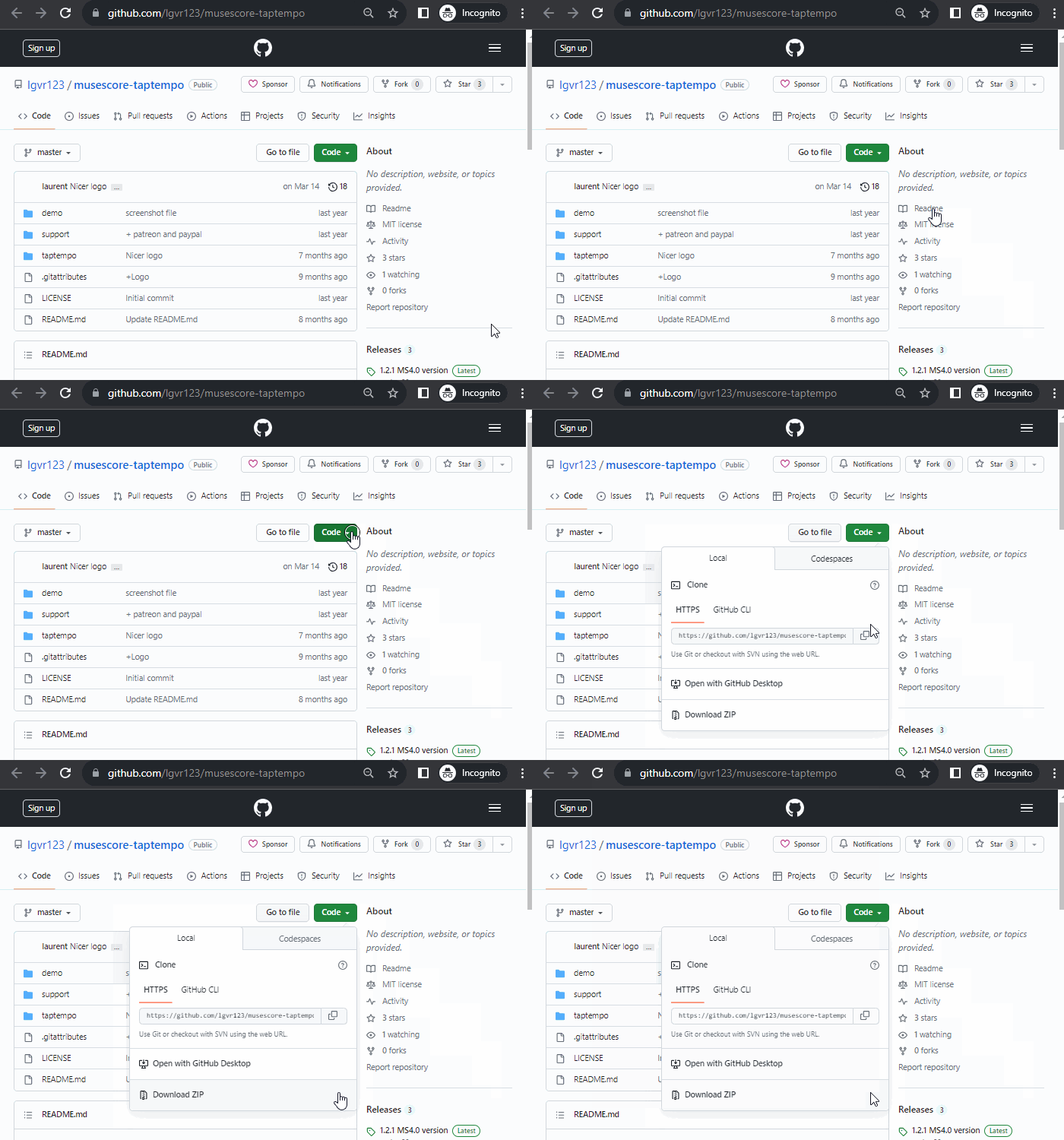
* For github.com unpackaged code, download the project as a zip file by clicking **Code -> Download ZIP**.
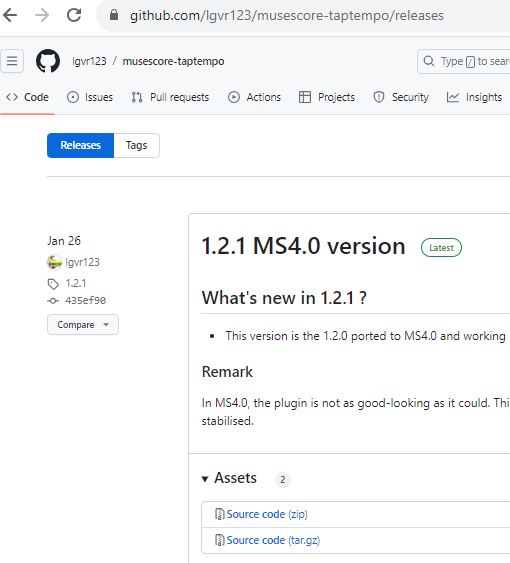
* For github.com packaged releases, click on an appropriate item under **Assets**.
4. If the download is a .zip file, extract it using archive extraction software.
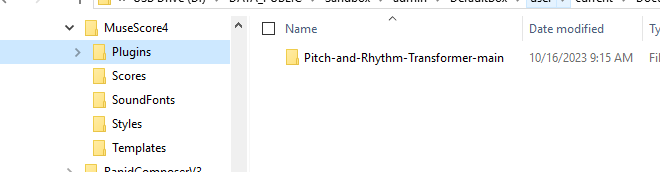
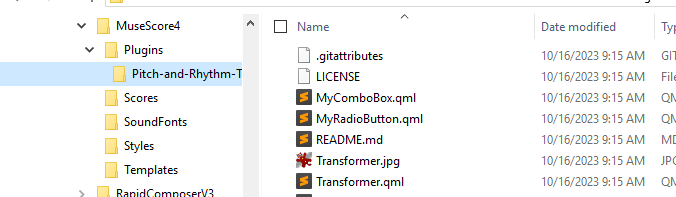
5. Move the files to MuseScore's plugins folder, configurable in **Preferences -> Folders**. The default directories are:
* **Windows:** `C:\Users\[Your User Name]\Documents\MuseScore4\Plugins\`
* **macOS:** `~/Documents/MuseScore4/Plugins/`
* **Linux:** `~/Documents/MuseScore4/Plugins/`
#### Updating an existing plugin
Updating works the same way as installing – just remember to remove the files from the previous version to avoid duplicate plugins.
## Running a plugin
1. Open a score (or go back to the **Score** tab).
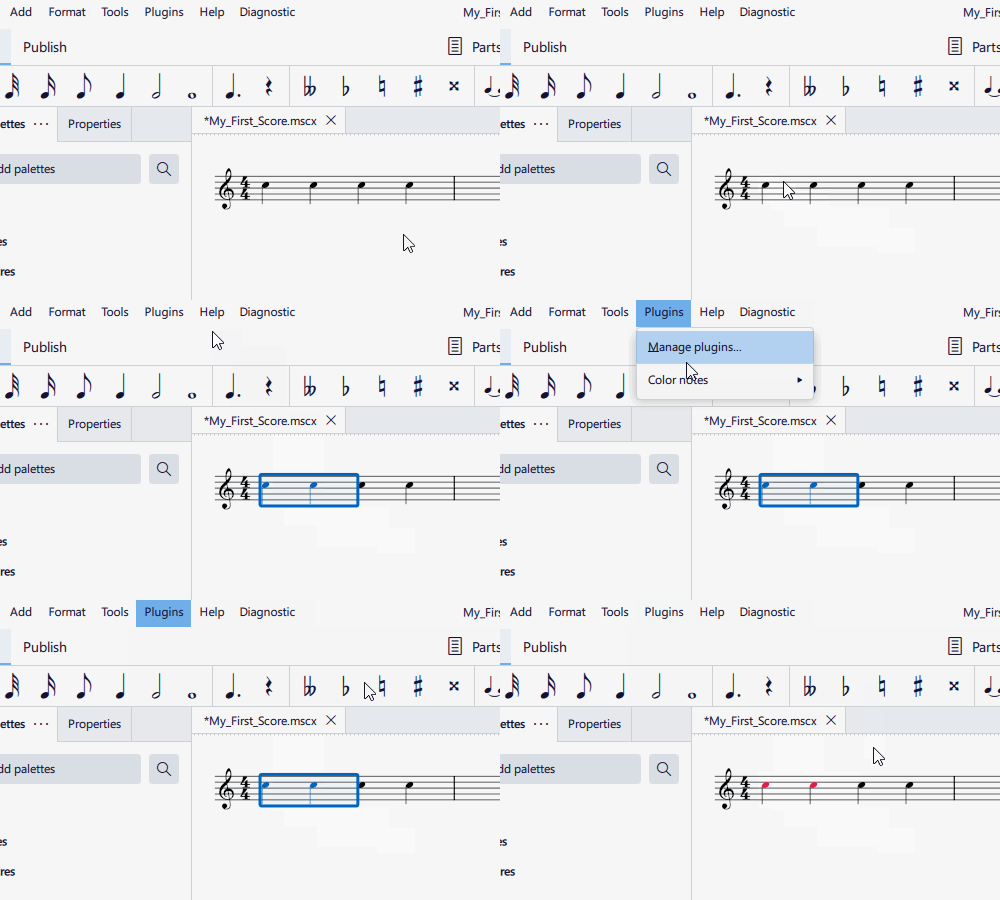
2. Select **Plugins** in the menu and find and select the plugin name in the menu.
To assign a keyboard shortcut to a plugin:
1. Go to **Home -> Plugins** (or **Plugins -> Manage plugins...**).
2. Select a plugin.
3. Choose **Edit shortcut**.
4. Define a keyboard shortcut for the action that appears in the **Preferences** window.
## Pre-installed plugins
See the code for these plugins on Github.
* Add Courtesy Accidentals
* Colour Notes
* Lilypond Lyrics
* Mirror Intervals
* Modal Temperaments
* Modal Tuning
* New Retrograde
* Note Names
* Remove Courtesy Accidentals
* Tuning
## Create a plugin
Visit the Developers' Handbook Plugins for 3.x chapter for fundamentals, and the Plugins for 4.x chapter for info on the new parameters and porting a MuseScore 3 plugin to MuseScore Studio 4.
---
# Agent Instructions
This documentation is published with GitBook. GitBook is the documentation platform designed so that both humans and AI agents can read, navigate, and reason over technical content effectively. Learn more at gitbook.com.
## Querying This Documentation
If you need additional information that is not directly available in this page, you can query the documentation by asking a question.
Perform an HTTP GET request on the following URL with the `ask` and `goal` query parameters:
```
GET https://handbook.musescore.org/en_gb/customization/plugins.md?ask=&goal=
```
`ask` is the immediate question: it should be specific, self-contained, and written in natural language.
`goal` is what the user is ultimately trying to achieve, the reason they need the answer. Sharing it helps GitBook give you a better, more relevant answer. A goal is most helpful when it describes the outcome the user wants rather than restating the question. For example, with `ask=how do I create an API token`, a goal like `automate deployments from our CI pipeline` lets GitBook tailor the answer to that use case.
The response will contain a direct answer to the question and relevant excerpts and sources from the documentation.
Use this mechanism when the answer is not explicitly present in the current page, you need clarification or additional context, or you want to retrieve related documentation sections.