> For the complete documentation index, see [llms.txt](https://handbook.musescore.org/llms.txt). Markdown versions of documentation pages are available by appending `.md` to page URLs; this page is available as [Markdown](https://handbook.musescore.org/en_gb/basics/setting-up-your-score.md).
# Setting up your score
## Overview
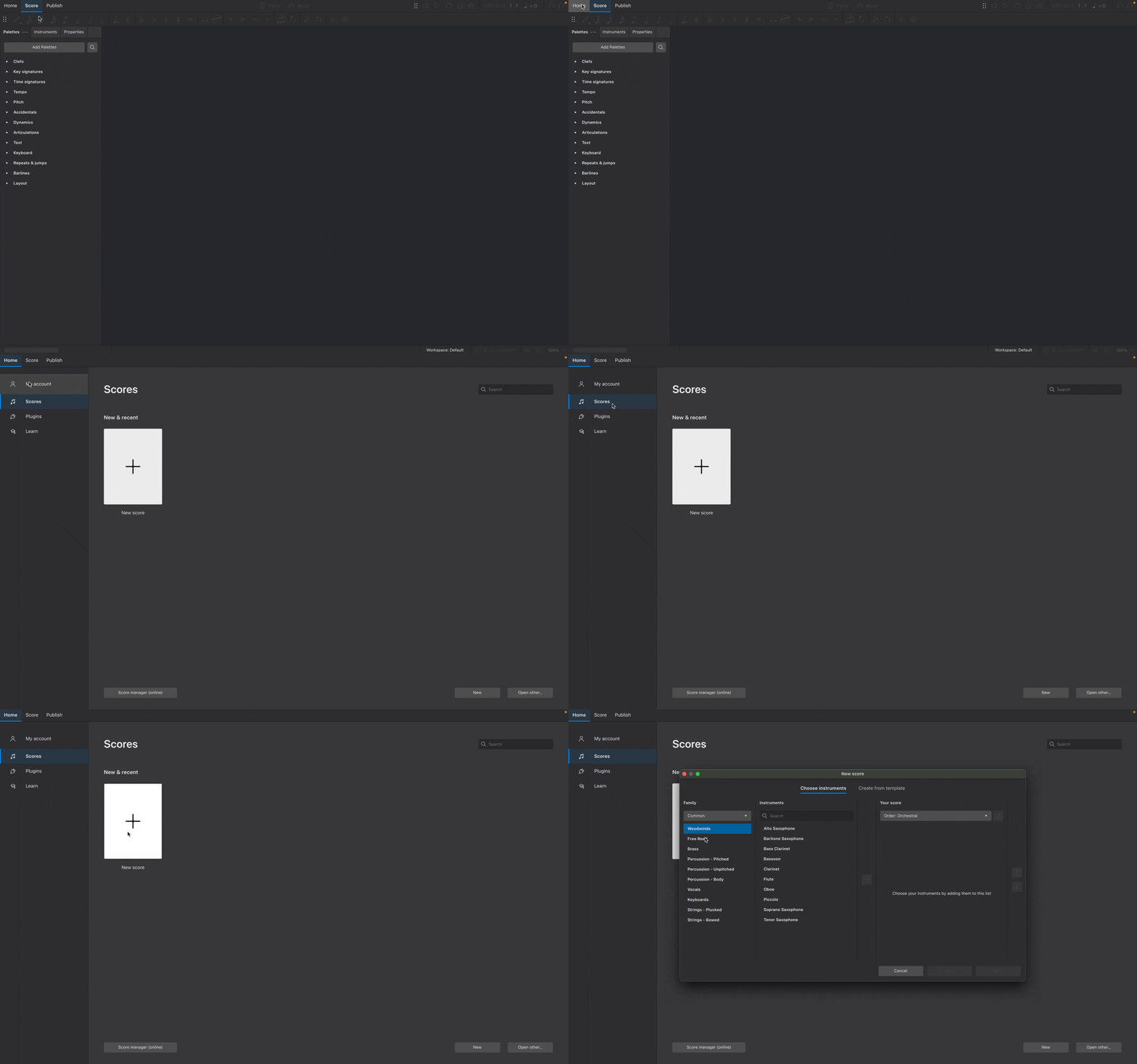
To create a new score, use one of the following options:
* In the Home→Scores tab, select **New score**, or click **New** (bottom right)
* From the menu, select **File→New**
* Use the keyboard shortcut, `Ctrl`+`N` (Mac: `Cmd`+`N`)
This will open the **New Score** dialog (more instructions about this dialog are below). Once you've finished setting up your score, it will be visible in the **Score** tab.
## Instruments
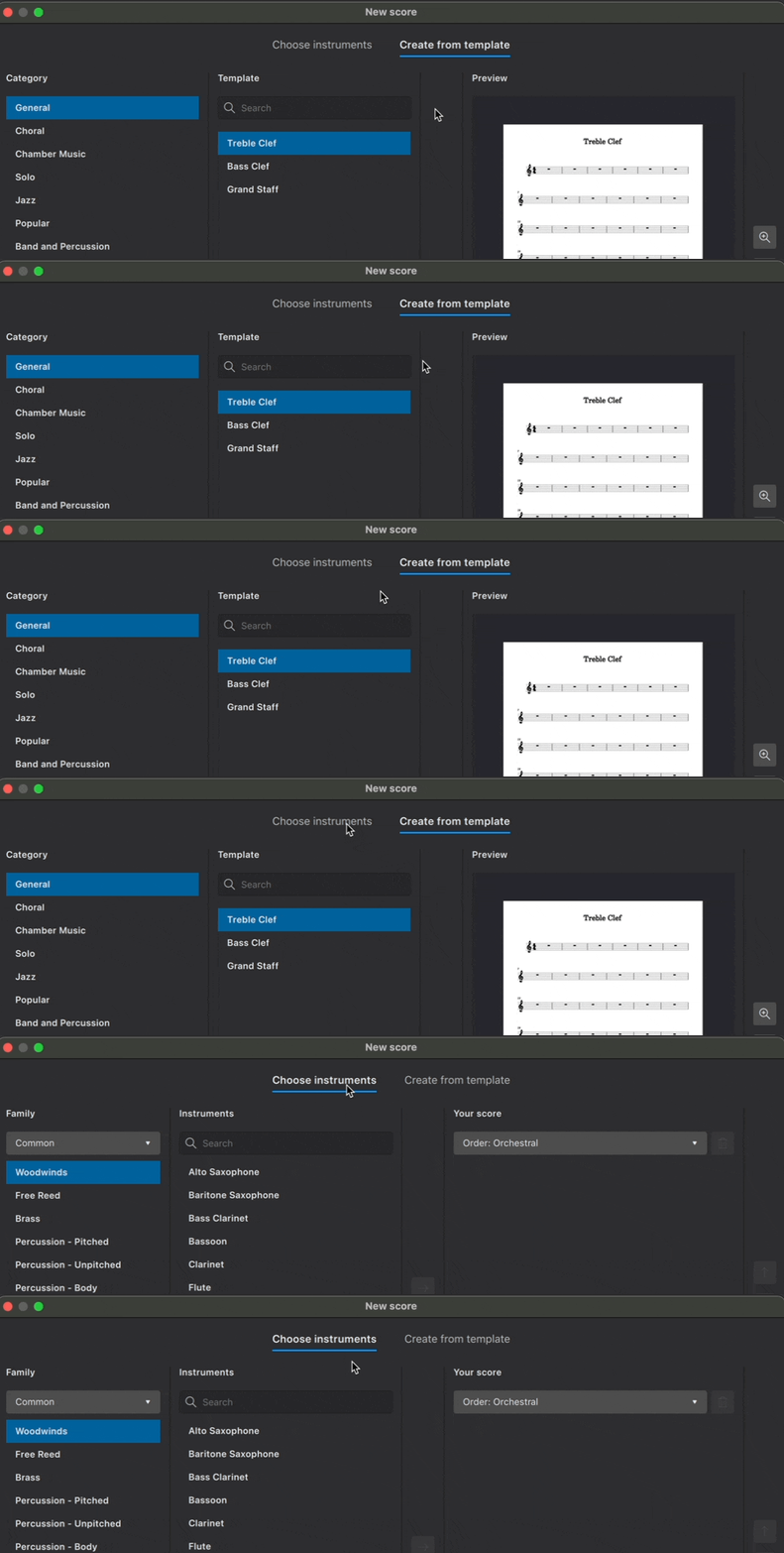
When creating a new score, you can either choose instruments yourself or use a template that comes pre-configured with appropriate instruments (these can always be changed later).
### Choose instruments
In the **New Score** dialog, make sure the **Choose instruments** tab is selected.
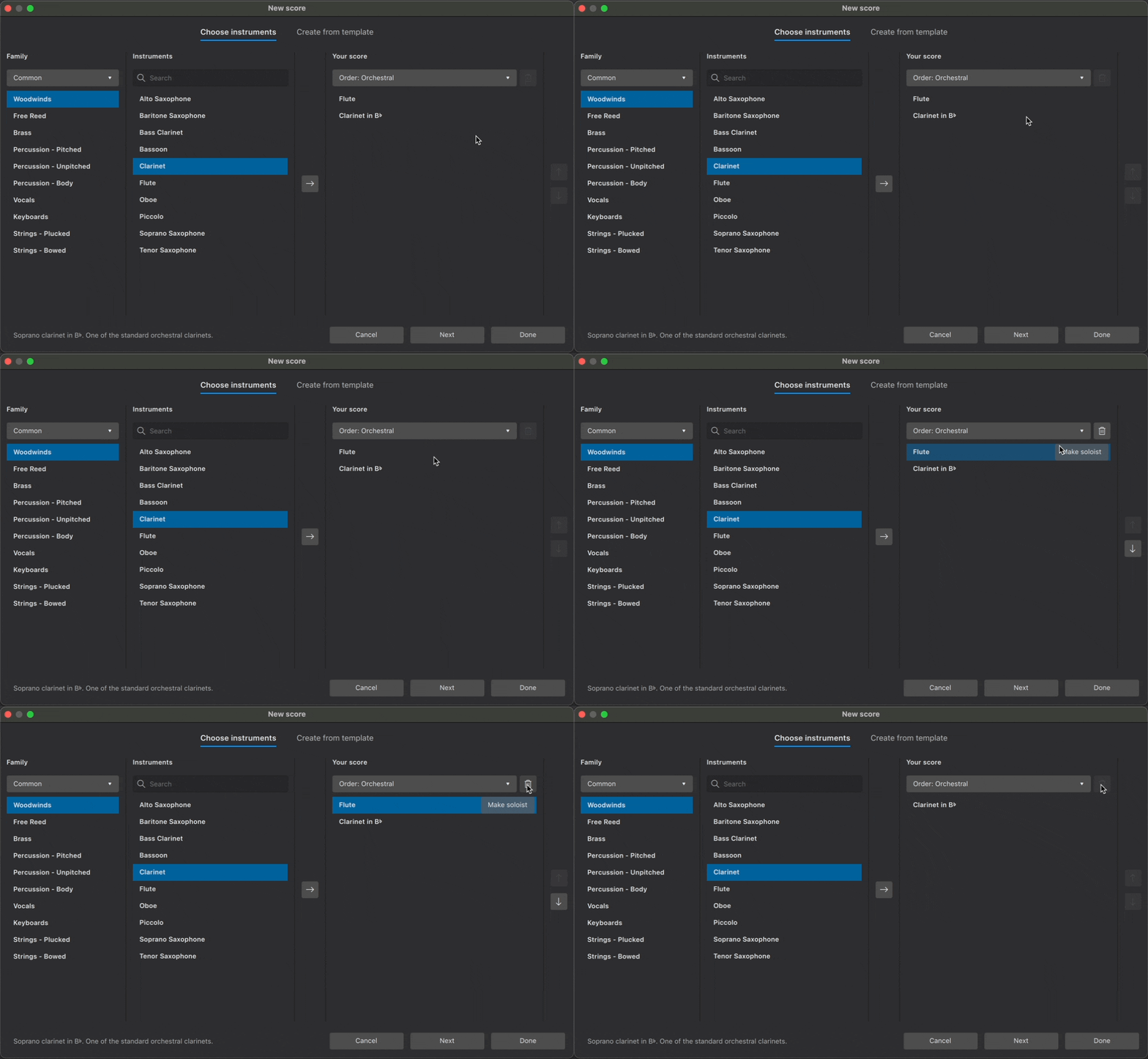
MuseScore contains over 500 instruments. Instruments are grouped into categories, and categories are organized into families. If you know what you’re looking for, you can type an instrument's name into the search bar. Alternatively, you can browse instruments by group from the **Family** dropdown menu.
#### Adding instruments
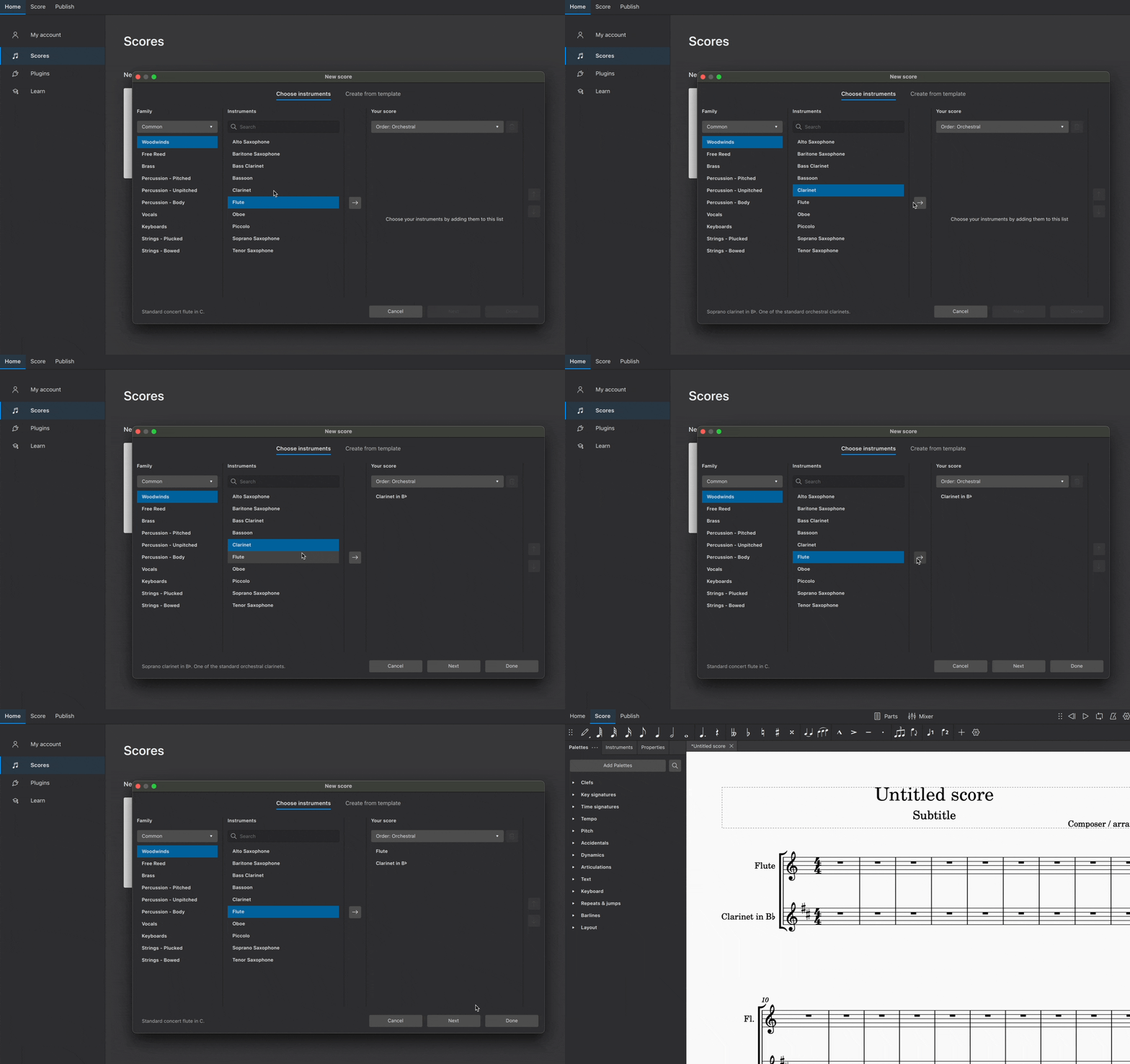
To add an instrument to your score:
* Double-click on an instrument name, or
* Click on the instrument name to select it, then click the **→** button
Instruments are automatically arranged according to the order shown in the dropdown menu under **Your Score**. From this menu, you can choose from a range of standard score configurations.
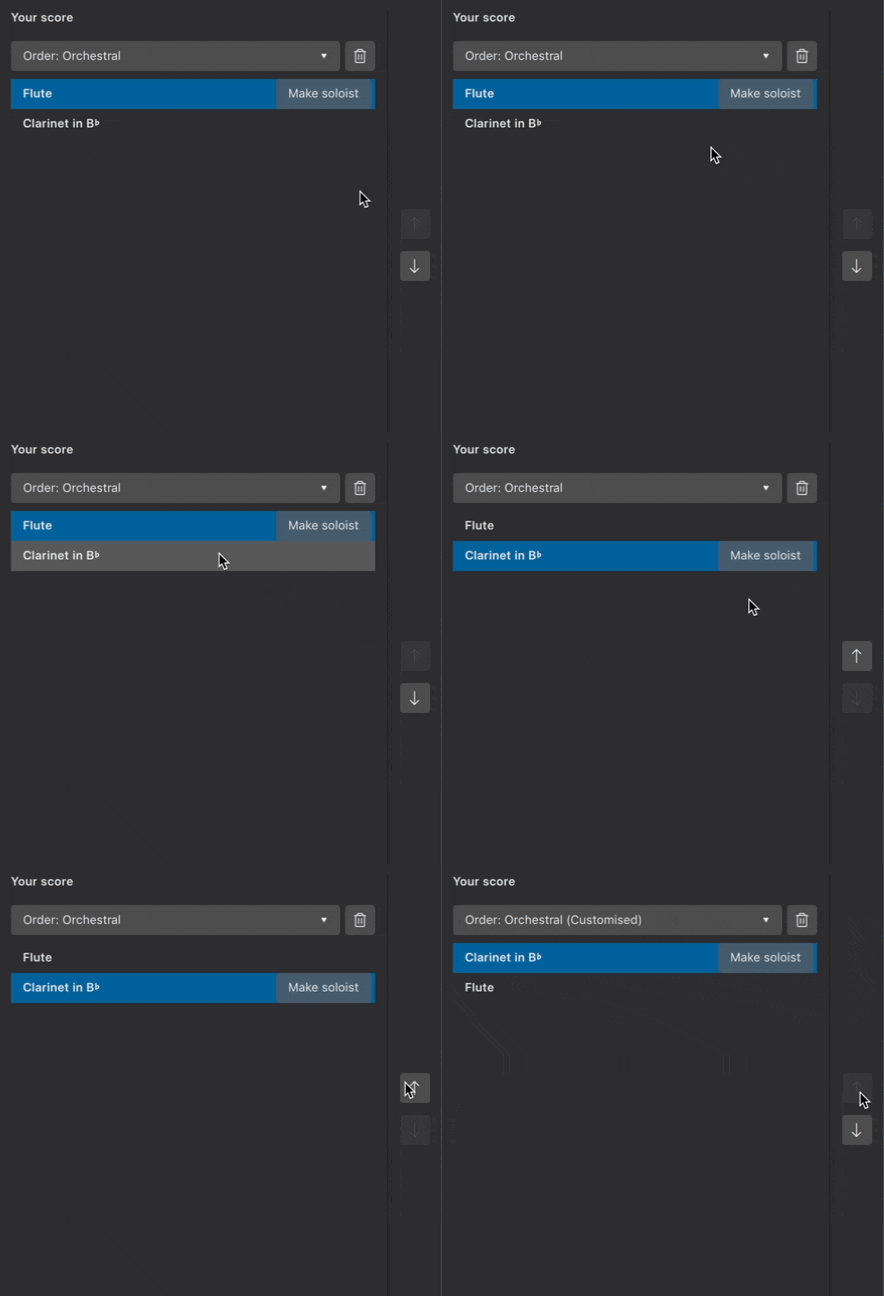
#### Changing order of instruments
To manually change the order of instruments:
1. Select an instrument in the **Your Score** panel
2. Click on **↑** or **↓** to change its position
#### Removing instruments
To delete an instrument from your score:
1. Select an instrument in the **Your Score** panel
2. Click the trash can button
You can also delete multiple instruments at once by first holding down `Shift` and selecting multiple instruments, then clicking the trash can button.
### Create from template
Scores can also be created from pre-configured templates.
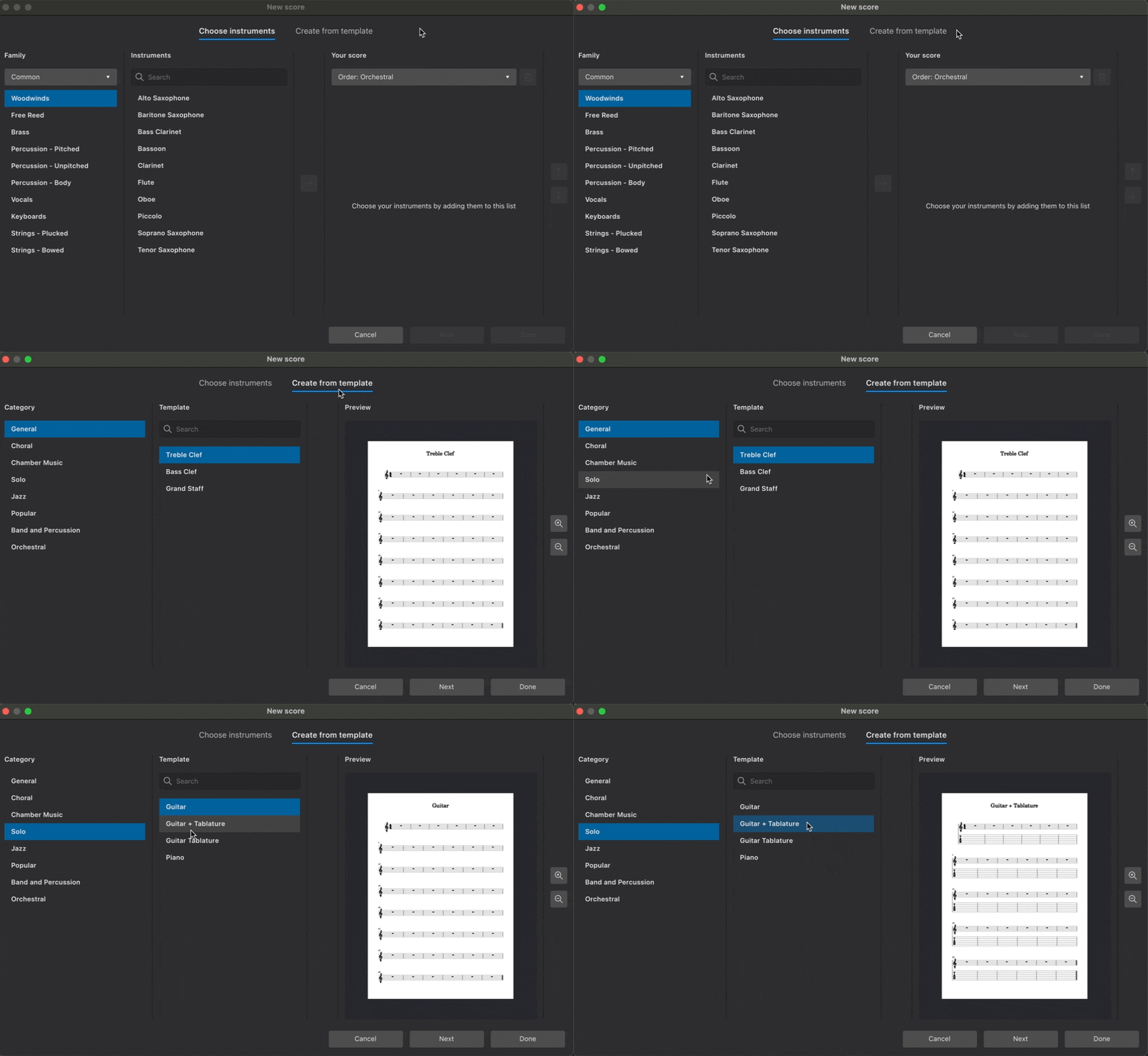
Templates are organized into categories based on musical style or ensemble configuration. Each template contains the instruments most commonly required for a particular type of score. Instruments are ordered and styled according to conventional practice.
To create a score from a template:
1. Click **Create from template**
2. Select a group of templates from the **Category** panel
3. Choose your desired template from the center panel
4. Click **Done**
You can also search across all available templates in the search bar.
Visit Templates and styles to learn more templates, including how to create your own for future use.
## Additional score information
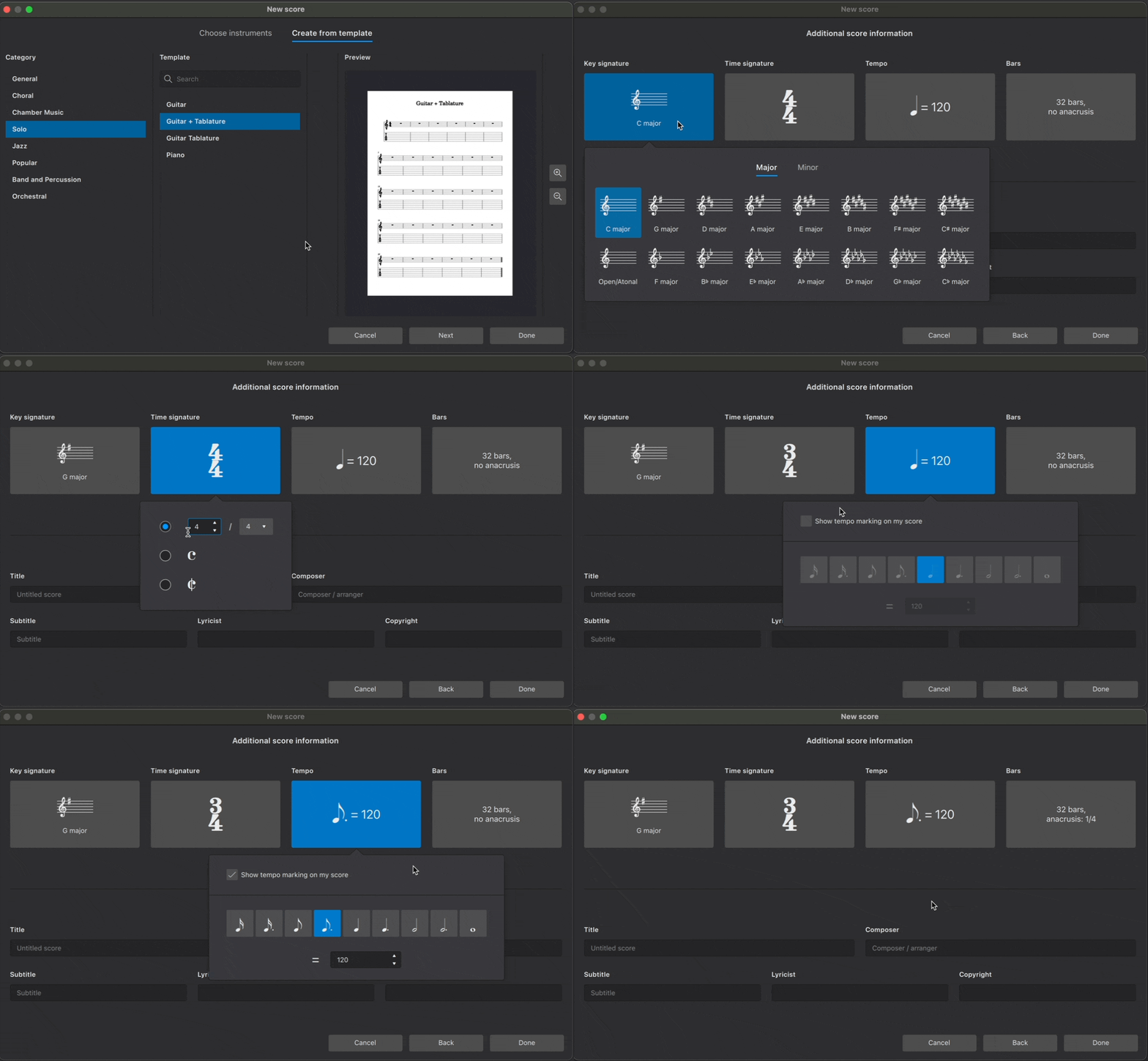
Click **Next** in the **New score** dialog to specify additional information about your score.
### Key signature
By default, new scores are created with a key signature containing no sharps or flats (C major). Specify a different key signature by clicking the button under **Key signature**. Major keys are shown first; minor keys can be displayed by selecting the **Minor** tab.
### Time signature
New scores are created in 4/4 by default. Change this by clicking the button under **Time signature**. Change the number of beats per bar using the arrows in the spin box, and change the beat quality from the dropdown menu. You can also select common and cut-common (alla-breve) time signatures in this popup.
### Tempo
By default, new scores will play at a tempo of quarter note (crotchet) = 120 beats per minute (bpm). Metronome markings are not automatically included in new scores.
To customise the starting playback tempo, and to show a metronome marking above the uppermost stave:
1. Click the button under **Tempo**
2. Tick **Show tempo marking on my score**
3. Select the desired beat value
4. Enter the desired number of beats per minute in the text field (or use the up and down arrows to scroll through the tempo range)
Learn more about tempo text indications, metronome markings, and playback speed in tempo markings.
### Bars
New scores are created with 32 bars and no anacrusis. To change the starting number of bars in your new score:
1. Click the button under **Bars**
2. Enter the desired number of bars in the **Initial number of bars** field
Learn more about [Adding and removing bars](/en_gb/basics/adding-and-removing-measures.md) at any time after score creation.
To start your score with an anacrusis:
1. Click the button under **Bars**
2. Tick **Create anacrusis**
3. Enter the desired number of beats for the anacrusis in the text field
4. Select the metrical value of the anacrusis from the drop-down menu
You can always create an anacrusis later. Learn how to do this in [Anacrusis and non-metered bars](/en_gb/notation/rhythm-meter-and-measures/pickup-and-non-metered-measures.md).
### Title and other text
Enter text in the fields at the bottom of the **New score** dialog, and MuseScore will automatically place it in an appropriate format in your new score. You can enter text labels for the score's:
* Title
* Composer
* Subtitle
* Lyricist
* Copyright
This information gets saved to the score's project properties, which you can change at any time.
Once you've finished specifying additional score information, click **Done** to confirm your selections and create your score.
## Changing instruments after score creation
There are three ways to change existing score instruments:
* Use the keyboard shortcut `I` while in the **Score** tab
* Click **Add** from the **Layout** panel (if this panel is not yet visible, press `F7`, or select **View → Layout**)
* Click **Replace instrument** in the [**Stave/Part properties**](/en_gb/notation/instruments-staves-and-systems/staff-part-properties.md#overview) dialog
---
# Agent Instructions
This documentation is published with GitBook. GitBook is the documentation platform designed so that both humans and AI agents can read, navigate, and reason over technical content effectively. Learn more at gitbook.com.
## Querying This Documentation
If you need additional information that is not directly available in this page, you can query the documentation by asking a question.
Perform an HTTP GET request on the following URL with the `ask` and `goal` query parameters:
```
GET https://handbook.musescore.org/en_gb/basics/setting-up-your-score.md?ask=&goal=
```
`ask` is the immediate question: it should be specific, self-contained, and written in natural language.
`goal` is what the user is ultimately trying to achieve, the reason they need the answer. Sharing it helps GitBook give you a better, more relevant answer. A goal is most helpful when it describes the outcome the user wants rather than restating the question. For example, with `ask=how do I create an API token`, a goal like `automate deployments from our CI pipeline` lets GitBook tailor the answer to that use case.
The response will contain a direct answer to the question and relevant excerpts and sources from the documentation.
Use this mechanism when the answer is not explicitly present in the current page, you need clarification or additional context, or you want to retrieve related documentation sections.