> For the complete documentation index, see [llms.txt](https://handbook.musescore.org/llms.txt). Markdown versions of documentation pages are available by appending `.md` to page URLs; this page is available as [Markdown](https://handbook.musescore.org/de/navigation/the-user-interface.md).
# Die Benutzeroberfläche
## Overview
Die Benutzeroberfläche (UI - user interface) von MuseScore Studio besteht aus dem Hauptanwendungsfenster sowie allen zugehörigen Dialogfeldern, Bedienfeldern und Menüs.
## Main window
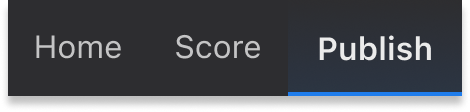
Oben links im Hauptfenster von MuseScore befinden sich drei Registerkarten mit den Bezeichnungen **Startseite**, **Partitur** and **Veröffentlichen**.
### Home tab
Die Registerkarte **Startseite** enthält die folgenden Seiten:
#### My account
Erstellen Sie ein neues MuseScore-Konto oder melden Sie sich bei Ihrem bestehenden Konto an. Mit einem aktiven Konto können Sie technische Unterstützung erhalten und Fehler in den Foren auf [musescore.org](https://musescore.org/de/forum). Sie können Ihre Dateien auch in der Cloud auf [musescore.com](https://musescore.com/dashboard) speichern.
#### Scores
In diesem Abschnitt können Sie eine neue Partitur erstellen oder eine vorhandene öffnen. Informationen zum Erstellen neuer Partituren finden Sie unter [Einrichten der Partitur](/de/basics/setting-up-your-score.md).
#### Plugins
Dieses Fenster zeigt eine Liste der verfügbaren Plugins an. Im Kapitel über [Plugins](/de/customization/plugins.md) erfahren Sie mehr über die Verwaltung dieser nützlichen Add-ons.
#### Learn
Hier werden Video-Tutorien gehostet. Durch Anklicken eines Video-Tutoriums wird es auf dem offiziellen [YouTube-Kanal von MuseScore](https://www.youtube.com/c/musescore) geöffnet.
### Score tab
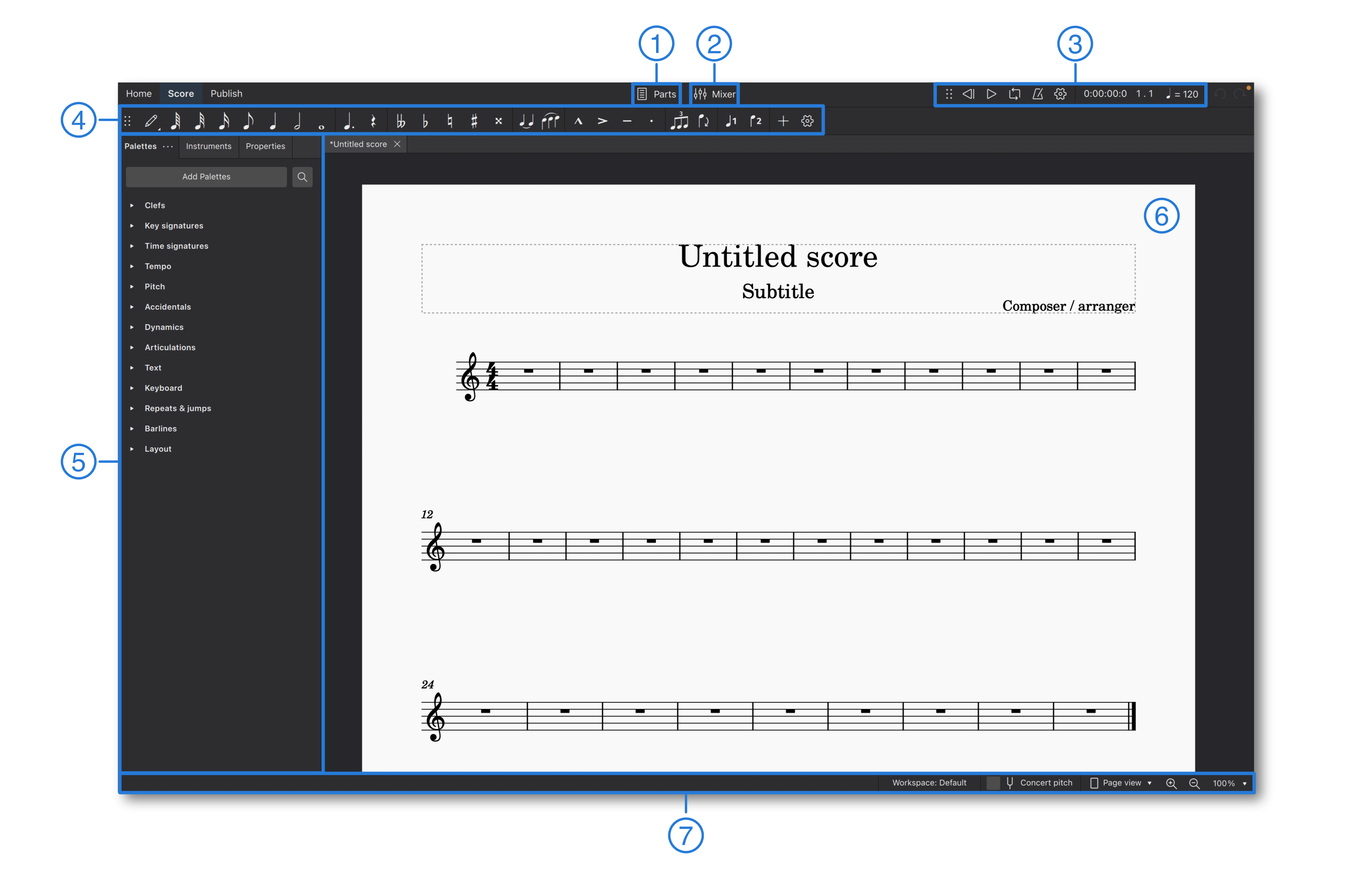
In diesem Bereich erledigen Sie den Großteil Ihrer Arbeit in MuseScore, darunter das Hinzufügen von Noten und das Anhören Ihrer Partitur. Der Arbeitsbereich besteht aus mehreren Bereichen (nummeriert gemäß der folgenden Abbildung):
Default arrangement of toolbars and panels in the Score tab
1. [Schaltfläche Auszüge](/de/basics/parts.md): Diese Schaltfläche befindet sich oben in der Mitte des Hauptfensters und öffnet den Dialogfeld **Auszüge**, in dem Sie Instrumentalstimmen erstellen, bearbeiten und löschen können.
2. [Schaltfläche Mischpult](/de/sound-and-playback/mixer.md): Die Schaltfläche rechts neben **Auszüge** öffnet und schließt das Fenster **Mischpult**, in dem Sie den Klang und die Lautstärke jedes Instruments einzeln steuern können.
3. [Wiedergabe-Symbolleiste](/de/sound-and-playback/playback-controls.md): Diese Symbolleiste befindet sich oben rechts und ermöglicht Ihnen die Wiedergabe, Pause, Zurückspulen und Schleifenwiedergabe. Mit der Maus können Sie den Bereich mit den sechs Punkten (⠿) ziehen, um diese Symbolleiste zu lösen und zusätzliche Optionen zum Suchen und Steuern des Wiedergabetempos anzuzeigen.
4. [Werkzeugleiste Noteneingabe](/de/basics/entering-notes-and-rests.md): Die Werkzeugleiste erstreckt sich über den oberen Rand des Programmfensters, direkt unterhalb der Schaltflächen "Auszüge" und "Mischpult" und enthält wichtige Notationselemente, die beim Schreiben von Partituren verwendet werden. Verwenden Sie sie, um die Notendauer festzulegen, Vorzeichen umzuschalten, allgemeine Artikulationen anzuwenden, Triolen einzugeben und zwischen Stimmen zu wechseln.
5. **Left sidebar**: The area on the left side of the program window contains various panels such as [Palettes](/de/basics/using-the-palettes.md), [Properties](/de/basics/properties-panel.md), and [Instruments](/de/notation/instruments-staves-and-systems/instruments-and-system-markings.md). These can be shown or hidden as desired, or undocked and dragged to the right sidebar; an equivalent area on the other side of the window.
6. **Partituransicht/Notationsansicht**: Dies ist der zentrale Bereich, in dem die aktuelle Partitur oder ein Auszug als Notenblatt angezeigt wird. Hier können Notationselemente hinzugefügt, bearbeitet und gelöscht werden.
7. **Statusleiste**: Diese befindet sich am unteren Rand des Fensters. Auf der linken Seite werden nützliche Informationen zu den in der Partitur ausgewählten Elementen angezeigt. Auf der rechten Seite befinden sich Steuerelemente zum Wechseln zwischen Arbeitsbereichen, zum Verwenden der klingenden Notation und zum Festlegen der Seitenanzeige und des Zoomfaktors (Vergrößerung).
Benutzer einer Tastatur können die `Tab`-Taste oder die Taste `F6` verwenden, um zwischen diesen Bereichen der Benutzeroberfläche zu navigieren. Innerhalb eines Bereiches erfolgt die Navigation mit den Pfeiltasten und der `Tab`-Taste.
Fast alle Bedienfelder und Symbolleisten können abgekoppelt und entsprechend Ihren Anforderungen und Arbeitsabläufen neu positioniert werden. Weitere Informationen hierzu finden Sie unter [Arbeitsplätze](/de/customization/workspaces.md).
### Publish tab
This tab allows you to view your score without the clutter of the note input toolbar or sidebar panels. There are options to print the score, and to export it in a variety of image, audio and document formats. When your score is finished, you can also publish it to [musescore.com](https://musescore.com/dashboard).
## Menu bar
{% hint style="info" %}
Throughout this handbook, you will come across instructions in the form \*\*Menu > Item\*\*. For example, \*\*File > Save\*\* is an instruction to open the \*\*File\*\* menu and select the \*\*Save\*\* item within that menu.
{% endhint %}
On macOS, MuseScore's menus are part of the system-wide menu bar located at the top of the screen. Keyboard users can press `Ctrl`+`F2` to reach this area, and then navigate with the arrow keys or letter keys (e.g. press `F` for **File**).
On Windows and Linux, the menu bar is located at the top of each application window. Keyboard users can reach the menus by pressing the `Alt` key, optionally followed by a letter or number key (e.g. press `Alt`+`F` for **File**, followed by `A` for **Save as**). The relevant letter or number is known as the *mnemonic access key*; it's underlined in the menu while `Alt` is held. Arrow keys also work for navigation in the menus.
Die Menüleiste von MuseScore enthält die folgenden Menüs:
### File
Über das Menü **Datei** können Sie neue Dateien erstellen, Dateien öffnen und speichern, verschiedene Formate importieren und exportieren, Instrumentenstimmen erstellen und bearbeiten sowie drucken.
### Edit
The **Edit** menu provides undo and redo options, copy/cut/paste options, and Find / Go to functionality.
### View
The **View** menu is used to show or hide various palettes, dialogs, and other workspace elements.
Items under the **Show** submenu adjusts display of non-printing elements:
* **Show invisible**: Show/hide elements depending on their [Properties panel: Invisible](/de/basics/properties-panel.md#visibility) setting. If this option is ticked, invisible elements are shown in the score window as light gray.
* **Show formatting**: Show/hide [Systems and horizontal spacing: System Breaks](/de/formatting/systems-and-horizontal-spacing.md) or [Pages and vertical spacing: Page Breaks](/de/formatting/pages-and-vertical-spacing.md) symbols.
* **Show frames**: Show/hide the dotted outlines of [Frames](/de/formatting/using-frames-for-additional-content.md).
* **Show page margins**: Show/hide [Score size and spacing: Page margins](/de/formatting/score-size-and-spacing.md).
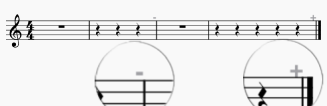
* **Show irregular measures**: A plus sign or minus sign at the top right of a measure indicates that its duration differs from that set by the time signature.
### Add
The **Add** menu is used to add different kinds of elements to the score, such as notes, text, measures, etc.
### Format
The **Format** menu is used to adjust global and local formatting of the score. It also allows you to stretch or contract the score, load and save score styles, and much more.
### Tools
The **Tools** menu offers commands to manipulate the score or selected regions of it, including transpose, exchange voices, toggle slash notation, etc.
### Plugins
The **Plugins** menu is used to run plugins. Plugins must be enabled before they will appear in this menu. Use the **Manage plugins** option to enable MuseScore's built-in plugins and any new plugins you have installed.
### Help
The **Help** menu provides access to this handbook, as well as options to check for updates or [restore factory settings](/de/support/revert-to-factory-settings.md). There's also an **Ask for help** option, which leads to a forum where you can ask questions or report bugs.
When posting on the forums, it's important to say which version of MuseScore Studio you are using. This can be found via **Help > About MuseScore Studio** on Windows and Linux, or via **MuseScore Studio > About** on macOS.
## Context menus
In certain parts of the application, primarily in the [Score tab](#score-tab), context menus are available with additional functionality, such as options to copy, edit, customise, delete, or view the properties of whichever item(s) were selected at the time you opened the menu.
To open the context menu for a particular item:
* Right-click on the item with the mouse, or
* Select the item with the keyboard and press `Shift`+`F10`.
* Some PC keyboards also have a dedicated `Menu` or `Copilot` key near to the right `Alt` key (`AltGr`). In Windows 11, you may need to press and release this key quickly to avoid activating Microsoft Copilot.
Outside the score, the presence of a context menu is often indicated by a small button with three dots (**⋮**) or a settings cog (**⛭**). Press the button to open the menu. If the button is associated with a nearby item (e.g. in the [Palettes](/de/basics/using-the-palettes.md)), you can also right-click on that item or use `Shift`+`F10`.
### Staff/Part/Measure properties
If you right-click on an empty region within a measure, the resulting context menu contains options for [**Staff/Part properties**](/de/notation/instruments-staves-and-systems/staff-part-properties.md) (used to rename a staff or replace its instrument) and [**Measure properties**](/de/notation/rhythm-meter-and-measures/measure-properties.md) (used to change measure numbering or create incomplete measures).
To access these options via the keyboard:
1. Select a note or rest in the relevant staff or measure.
2. Hold down the `Shift` key and press `Left` or `Right` to create a [range selection](/de/basics/selecting-elements.md#selecting-a-range-of-measures-and-staves).
3. Press `Shift`+`F10` (or the dedicated `Menu` key if your keyboard has one) to open the menu.
---
# Agent Instructions
This documentation is published with GitBook. GitBook is the documentation platform designed so that both humans and AI agents can read, navigate, and reason over technical content effectively. Learn more at gitbook.com.
## Querying This Documentation
If you need additional information that is not directly available in this page, you can query the documentation by asking a question.
Perform an HTTP GET request on the following URL with the `ask` and `goal` query parameters:
```
GET https://handbook.musescore.org/de/navigation/the-user-interface.md?ask=&goal=
```
`ask` is the immediate question: it should be specific, self-contained, and written in natural language.
`goal` is what the user is ultimately trying to achieve, the reason they need the answer. Sharing it helps GitBook give you a better, more relevant answer. A goal is most helpful when it describes the outcome the user wants rather than restating the question. For example, with `ask=how do I create an API token`, a goal like `automate deployments from our CI pipeline` lets GitBook tailor the answer to that use case.
The response will contain a direct answer to the question and relevant excerpts and sources from the documentation.
Use this mechanism when the answer is not explicitly present in the current page, you need clarification or additional context, or you want to retrieve related documentation sections.