> For the complete documentation index, see [llms.txt](https://handbook.musescore.org/llms.txt). Markdown versions of documentation pages are available by appending `.md` to page URLs; this page is available as [Markdown](https://handbook.musescore.org/de/navigation/navigating-your-score.md).
# Navigating your score
## Scrolling
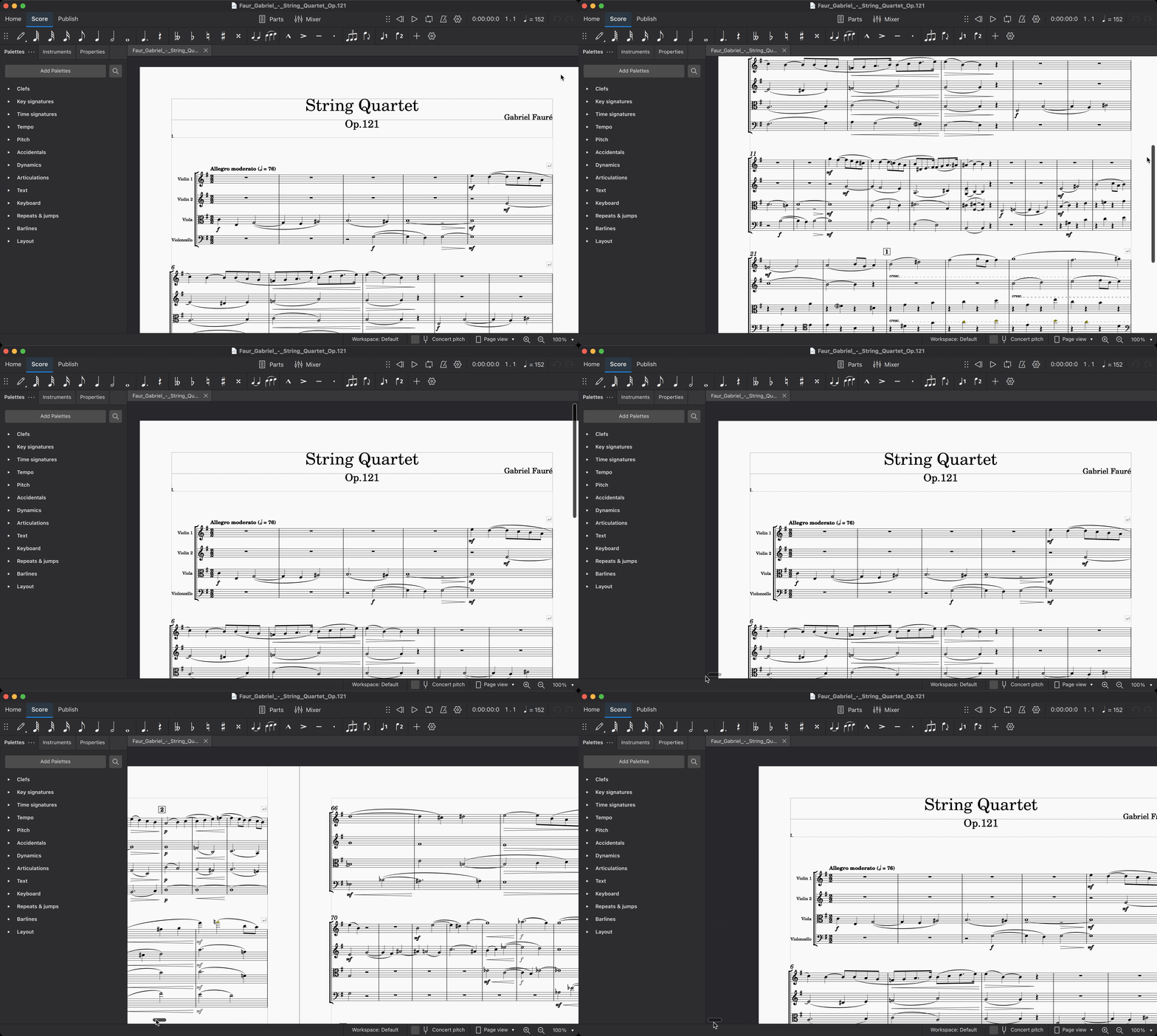
### Mouse wheel
* Use the scroll wheel to move the view up and down.
* Use `Shift` plus the scroll wheel to move the view left and right.
* Use `Ctrl` plus the scroll wheel to zoom in and out.
### Scrollbars
Scrollbars appear at the right-hand and bottom edges of the score view. Click and drag them to quickly move the score view up and down, or left and right. Scrollbars are usually hidden from view, but can be revealed by hovering over the edge of the score view with your mouse.
### Keyboard
You can also scroll the score using the `PgUp`, `PgDn`, `Home`, and `End` keys on your keyboard. If your keyboard lacks dedicated keys for these functions, most systems will also allow you to access these functions by holding `Fn` or a similar key, then pressing `Up`, `Down`, `Left`, or `Right` respectively.
By themselves, `PgUp` and `PgDn` scroll one screenful at a time. This may be less than an actual page of your score. If you hold `Ctrl` (Mac: `Cmd`) while pressing `PgUp` or `PgDn`, it moves a full page at a time.
## Element navigation
When a single element is selected in your score, it acts as a cursor. You can change the selection—and thus move the cursor—using common keyboard shortcuts.
The `Left` and `Right` keys will move horizontally through your score one chord or rest at a time. If you hold `Ctrl` (Mac: `Cmd`) while pressing `Left` or `Right`, you can navigate a full measure at a time.
To move the cursor vertically through the various notes, voices, and staves in your score, use the shortcuts `Alt`+`Up` and `Alt`+`Down` (Mac: `Option`+`Up` and `Option`+`Down`).
You can also use the shortcuts `Alt`+`Left` and `Alt`+`Right` (Mac: `Option`+`Left` and `Option`+`Right`) to select elements other than notes or rests. These commands allow you select almost any elements—including articulations, barlines, hairpins, and more—using the keyboard alone.
In addition, `Ctrl`+`Home` (Mac: `Cmd`+`Home`) will select the first element in your score, and `Ctrl`+`End` (Mac: `Cmd`+`End`) will select the last element. Again, for keyboards that lack dedicated `Home` and `End` keys, most systems provide the alternative of `Fn`+`Left` and `Fn`+`Right` respectively.
See [Default keyboard shortcuts](/de/basics/default-keyboard-shortcuts.md) to learn more.
## Navigator
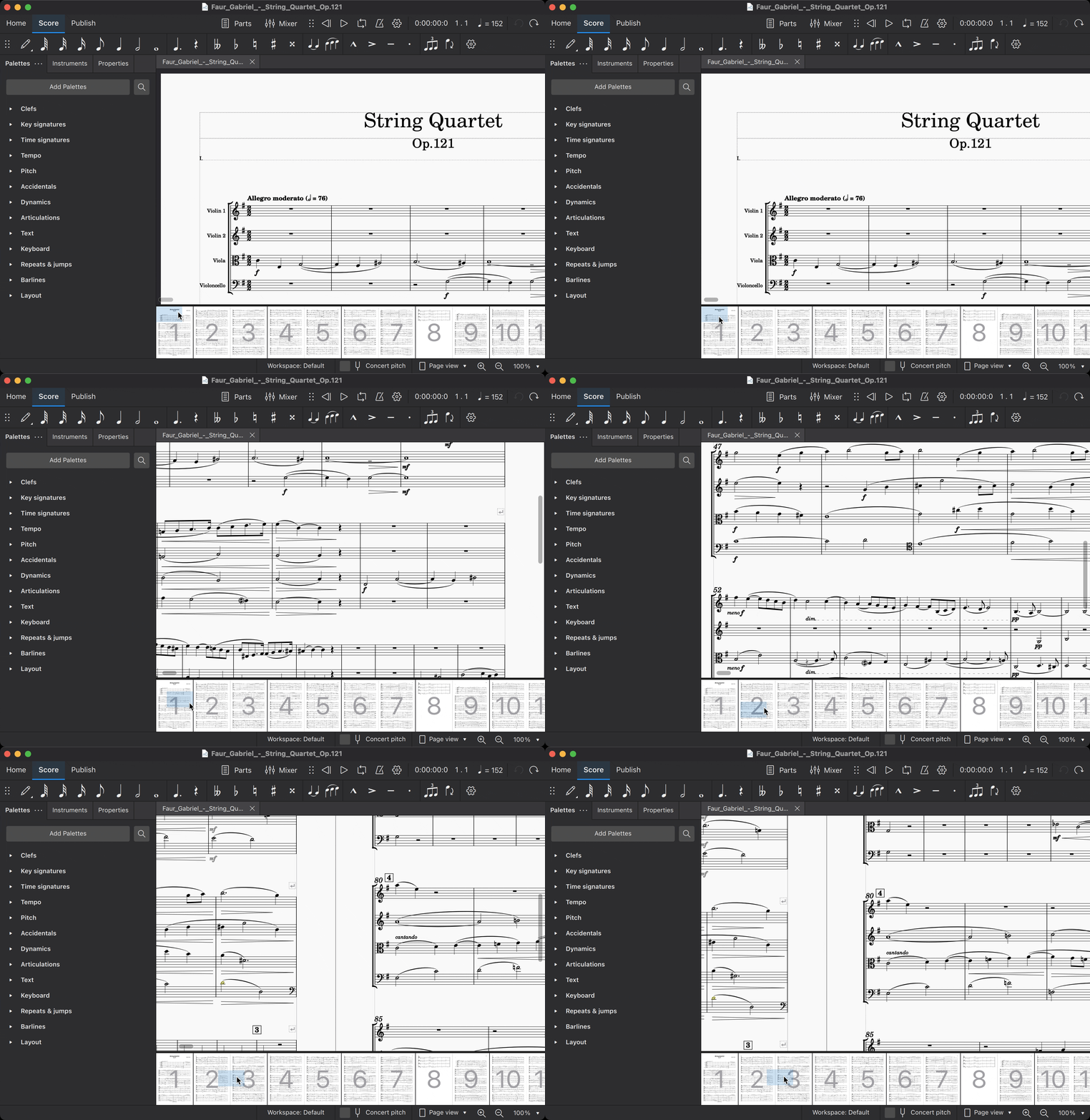
The Navigator is a panel that displays thumbnails of score pages. To view or hide the Navigator, click **View** → **Navigator**.
The blue bounding box represents the area of the score currently in focus in the score view. Click on the box and drag it to move around your score.
## Timeline
A navigation aid that shows instruments and score structure. For details, see [Timeline](/de/navigation/timeline.md).
## Views
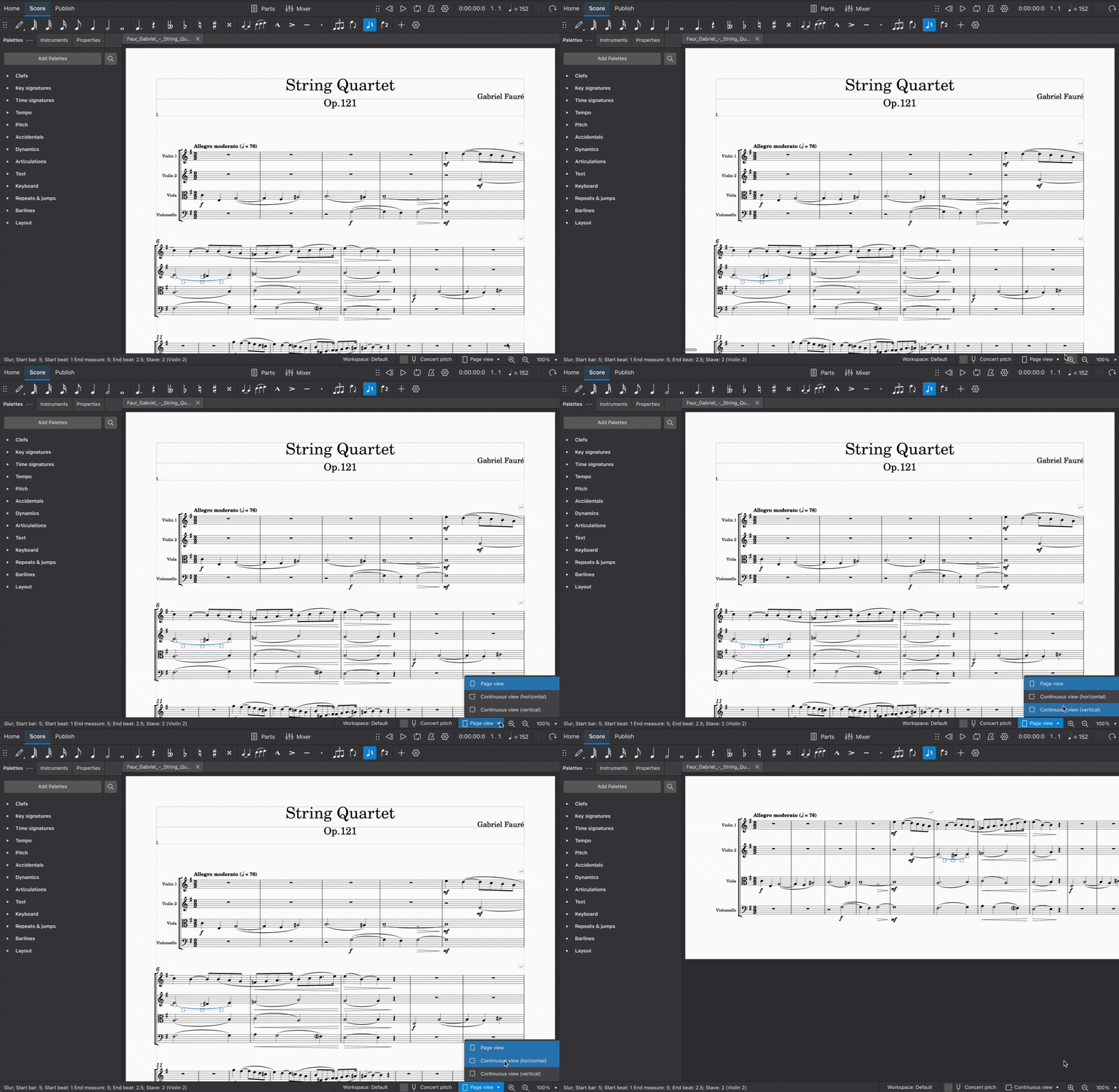
You can switch between different views of the score using the pop-up in the right-hand side of the status bar.
### Page view
The score is shown as it will appear when printed or exported as a PDF or image file: that is, page by page, with margins. MuseScore applies system (line) and page breaks automatically, according to the settings made in Page settings and Style. In addition, you can apply your own system (line), page or section breaks.
### Continuous view (horizontal)
The score is shown as one unbroken system. Even if the starting point is not in view, measure numbers, instrument names, clefs, time and key signatures will always be displayed on the left of the window.
### Continuous view (vertical)
The score is shown as a single page with a header but no margins, and with an infinite page height. System (line) breaks are added automatically, according to the settings made in Page settings and Style. In addition, you can apply your own system (line) or section breaks.
## Zoom
There are several ways to zoom the score in or out:
### Zoom in
`Ctrl`+`+` (Mac: `Cmd`+`+`)\
or scroll **up** with the mouse scroll wheel while holding `Ctrl` (Mac: `Cmd`).
### Zoom out
`Ctrl`+`-` (Mac: `Cmd`+`-`)\
or scroll **down** with the mouse scroll wheel while holding `Ctrl` (Mac: `Cmd`).
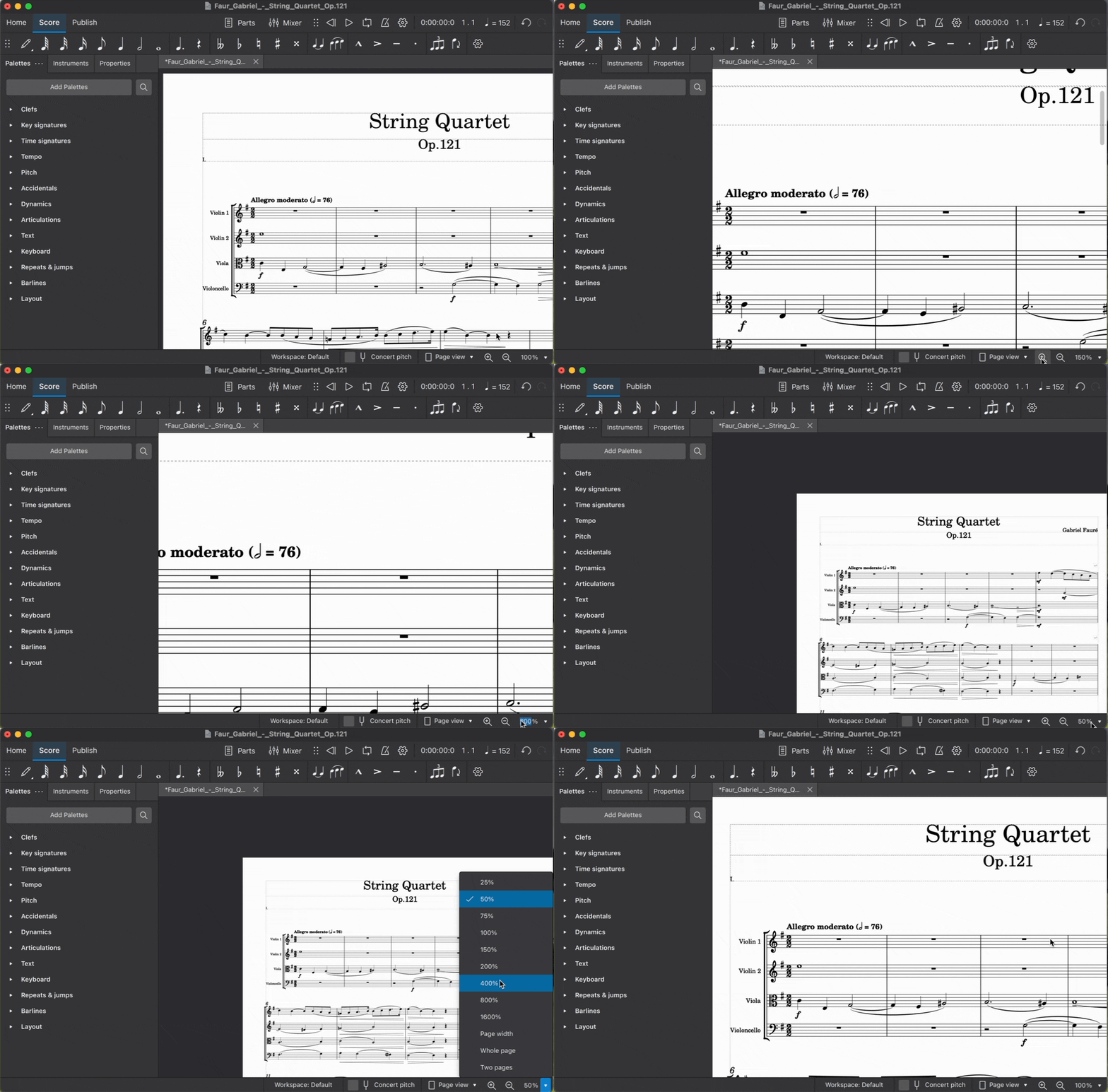
### Status bar zoom controls
To zoom in and out of your score from the **Status bar** controls:
* Click on the magnifying glass icons in the right-hand area of the status bar
* Click the number field to the right of these icons, then type a custom zoom level
* Choose from one of the preset zoom levels in the pop-up list on the extreme right
### Restoring 100% zoom
This restores the zoom to the default (100%) level.
`Ctrl`+`0` (Mac: `Cmd`+`0`)
## Find/Go to
The **Find**/**Go to** panel allows you to speedily navigate to a specific measure, rehearsal mark or page number in the score.
To show the panel:
* Go to **Edit** → **Find**, or
* Press `Ctrl`+`F` (Mac: `Cmd`+`F`).
To hide the panel:
* Click the **X** (close) button on the left side of the panel, or
* Press `Esc` while the panel has focus.
#### Navigating to a numbered measure
Enter the measure number (counting every measure, starting with 1, irrespective of pickup measures, section breaks or manual changes to measure number offsets).
#### Navigating to a numbered page
Enter the page number using the format **pXX** (where **XX** is the page number).
#### Navigating to a numerical rehearsal mark
Enter the number using the format **rXX** (where **XX** is the number of the rehearsal mark).
#### Navigating to an alphabetic rehearsal mark
Enter the name of the rehearsal mark (the search is *not* case sensitive).
**Pro tip!** It is best to avoid naming rehearsal marks with the single letters “R", “r", “P”, “p", or one of these letters with an integer (e.g. “R1” or “p3”), as this can confuse the search algorithm.
---
# Agent Instructions
This documentation is published with GitBook. GitBook is the documentation platform designed so that both humans and AI agents can read, navigate, and reason over technical content effectively. Learn more at gitbook.com.
## Querying This Documentation
If you need additional information that is not directly available in this page, you can query the documentation by asking a question.
Perform an HTTP GET request on the following URL with the `ask` and `goal` query parameters:
```
GET https://handbook.musescore.org/de/navigation/navigating-your-score.md?ask=&goal=
```
`ask` is the immediate question: it should be specific, self-contained, and written in natural language.
`goal` is what the user is ultimately trying to achieve, the reason they need the answer. Sharing it helps GitBook give you a better, more relevant answer. A goal is most helpful when it describes the outcome the user wants rather than restating the question. For example, with `ask=how do I create an API token`, a goal like `automate deployments from our CI pipeline` lets GitBook tailor the answer to that use case.
The response will contain a direct answer to the question and relevant excerpts and sources from the documentation.
Use this mechanism when the answer is not explicitly present in the current page, you need clarification or additional context, or you want to retrieve related documentation sections.